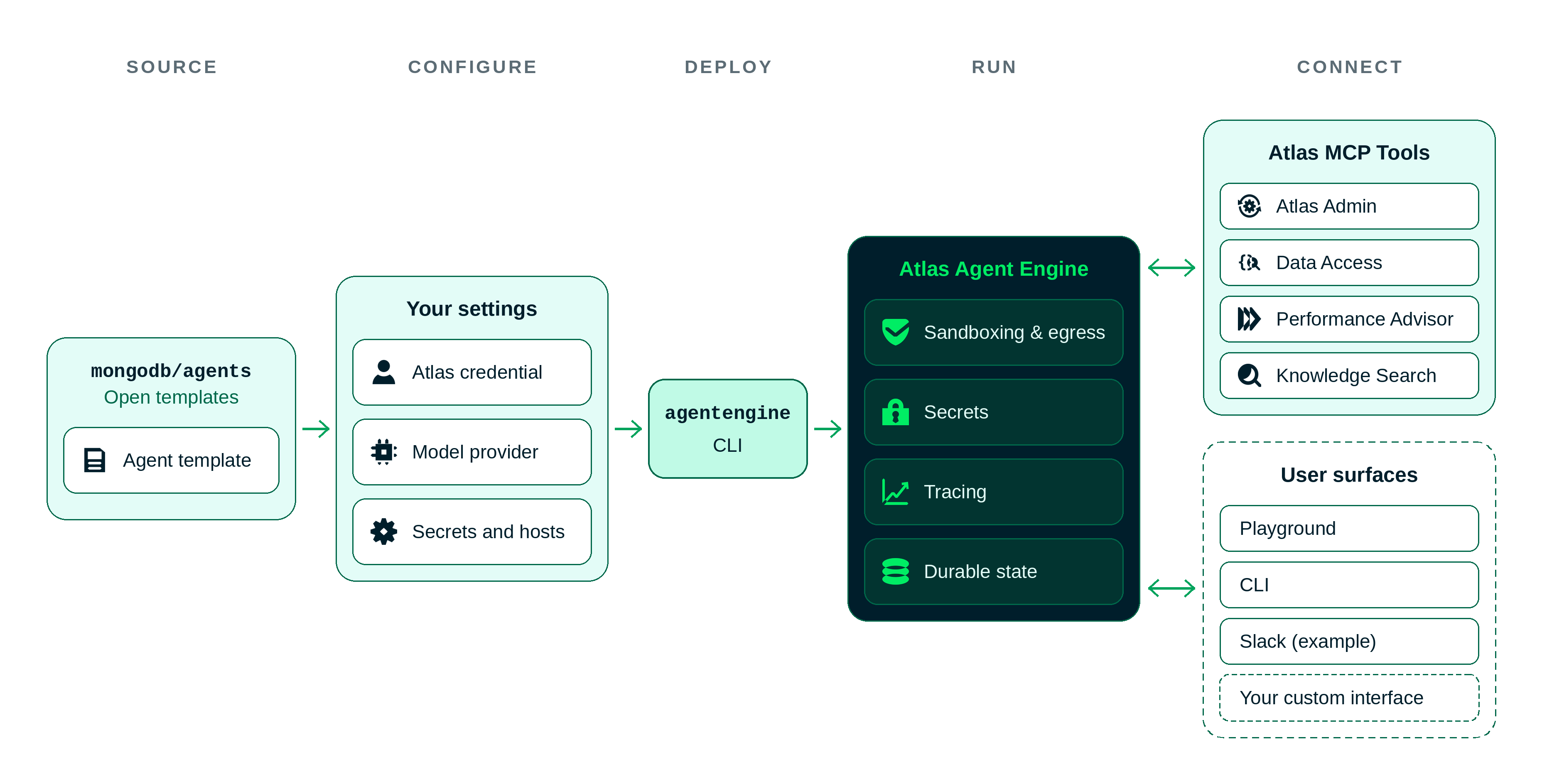
MongoDB Agent Templates are prebuilt starting points for building agents that work with MongoDB and MongoDB Atlas. You can run each template locally and deploy it to the MongoDB Atlas Agent Engine.
Each template includes its own setup and deployment instructions in the MongoDB agents repository. Clone the repository at the root level to access the templates and run your commands from the template's directory.
Note
MongoDB Atlas Agent Engine is in Public Preview. Review the Agent Engine limitations before you deploy an agent against a production workload.
Available Templates
The MongoDB agents repository includes the following templates:
Template | Description |
|---|---|
A conversational agent for exploring MongoDB data and answering questions about your MongoDB Atlas environment. MongoDB Atlas Explorer uses MongoDB Atlas Managed Model Context Protocol (MCP) tools and the MongoDB Agent Skills bundle. It is read-only by default. | |
A read-only agent that uses the MongoDB Atlas Performance Advisor to find slow queries and explain the highest-impact query shapes. MongoDB Atlas Query Insights uses MongoDB Atlas Managed MCP tools and MongoDB Agent Skills for query optimization, schema design, search, querying, and connections. |
MongoDB Atlas Explorer Slack Bot
You can also talk to MongoDB Atlas Explorer from Slack with a self-hosted bot. Every user on the bot's allowlist shares one Atlas identity instead of using its own Atlas permissions. To learn how to run the MongoDB Atlas Explorer bot locally or deploy it to Vercel, see the MongoDB Atlas Explorer Slack bot README.
Prerequisites
Before you use the MongoDB Agent Templates, you need the following prerequisites:
Node.js 24 or later.
pnpm.
Atlas CLI 1.58 or later.
The
agentengineCLI. To learn how to install the CLI, see Install and Authenticate in the MongoDB Atlas Agent Engine documentation.A MongoDB Atlas project that contains the data you want the agent to explore.
An API key for your large language model (LLM) provider. By default, the templates use OpenAI.
Configure Credentials and Access
MongoDB Agent Templates connect to your MongoDB Atlas project through a project-level MongoDB MCP configuration. To configure access, use the following steps:
Create a project-level MCP configuration in MongoDB Atlas with the Atlas CLI.
Run the following command to create a project-level MCP configuration. Use the
--groupIdoption to specify your project ID and the--fileoption to specify the path to your request file.atlas api remoteMcpConfigurations createGroupMcpConfig --groupId <your-group-id> --file <your-request-file-path> Assign the least-privilege MongoDB Atlas roles that the agent needs, such as
GROUP_DATA_ACCESS_READ_ONLY.In the MCP configuration file, add your local public IP address and the IP addresses of MongoDB Atlas Agent Engine. The two addresses
34.196.57.85and54.227.181.25are the Atlas Agent Engine IP addresses. ReplaceYOUR_LOCAL_PUBLIC_IPwith your own address and keep both Atlas Agent Engine addresses so that deployed agents can connect. The following example shows a sample request file:{ "mcpConfigName": "{template-name-environment}", "roles": [ "GROUP_DATA_ACCESS_READ_ONLY" ], "ipAccessList": [ { "ipAddress": "YOUR_LOCAL_PUBLIC_IP" }, { "ipAddress": "34.196.57.85" }, { "ipAddress": "54.227.181.25" } ] }
Create a client secret for the MCP configuration. The secret inherits the roles of the configuration.
Run the following command to create a client secret. Use the
--groupIdoption to specify your project ID, the--mcpConfigIdoption to specify the ID of your MCP configuration, and the--fileoption to specify the path to your secret metadata file.atlas api remoteMcpConfigurations createGroupMcpSecret --groupId <your-group-id> --mcpConfigId <your-mcp-id> --file <your-metadata-file-path> In the metadata file, set the secret expiration time. The following example shows a secret metadata file that expires after 8760 hours (one year):
{ "secretExpiresAfterHours": 8760 } Copy and save the client secret immediately. The command returns the client secret only once.
Store the client ID, client secret, and your LLM provider API key.
For local development, store them in a
.envfile. For a deployed agent, store them in the Atlas Agent Engine secret store with theagentengine secret setcommand.
Create a separate MCP configuration and secret for each environment, such as local development, staging, and production. Do not share credentials across environments.
Important
The ipAccessList field limits the IP addresses that can use the MCP configuration. Use a different IP address allow list for each environment, and include only the addresses that each environment needs.
Everyone who uses the agent shares the same MongoDB Atlas access, because the client secret inherits the roles of the MCP configuration. Therefore, grant only the MongoDB Atlas roles that every user of the agent needs.
For each template's complete commands and configuration files, see the MongoDB Agent Templates README. To learn more about storing secrets in Atlas Agent Engine, see Provision Secrets in the MongoDB Atlas Agent Engine documentation.
Run and Deploy a Template
After you configure credentials for an agent, run the template locally to test it, then deploy it to MongoDB Atlas Agent Engine.
Run a Template
To run a template locally, run the following command from the template's directory in the MongoDB agents repository:
agentengine dev up
To learn more about how to run the template, see the template directory's README.
Deploy a Template
To deploy a template, run the following command from the template's directory in the MongoDB agents repository:
agentengine deploy --auto
To learn more about how to deploy an agent, see Deploy a Build in the MongoDB Atlas Agent Engine documentation.
Security and Data
The following list contains security and data considerations for the MongoDB Agent Templates:
Read-only by default. MongoDB Atlas Explorer writes to MongoDB Atlas only if you grant its MCP configuration write roles and set the
ALLOW_WRITE_OPERATIONSenvironment variable totrue. Every write pauses for human approval. MongoDB Atlas Query Insights can't write to MongoDB Atlas.Traces and conversations include your data. MongoDB Atlas Agent Engine stores each trace and conversation in your project. Traces and conversations might include database, collection, and field names, and documents the agent reads. Only people with access to your project can see them. You are responsible for governing your data. To learn more, see Inspect Traces in the MongoDB Atlas Agent Engine documentation.
Your LLM provider sees prompts and tool results. This includes query results the agent reads. Choose an LLM provider whose data handling policies fulfill your organization's data policy.
No shell access. The agents can't run shell commands in their sandbox.
You host any Slack bot. The Slack bot is an example, not a managed service. You host, secure, and maintain it yourself.
Roll Back or Shut Down
You own your deployment and data. If you find a defect or a security problem in your agent, use the following steps to roll back or shut down the agent:
Stop anything that calls the agent, such as the Slack bot or scheduled jobs. You can also pause the agent in MongoDB Atlas Agent Engine.
Delete the MCP client secret in MongoDB Atlas.
Create a new client secret and update the secrets in Atlas Agent Engine.
Redeploy the last secure build with the
agentengine deploy --build-id <build-id>command.Use the
agentengine invokecommand to confirm the agent works, then restart the callers you stopped.
Limitations
MongoDB Agent Templates have the following limitations:
The templates require MongoDB Atlas. They don't support MongoDB Enterprise Advanced, on-premises deployments, or MongoDB Atlas for Government.
Official deployment workflows only support MongoDB Atlas Agent Engine. Self-hosted runtimes are not supported.
The agents don't track changes to your MongoDB Atlas environment over time.
Each MCP configuration has an hourly capacity limit. A MongoDB Atlas service account can have a maximum of 100 active access tokens, and each token lasts one hour. Every workspace and client that uses the same MCP configuration shares that limit. MongoDB Atlas Agent Engine creates two tokens each time a conversation starts, or resumes after the idle timeout. Follow-up messages within that window reuse the session's processes and create no tokens. This allows 40 to 50 new or resumed conversations per hour. When the agent reaches the token limit, new conversations fail until older tokens expire, which takes up to one hour. For details, see access token limits in the MongoDB agents repository.
Each template also has individual limitations that this list does not cover. For the most up-to-date limitation information, see the MongoDB agents repository.
Learn More
To learn more about agents that work with MongoDB, see the following resources: