MongoDB Atlasと LgGraph.js を統合して、 AIエージェントを構築できます。このチュートリアルでは、LgGraph.js とMongoDB ベクトル検索を使用してデータに関する質問に答えることができるエージェントを構築する方法を説明します。
具体的には、次のアクションを実行します。
環境を設定します。
MongoDBクラスターを構成します。
エージェントツールを含むエージェントをビルドします。
エージェントにメモリを追加します。
サーバーを作成し、エージェントをテストします。
前提条件
始める前に、以下のものを必ず用意してください。
次のいずれかのMongoDBクラスター タイプ
MongoDB バージョン 6.0.11 を実行している Atlas クラスター、7.0.2以降。IP アドレスが Atlas プロジェクトのアクセスリストに含まれていることを確認します。
Python と Docker を使用して作成されたローカル Atlas 配置。
atlas-local-lib-py(pip install atlas-local-lib-py) をインストールして、ローカル配置をプログラムで作成および管理します。詳細については、atlas-local-lib-py リポジトリを参照してください。A MongoDB Community cluster with Search and Vector Search installed.
npmとNode.jsがインストールされました。
A Voyage AI API key. To create an API key, see Manage Voyage AI Model API Keys.
OpenAI APIキー。APIリクエストに使用できるクレジットを持つ OpenAI アカウントが必要です。OpenAI アカウントの登録の詳細については、OpenAI APIウェブサイト を参照してください。
注意
このチュートリアルでは OpenAI と Vyage AIのモデルを使用していますが、コードを変更して、お好みのモデルを使用することができます。
環境設定
環境を設定するには、以下の手順を完了します。
プロジェクトを初期化し、依存関係をインストールします。
新しいプロジェクトディレクトリを作成し、プロジェクト内で次のコマンドを実行して必要な依存関係をインストールします。
npm init -y npm i -D typescript ts-node @types/express @types/node npx tsc --init npm i langchain @langchain/langgraph @langchain/mongodb @langchain/community @langchain/langgraph-checkpoint-mongodb dotenv express mongodb zod
注意
プロジェクトでは、次の構造を使用します。
├── .env ├── index.ts ├── agent.ts ├── seed-database.ts ├── package.json ├── tsconfig.json
環境ファイルを作成します。
プロジェクトルートに .envファイルを作成し、 APIキーと接続文字列を追加します。
OPENAI_API_KEY = "<openai-api-key>" MONGODB_URI = "<connection-string>" VOYAGEAI_API_KEY = "<voyage-api-key>"
<connection-string> を Atlas クラスターまたはローカル Atlas 配置の接続文字列に置き換えます。
接続stringには、次の形式を使用する必要があります。
mongodb+srv://<db_username>:<db_password>@<clusterName>.<hostname>.mongodb.net
重要:接続文字列にデータベースユーザーの認証情報が含まれていることを確認します。接続文字列の検索方法の詳細については、クライアント ライブラリ経由でクラスターに接続する を参照してください。
接続stringには、次の形式を使用する必要があります。
mongodb://localhost:<port-number>/?directConnection=true
「接続文字列」を参照してください。
MongoDBクラスターを構成する
このセクションでは、サンプルデータを構成してMongoDBクラスターに取り込み、データに対してベクトル検索を有効にします。
MongoDB .に接続するためのファイルを作成します。
MongoDBクラスターへの接続を確立する index.tsファイルを作成します。
import { MongoClient } from "mongodb"; import 'dotenv/config'; const client = new MongoClient(process.env.MONGODB_URI as string); async function startServer() { try { await client.connect(); await client.db("admin").command({ ping: 1 }); console.log("Pinged your deployment. You successfully connected to MongoDB!"); // ... rest of the server setup } catch (error) { console.error("Error connecting to MongoDB:", error); process.exit(1); } } startServer();
サンプルデータをクラスターに投入します。
サンプルの従業員レコードを生成して格納するseed-database.tsスクリプトを作成してください。このスクリプトは、次のアクションを実行します。
従業員レコードのスキーマを定義します。
LM を使用してサンプル従業員データを生成する関数を作成します。
各レコードを処理して、埋め込みに使用するテキストのサマリーを作成します。
LgChuin MongoDB統合を使用して、 MongoDBクラスターをベクトルストアとして初期化します。このコンポーネントはベクトル埋め込みを生成し、ドキュメントを
hr_database.employees名前空間に保存します。
シードスクリプトを実行します。
npx ts-node seed-database.ts
Pinged your deployment. You successfully connected to MongoDB! Generating synthetic data... Successfully added database record: { acknowledged: true, insertedId: new ObjectId('685d89d966545cfb242790f0') } Successfully added database record: { acknowledged: true, insertedId: new ObjectId('685d89d966545cfb242790f1') } Successfully added database record: { acknowledged: true, insertedId: new ObjectId('685d89da66545cfb242790f2') } Successfully added database record: { acknowledged: true, insertedId: new ObjectId('685d89da66545cfb242790f3') }
Tip
スクリプトを実行中後、Atlas UIの hr_database.employees名前空間に移動すると、 MongoDBクラスター内のシード データを表示できます。
MongoDB ベクトル検索インデックスを作成します。
Follow the steps to create a MongoDB Vector Search index for the hr_database.employees namespace. Name the index vector_index and specify the following index definition:
{ "fields": [ { "numDimensions": 1024, "path": "embedding", "similarity": "cosine", "type": "vector" } ] }
エージェントをビルドする
このセクションでは、エージェントのワークフローをオーケストレーションするためのグラフを構築します。グラフは、エージェントがクエリに応答するための手順の順序を定義します。
agent.tsファイルを作成します。
プロジェクトに agent.ts という名前の新しいファイルを作成し、次のコードを追加してエージェントの設定を開始してください。次の手順では、非同期関数にさらにコードを追加されます。
import { ChatOpenAI } from "@langchain/openai"; import { AIMessage, BaseMessage, HumanMessage } from "@langchain/core/messages"; import { ChatPromptTemplate, MessagesPlaceholder } from "@langchain/core/prompts"; import { StateGraph } from "@langchain/langgraph"; import { Annotation } from "@langchain/langgraph"; import { tool } from "@langchain/core/tools"; import { ToolNode } from "@langchain/langgraph/prebuilt"; import { MongoDBSaver } from "@langchain/langgraph-checkpoint-mongodb"; import { MongoDBAtlasVectorSearch } from "@langchain/mongodb"; import { MongoClient } from "mongodb"; import { z } from "zod"; import "dotenv/config"; export async function callAgent(client: MongoClient, query: string, thread_id: string) { // Define the MongoDB database and collection const dbName = "hr_database"; const db = client.db(dbName); const collection = db.collection("employees"); // ... (Add rest of code here) }
エージェントの状態を定義します。
グラフの状態を定義するには、ファイルに次のコードを追加します。
const GraphState = Annotation.Root({ messages: Annotation<BaseMessage[]>({ reducer: (x, y) => x.concat(y), }), });
状態は、エージェントのワークフローを通過するデータ構造を定義します。ここでは、 状態は、新しいメッセージを既存の対話履歴に連結する削減値を使用して、対話メッセージを追跡します。
ツールを定義します。
次のコードを追加して、 MongoDB ベクトル検索を使用してベクトルストアをクエリして関連する従業員情報を検索するツールとツールノードを定義します。
const executeQuery = async (embedding:[], n: number) => { try { const client = new MongoClient(process.env.MONGODB_URI as string); const database = client.db("hr_database"); const coll = database.collection("employees"); const agg = [ { '$vectorSearch': { 'index': 'vector_index', 'path': 'embedding', 'queryVector': embedding, 'numCandidates': 150, 'limit': n } }, { '$project': { '_id': 0, 'pageContent': 1, 'score': { '$meta': 'vectorSearchScore' } } } ]; const result = await coll.aggregate(agg).toArray(); return result } catch(error) { console.log("Error while querying:", error) } } const fetchEmbeddings = async (query: string) => { const apiUrl = "https://ai.mongodb.com/v1/embeddings"; const apiKey = process.env.VOYAGEAI_API_KEY; const requestBody = { input: query, model: "voyage-3.5", }; try { const response = await fetch(apiUrl, { method: "POST", headers: { Authorization: `Bearer ${apiKey}`, "Content-Type": "application/json", }, body: JSON.stringify(requestBody), }); if (!response.ok) { throw new Error(`Error: ${response.status} ${response.statusText}`); } const data = await response.json(); return data.data[0].embedding; } catch (error) { console.error("Error while fetching embedding:", error); } }; const employeeLookupTool = tool( async ({ query, n = 10 }) => { console.log("Employee lookup tool called"); const embedding = await fetchEmbeddings(query) const response = await executeQuery(embedding, n) const result = JSON.stringify(response) return result; }, { name: "employee_lookup", description: "Gathers employee details from the HR database", schema: z.object({ query: z.string().describe("The search query"), n: z.number().optional().default(10).describe("Number of results to return"), }), } ); const tools = [employeeLookupTool]; const toolNode = new ToolNode<typeof GraphState.State>(tools);
追加の関数を定義します。
次のコードを追加して、エージェントがメッセージを処理し、通信を継続するかどうかを判断するために使用する関数を定義します。
この関数は、エージェントがLM を使用する方法を構成します。
システム指示とやり取り履歴を含むプロンプト テンプレートを作成します。
現在の時刻、使用可能なツール、メッセージを含むプロンプトの形式を設定します。
LLM を呼び出して、次の応答を生成します。
会話状態に追加するモデルの応答を返します。
async function callModel(state: typeof GraphState.State) { const prompt = ChatPromptTemplate.fromMessages([ [ "system", `You are a helpful AI assistant, collaborating with other assistants. Use the provided tools to progress towards answering the question. If you are unable to fully answer, that's OK, another assistant with different tools will help where you left off. Execute what you can to make progress. If you or any of the other assistants have the final answer or deliverable, prefix your response with FINAL ANSWER so the team knows to stop. You have access to the following tools: {tool_names}.\n{system_message}\nCurrent time: {time}.`, ], new MessagesPlaceholder("messages"), ]); const formattedPrompt = await prompt.formatMessages({ system_message: "You are helpful HR Chatbot Agent.", time: new Date().toISOString(), tool_names: tools.map((tool) => tool.name).join(", "), messages: state.messages, }); const result = await model.invoke(formattedPrompt); return { messages: [result] }; } この関数は、エージェントが会話を続けるべきか、終了するべきかを決定します。
メッセージにツール呼び出しが含まれている場合、フローをツールノードにルーティングします。
それ以外の場合は、対話を終了し、最終応答を返します。
function shouldContinue(state: typeof GraphState.State) { const messages = state.messages; const lastMessage = messages[messages.length - 1] as AIMessage; if (lastMessage.tool_calls?.length) { return "tools"; } return "__end__"; }
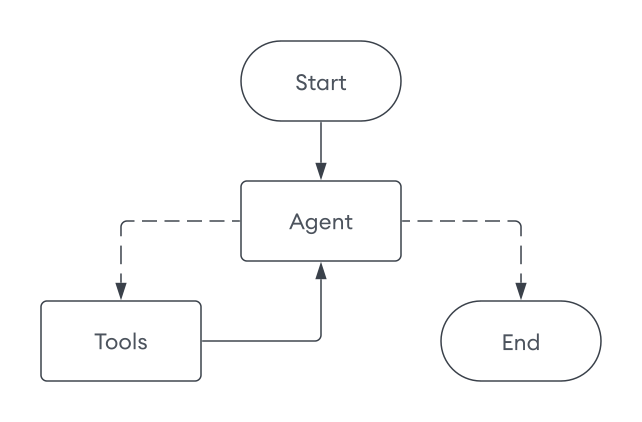
エージェントのワークフローを定義します。
以下のコードを追加して、エージェントがクエリに応答するための一連のステップを定義します。
const workflow = new StateGraph(GraphState) .addNode("agent", callModel) .addNode("tools", toolNode) .addEdge("__start__", "agent") .addConditionalEdges("agent", shouldContinue) .addEdge("tools", "agent");
具体的に言うと、エージェントは以下の手順を実行します。
エージェントは、ユーザーのクエリを受け取ります。
エージェントノードでは、エージェントがクエリを処理し、ツールを使用するか、会話を終了するかを決定します。
ツールが必要な場合、エージェントはツールノードにルーティングし、選択されたツールを実行します。ツールの結果はエージェントノードに返送されます。
エージェントはツールの出力を解釈し、応答を形成するか、次のアクションを決定します。
エージェントがこれ以上の処理は不要であると判断するまでこれが続きます(
shouldContinue関数がendを返すとき)。
エージェントにメモリを追加します
MongoDB チェックポインターを使用することで、エージェントの状態を永続化し、パフォーマンスを向上させることができます。永続性により、エージェントは以前のインタラクションに関する情報を保存できます。エージェントはこれを今後のインタラクションで使用し、より文脈的に関連性の高い応答を提供できます。
エージェント機能を完了します。
最後に、次のコードを追加して、クエリを処理するエージェント関数を完了します。
const finalState = await app.invoke( { messages: [new HumanMessage(query)], }, { recursionLimit: 15, configurable: { thread_id: thread_id } } ); console.log(finalState.messages[finalState.messages.length - 1].content); return finalState.messages[finalState.messages.length - 1].content;
サーバーを作成してエージェントをテストします
このセクションでは、エージェントと交流し、その機能をテストするためのサーバーを作成します。
Express.jsサーバーを構成します。
index.ts ファイルを次のコードで置き換えてください。
import 'dotenv/config'; import express, { Express, Request, Response } from "express"; import { MongoClient } from "mongodb"; import { callAgent } from './agent'; const app: Express = express(); app.use(express.json()); const client = new MongoClient(process.env.MONGODB_URI as string); async function startServer() { try { await client.connect(); await client.db("admin").command({ ping: 1 }); console.log("Pinged your deployment. You successfully connected to MongoDB!"); app.get('/', (req: Request, res: Response) => { res.send('LangGraph Agent Server'); }); app.post('/chat', async (req: Request, res: Response) => { const initialMessage = req.body.message; const threadId = Date.now().toString(); try { const response = await callAgent(client, initialMessage, threadId); res.json({ threadId, response }); } catch (error) { console.error('Error starting conversation:', error); res.status(500).json({ error: 'Internal server error' }); } }); app.post('/chat/:threadId', async (req: Request, res: Response) => { const { threadId } = req.params; const { message } = req.body; try { const response = await callAgent(client, message, threadId); res.json({ response }); } catch (error) { console.error('Error in chat:', error); res.status(500).json({ error: 'Internal server error' }); } }); const PORT = process.env.PORT || 3000; app.listen(PORT, () => { console.log(`Server running on port ${PORT}`); }); } catch (error) { console.error('Error connecting to MongoDB:', error); process.exit(1); } } startServer();
エージェントをテストします。
エージェントとやり取りするためのサンプルリクエストを送信してください。使用するデータとモデルによって、応答内容は異なります。
注意
リクエストはJSON形式で応答を返します。サーバーが稼働しているターミナルで、プレーンテキストの出力を表示することもできます。
curl -X POST -H "Content-Type: application/json" -d '{"message": "Build a team to make a web app based on the employee data."}' http://localhost:3000/chat
前の応答で返されたスレッド ID を使用して、会話を続行することができます。例えば、フォローアップの質問をするには、次のコマンドを使用してください。<threadId> を前の応答で返されたスレッド ID に置き換えてください。
curl -X POST -H "Content-Type: application/json" -d '{"message": "Who should lead this project?"}' http://localhost:3000/chat/<threadId>