Overview
本指南演示了如何使用 TanStack Start 和MongoDB构建现代 Web应用程序。TanStack Start 是一个全栈框架,它使用React和来自 TanStack生态系统的“TanStack Router”和“TanStack Query”等流行库集成了前端和后端开发。
本教程中的应用程序由以下各层组成:
数据库层: MongoDB存储和检索数据。
服务器层:TanStack Start 提供将前端连接到 MongoDB 数据库的 API 终结点和逻辑。
数据管理层:TanStack Query 管理前端的服务器端状态,统一数据获取、加载状态和错误处理的逻辑。
表示层: React使用 TanStack 查询数据来实现用户界面。
为何在 TanStack Start 应用程序中使用MongoDB ?
MongoDB 的文档模型将数据存储为类似JSON 的文档,因此可以轻松使用JavaScript对象,而无需复杂的映射。这与 TanStack Start 的React组件和 TypeScript 接口保持一致。
TanStack Query 通过缓存MongoDB响应、管理加载状态和跨组件同步数据,有效地处理数据层。这样就消除了手动状态管理并减少了冗余数据库调用。
这种组合非常适合需要以下功能的应用程序:
可随时间演变的灵活数据结构
使用最少的客户端代码进行实时数据更新
从数据库到用户界面的类型安全
高效缓存和背景数据同步
快速入门教程
本教程将引导您构建与MongoDB集成的 TanStack Start应用程序。该应用程序访问示例餐厅数据并在本地托管站点上显示结果。其中包括有关连接MongoDB Atlas上托管的MongoDB 集群以及访问和显示数据库信息的说明。
提示
如果您希望使用 Node.js驱动程序而不使用 TanStack Start 连接到MongoDB ,请参阅 Node.js驱动程序入门指南。
设置您的项目
按照本节中的步骤安装项目依赖项、创建Atlas 集群并设立应用程序目录。
验证先决条件
要创建快速入门应用程序,请确保您已安装以下软件:
先决条件 | 注意 |
|---|---|
使用 20 或更高版本。 | |
代码编辑器 | 本教程使用Visual Studio Code,但你也可以使用自己选择的编辑器。 |
终端 | 对于 MacOS 用户,请使用 终端 或类似应用。对于Windows用户,请使用 PowerShell。 |
创建 MongoDB Atlas 集群
MongoDB Atlas是一项完全托管云数据库服务,用于托管MongoDB部署。如果您没有 MongoDB 部署,请通过完成MongoDB 入门教程,创建一个免费集群(无需信用卡)。MongoDB入门教程还演示了如何将示例数据库加载到集群中,包括本教程中使用的 sample_restaurants数据库。
要连接到集群,必须使用连接 URI。要检索连接 URI,请按照Atlas文档中的连接到集群教程中的说明进行操作。
提示
将连接 URI 保存在安全位置。
创建项目框架
使用官方 TanStack Start CLI初始化项目框架。打开终端并导航到所需的项目目录。
运行初始化命令:
npm create @tanstack/start@latest
配置提示
安装向导将指导您完成设置。选择以下选项:
Prompt | 输入 | 操作 |
|---|---|---|
您希望如何命名您的项目? | 您所需的项目名称 | 输入名称,然后按 Enter 键 |
您想使用 Tailwind CSS 吗? | 是 | 输入 Y,然后按 Enter 键 |
选择工具链 | 默认(无) | 选择 None(无),按 Enter 键 |
选择您的部署适配器 | 默认值:(Nitro) | 按 Enter 键 |
您希望为您的项目添加哪些附加组件? | 无 | 按 Enter(TanStack Query 将手动安装) |
您想要一些例子吗? | 无 | 按 Enter 键 |
安装完成后,导航到项目目录。
配置 Vite 以兼容MongoDB
TanStack Start 使用 Vite 作为构建工具。默认下,Vite 会尝试捆绑浏览器的依赖项。但是,Node.js驱动程序依赖于服务器端原生模块 mongodb-client-encryption,当 Vite 将其捆绑到浏览器环境中时,该模块会导致错误。
为防止这种情况,请配置 Vite 以将 mongodb-client-encryption 模块排除在优化和服务器端渲染之外。
导航到项目根目录中的 vite.config.ts,并将内容替换为以下代码:
import { defineConfig } from 'vite' import { devtools } from '@tanstack/devtools-vite' import { tanstackStart } from '@tanstack/react-start/plugin/vite' import viteReact from '@vitejs/plugin-react' import viteTsConfigPaths from 'vite-tsconfig-paths' import tailwindcss from '@tailwindcss/vite' import { nitro } from 'nitro/vite' const config = defineConfig({ plugins: [ devtools(), nitro(), // this is the plugin that enables path aliases viteTsConfigPaths({ projects: ['./tsconfig.json'], }), tailwindcss(), tanstackStart(), viteReact(), ], optimizeDeps: { // Exclude this server-side dependency to avoid bundling errors exclude: ['mongodb-client-encryption'], }, ssr: { // Ensure this module is externalized during server-side rendering external: ['mongodb-client-encryption'], }, }) export default config
配置后端
设置项目结构后,请按照本节中的步骤设立后端。
创建数据库连接
创建专用 TypeScript文件来初始化MongoDB客户端。
在项目根目录中运行以下命令以创建文件结构:
mkdir -p src/lib touch src/lib/db.ts
打开 src/lib/db.ts 并粘贴以下代码:
import { MongoClient } from "mongodb" // Connection string from the MongoDB atlas dashboard const uri = process.env.MONGODB_URI let connected = false let client: MongoClient export async function connectToDatabase() { if (!uri) { throw new Error("MONGODB_URI is not defined in environment variables") } if (!connected) { try { client = new MongoClient(uri) await client.connect() connected = true } catch (error) { throw new Error(`Failed to connect to database: ${error instanceof Error ? error.message : 'Unknown error'}`) } } return client.db("sample_restaurants") }
此文件包含连接到MongoDB 集群和 sample_restaurants数据库的connectToDatabase() 函数。sample_restaurants数据库包含纽约市的餐厅数据,包括餐厅名称、菜系类型、行政区和解决信息等字段。
创建服务器函数
TanStack Start 使用服务器功能在服务器上安全地运行代码。创建专用文件来处理数据库查询。
在项目根目录中运行以下命令以创建 restaurants.ts文件:
mkdir -p src/server touch src/server/restaurants.ts
打开 src/server/restaurants.ts 并粘贴以下代码:
import { createServerFn } from "@tanstack/react-start" import { connectToDatabase } from "../lib/db" export interface Restaurant { _id: string address: { building: string coord: [number, number] street: string zipcode: string } borough: string cuisine: string name: string restaurant_id: string } // Gets a list of all restaurants from the database export const getAllRestaurants = createServerFn({ method: 'GET'}) .handler(async () => { const db = await connectToDatabase() const restaurants = await db .collection<Restaurant>("restaurants") .find({}) .limit(100) .toArray() return restaurants.map((restaurant) => ({ ...restaurant, _id: restaurant._id.toString(), })) }) // Gets a list of restaurants in Queens with "Moon" in the name export const getRestaurantsByBorough = createServerFn({ method: 'GET'}) .handler(async () => { const db = await connectToDatabase() const restaurants = await db .collection<Restaurant>("restaurants") .find({ borough: 'Queens', name: {$regex: 'Moon', $options: 'i'} // case-insensitive match }) .limit(100) .toArray() // Convert ObjectId to string for client-side serialization return restaurants.map((restaurant) => ({ ...restaurant, _id: restaurant._id.toString(), })) })
此文件包含两个函数:getAllRestaurants() 和 getRestaurantsByBorough()。这两个函数查询MongoDB 集群并返回请求的数据。
配置前端
设置数据库和服务器层后,请按照本节中的步骤完成数据管理和表示层。
创建标头组件
导航到 src/components/Header.tsx 并将内容替换为以下代码:
import { Link } from "@tanstack/react-router" export function Header() { return( <> <nav className="bg-white px-6 py-2 shadow-md"> <div className="flex justify-between items-center gap-8"> <Link to ="/"> <img alt="MongoDB logo" className="h-10 inline" src="https://d3cy9zhslanhfa.cloudfront.net/media/3800C044-6298-4575-A05D5C6B7623EE37/4B45D0EC-3482-4759-82DA37D8EA07D229/webimage-8A27671A-8A53-45DC-89D7BF8537F15A0D.png" width="120" height="40" loading="eager" style={{ maxHeight: '2.5rem', width: 'auto' }} /> </Link> <Link to ="/browse" className="text-lime-800 text-lg font-semibold hover:text-green-700"> Browse </Link> </div> </nav> </> ) }
该组件在餐厅结果上方渲染标题,并包含浏览链接和徽标。这些允许您在路线之间导航。
创建餐厅列表组件
从项目根目录运行以下命令以创建 RestaurantList 组件:
touch src/components/RestaurantList.tsx
将以下代码粘贴到 src/components/RestaurantList.tsx 中:
import {Restaurant} from "../server/restaurants" type Props = { restaurants: Restaurant[] } export function RestaurantList({restaurants}: Props) { return ( <div className="overflow-hidden rounded-lg border border-gray-200 shadow-md"> <table className="w-full"> <thead className="bg-gray-50"> <tr> <th className="px-4 py-3 text-left text-sm font-bold text-gray-700">Name</th> <th className="px-4 py-3 text-left text-sm font-bold text-gray-700">Borough</th> <th className="px-4 py-3 text-left text-sm font-bold text-gray-700">Cuisine</th> </tr> </thead> <tbody className="divide-y divide-gray-200"> {restaurants.map((restaurant) => ( <tr key={restaurant._id}> <td className="px-4 py-3">{restaurant.name}</td> <td className="px-4 py-3">{restaurant.borough}</td> <td className="px-4 py-3">{restaurant.cuisine}</td> </tr> ))} </tbody> </table> </div> ) }
该组件处理餐厅的显示。查询数据作为属性处理,并且属性显示在表中。
配置应用程序程序路由
导航至 src/routes/__root.tsx。将 __root.tsx 的内容替换为以下代码:
import { HeadContent, Scripts, createRootRoute, Outlet } from '@tanstack/react-router' import { QueryClient, QueryClientProvider } from '@tanstack/react-query' import '../styles.css' import {Header} from '../components/Header' //Configure TanStack Query Client with cache and retry options const queryClient = new QueryClient({ defaultOptions: { queries: { staleTime: 60 * 1000, // Data stays fresh for one minute retry: 1, // Retry failed requests once retryDelay: 1000 // Wait one second before retrying }, }, }) export const Route = createRootRoute({ component: () => ( <html lang="en"> <head> <HeadContent /> </head> <body> <QueryClientProvider client={queryClient}> <Header /> <main> <Outlet /> </main> </QueryClientProvider> <Scripts /> </body> </html> ), // Handle 404 errors for non-existent routes notFoundComponent: () => { return ( <div className="p-6"> <h1 className="text-2xl font-bold">404 - Page Not Found</h1> <p>The page you're looking for doesn't exist.</p> </div> ) } })
该文件是整个应用程序的包装器。该代码使用 QueryClientProvider 确保 TanStack Query 管理数据状态。
配置主页
导航至 src/routes/index.tsx。将 index.tsx 的内容替换为以下代码:
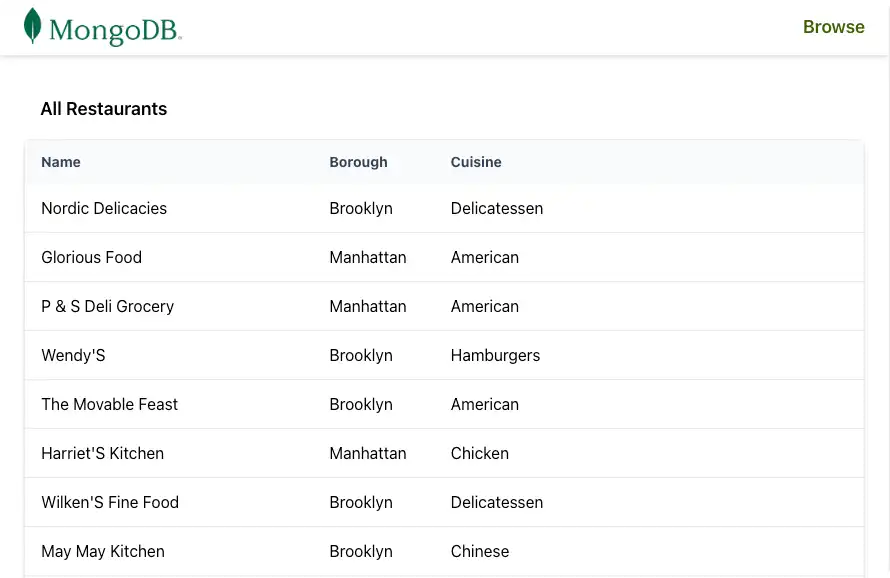
import { createFileRoute } from "@tanstack/react-router"; import {useSuspenseQuery} from '@tanstack/react-query' import { RestaurantList } from "../components/RestaurantList"; import { getAllRestaurants } from "../server/restaurants"; export const Route = createFileRoute('/')({ component: Home, pendingComponent: () => ( <div className="p-6 text-gray-500"> Loading restaurants... </div> ), errorComponent: ({error}) => ( <div className="p-6 text-red-600"> <h2 className="text-xl font-bold">Connection Error</h2> <p>{error.message}</p> <p className="text-sm mt-2">Please check your MongoDB connection string in your .env file</p> </div> ), }) function Home() { const{data: restaurants} = useSuspenseQuery({ queryKey:['restaurants'], queryFn: () => getAllRestaurants(), }) return ( <div className="w-full p-6"> <h2 className="text-lg font-semibold p-4">All Restaurants</h2> <RestaurantList restaurants={restaurants} /> </div> ) }
此路由使用 Header 和 RestaurantList 组件显示 getAllRestaurants() 的结果。
创建浏览页面
从项目根目录运行以下命令以创建 browse.tsx 路由。
touch src/routes/browse.tsx
将以下代码粘贴到 src/routes/browse.tsx 中:
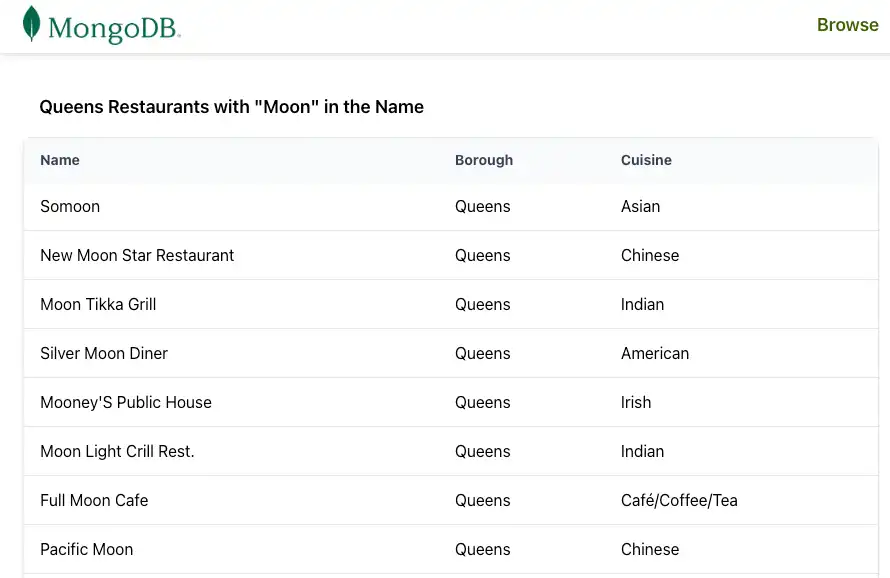
import { createFileRoute } from '@tanstack/react-router' import { useSuspenseQuery } from '@tanstack/react-query' import { RestaurantList } from '../components/RestaurantList' import { getRestaurantsByBorough } from '../server/restaurants' export const Route = createFileRoute('/browse')({ component: BrowsePage, // Display error UI if MongoDB connection or query fails errorComponent: ({ error }) => ( <div className="p-6 text-red-600"> <h2 className="text-xl font-bold">Connection Error</h2> <p>{error.message}</p> <p className="text-sm mt-2"> Please check your MongoDB connection string in your .env file </p> </div> ), }) function BrowsePage() { // Fetch filtered restaurants using TanStack Query // Query includes borough and search term in the key for proper caching const { data: restaurants } = useSuspenseQuery({ queryKey: ['restaurants', 'queens', 'moon'], // Unique cache key for this filtered query queryFn: () => getRestaurantsByBorough(), // Server function with MongoDB filter }) return ( <div className='w-full p-6'> <h2 className='text-lg font-semibold p-4'> Queens Restaurants with "Moon" in the Name </h2> <RestaurantList restaurants={restaurants} /> </div> ) }
此页面显示 sample_restaurants数据库的过滤器查询。它显示了皇后区名称中包含 Moon 的所有餐厅。它还使用 Header 和 RestaurantList 组件。
注意
在运行服务器之前,IDE 中的 createFileRoute 行可能会出现红色下划线警告。这很正常。当您首次使用 npm run dev运行应用程序时,TanStack Router 会为您的路由生成必要的 TypeScript 类型定义。服务器启动后,警告将消失。
验证文件结构
在继续之前,请确保您的文件树与以下结构密切匹配。您可以安全地忽略任何其他项目文件。
your-app/ ├─ node_modules/ ├─ public/ ├─ src/ │ ├─ components/ │ │ ├─ Header.tsx <-- Logo and browse link │ │ ├─ RestaurantList.tsx <-- Table that displays results of DB query │ ├─ routes/ │ │ ├─ __root.tsx <-- Application wrapper │ │ ├─ browse.tsx <-- Browse page, holds results of getRestaurantsByBorough() │ │ ├─ index.tsx <-- Home page, holds results of getAllRestaurants() │ ├─ server/ │ │ ├─ restaurants.ts <--- Server functions │ ├─ lib/ │ │ ├─ db.ts <--- Database connection ├─ .env <-- Connection URI
运行应用程序
按照其余步骤启动服务器并查看呈现的餐厅数据。

恭喜您完成快速入门教程!
完成这些步骤后,您将拥有一个 TanStack Start应用程序,它连接到您的MongoDB 部署,对示例餐厅数据运行查询,并通过实时反应性呈现结果。
其他资源
要学习有关 TanStack Start、TanStack 生态系统和 MongoDB 的更多信息,请查看以下资源:
TanStack 文档