Overview
在本指南中,您可以学习如何创建使用 Meteor 作为前端框架的全栈 Vue 应用程序。Meteor 是一个用于创建 Web 和移动应用程序的JavaScript框架。该框架支持范围用于构建用户界面的前端库,包括 Vue。
本教程中的应用程序由以下各层组成:
数据库层:MongoDB提供数据存储和检索
应用程序层:Meteor 使用集成的构建工具处理客户端和服务器端逻辑
表示层:Vue 使用响应式数据绑定实现用户界面
为何将MongoDB与 Meteor 和 Vue 结合使用?
Meteor 构建在 MongoDB 的 document model 之上,Meteor 应用程序默认配置MongoDB 。您只需最少的依赖安装或样板代码,即可快速创建在MongoDB中存储数据的全堆栈应用程序。
MongoDB 灵活的文档结构自然而然地与JavaScript对象保持一致。因此,您可以在 Vue 组件中无缝使用MongoDB数据。当您使用 Meteor查询MongoDB时,您收到的文档可以直接在 Vue 模板中使用,无需复杂的数据转换。
此外,Meteor 提供内置的实时数据同步功能,可在MongoDB中的数据发生变化时自动更新 Vue 组件。当一个用户修改数据时,所有连接的用户会立即在其 Vue 界面中看到更改,而无需手动刷新或轮询。通过将MongoDB与 Meteor 和 Vue 结合使用,您可以同时利用 Meteor 的实时数据同步功能和 Vue 的响应式组件系统。
快速入门教程
本教程向您展示如何使用 Meteor 和 Vue构建Web应用程序。该应用程序访问示例餐厅数据,查询数据,并在本地托管站点上显示结果。本教程还包括有关连接到MongoDB Atlas上托管的MongoDB 集群以及访问和显示数据库中的数据的说明。
提示
如果您希望使用 Node.js驱动程序而不使用 Meteor 连接到MongoDB ,请参阅 Get Started with the Node.js Driver指南。
设置您的项目
按照本节中的步骤安装项目依赖项、创建Atlas集群并设立应用程序目录。
验证先决条件
要创建快速入门应用程序,请在开发环境中安装以下软件:
先决条件 | 注意 |
|---|---|
使用 20 或更高版本。 | |
代码编辑器 | 本教程使用Visual Studio Code,但你也可以使用自己选择的编辑器。 |
终端应用和shell | 对于 MacOS 用户,请使用终端或类似应用程序。对于 Windows 用户,请使用 PowerShell。 |
创建 MongoDB Atlas 集群
MongoDB Atlas是一项托管云数据库服务,用于托管您的MongoDB部署。如果您没有MongoDB 部署,可以通过完成MongoDB入门教程免费创建MongoDB 集群(无需信用)。MongoDB入门教程还演示了如何将示例数据集加载到集群中,包括本教程中使用的 sample_restaurants数据库。
要连接到MongoDB集群,您必须使用连接 URI。学习如何检索连接 URI,请参阅MongoDB入门教程的添加连接字符串部分。
提示
将连接string保存在安全位置。
安装 Meteor
通过在终端中运行以下命令来安装 Meteor:
npx meteor
如果遇到任何问题,请参阅Meteor 安装指南。
安装MongoDB Node.js驱动程序
通过在终端中运行以下命令来安装 Node.js驱动程序:
npm install mongodb
要学习有关安装驱动程序的更多信息,请参阅 Node.js 节点驱动程序入门指南。
配置 MongoDB 连接
设置项目结构后,请按照本节中的步骤将 Meteor应用程序连接到MongoDB。
提供您的连接 URI
在上一步中检索保存的连接 URI。
要访问权限sample_restaurants数据库,请修改连接 URI 以包含数据库名称。使用以下格式更新URI:
mongodb+srv://<username>:<password>@<cluster>/sample_restaurants?<options>
然后,通过从 meteor-vue-quickstart目录运行以下命令,将 MONGO_URL 环境变量设立为此修改后的连接 URI:
export MONGO_URL="<connection URI>"
将 <connection URI> 占位符替换为您的连接 URI。
设置数据发布
在 imports/api目录中创建名为 restaurantsPublications.js 的文件,然后粘贴以下代码:
import { Meteor } from 'meteor/meteor'; import { RestaurantsCollection } from './restaurantsCollection'; // Publishes all restaurants Meteor.publish('restaurants', function publishRestaurants() { console.log('Publishing all restaurants...'); const cursor = RestaurantsCollection.find({}, { limit: 200 }); // Limit for performance console.log('Publication cursor created for all restaurants'); return cursor; }); // Publishes restaurants that match the "borough" and "name" filters Meteor.publish('restaurants.filtered', function publishFilteredRestaurants() { console.log('Publishing filtered restaurants...'); const query = { borough: 'Queens', name: { $regex: 'Moon', $options: 'i' } }; const cursor = RestaurantsCollection.find(query); console.log('Publication cursor created for filtered restaurants'); return cursor; });
此文件定义了允许客户端订阅餐厅数据的 Meteor 发布。其中包括以下出版物:
restaurants:发布所有餐厅,但将其限制为200,以避免性能问题restaurants.filtered:发布位于皇后区且名称中包含"Moon"的餐厅。$options参数指定此正则表达式字符串匹配不区分大小写。
定义插入操作
创建一个名为 scripts 的新目录,然后在此目录中创建一个名为 insertDemo.js 的文件。将以下代码粘贴到 insertDemo.js 中:
const { MongoClient } = require('mongodb'); const MONGO_URL = process.env.MONGO_URL; async function insertSampleRestaurant() { const client = new MongoClient(MONGO_URL); try { await client.connect(); const db = client.db(); const collection = db.collection('restaurants'); const doc = { name: "Honey Moon Coffee Shop", borough: "Queens", cuisine: "Café/Coffee/Tea", }; const result = await collection.insertOne(doc); console.log('Inserted restaurant with ID:', result.insertedId); } catch (error) { console.error('Error:', error); } finally { await client.close(); } } insertSampleRestaurant();
此文件定义了一个名为 insertSampleRestaurant() 的方法,该方法插入一个存储以下字段的文档:
name:"Honey Moon Coffee Shop"borough:"Queens"cuisine:"Café/Coffee/Tea"
您将在后续步骤中使用此文件演示 Meteor 的实时数据同步功能。
更新服务器配置
将 server/main.js 的内容替换为以下代码:
import { Meteor } from 'meteor/meteor'; import { RestaurantsCollection } from '../imports/api/restaurantsCollection'; import '../imports/api/restaurantsPublications'; Meteor.startup(async () => { // Check connection to restaurants collection try { const restaurantCount = await RestaurantsCollection.find().countAsync(); console.log(`Connected to MongoDB Atlas. Found ${restaurantCount} restaurants in the collection`); } catch (error) { console.error('Error connecting to restaurants collection:', error); } });
此文件导入必要的集合和发布。它还创建一个初创企业函数,通过打印 restaurants集合中的文档数量来验证MongoDB连接。
配置 Vue 组件
设置数据层后,按照本节中的步骤创建显示餐厅数据的 Vue 组件。
设置路由
导航到 imports/ui/router.js文件并粘贴以下代码:
import { createRouter, createWebHistory } from 'vue-router'; import RestaurantList from './views/RestaurantList.vue'; export const router = createRouter({ history: createWebHistory(), routes: [ { path: '/', name: 'home', component: RestaurantList, meta: { filter: false } }, { path: '/browse', name: 'browse', component: RestaurantList, meta: { filter: true } } ], });
此文件配置 Vue 路由并确定为每个路由渲染哪些内容。/ 路由显示所有餐厅数据,/browse 路由显示过滤后的餐厅数据。
创建 Restaurant 组件
在 imports/ui/components目录中,创建名为 Restaurant.vue 的文件,其中包含以下代码:
<script setup> defineProps({ restaurant: { type: Object, required: true, }, }); </script> <template> <tr class="border-b transition-colors hover:bg-gray-50"> <td class="p-4 align-middle">{{ restaurant.name }}</td> <td class="p-4 align-middle">{{ restaurant.borough }}</td> <td class="p-4 align-middle">{{ restaurant.cuisine }}</td> </tr> </template>
该组件将单个餐厅信息显示为表中的一行。
创建 RestaurantList 视图
在 imports/ui/views目录中,创建名为 RestaurantList.vue 的文件,其中包含以下代码:
<script setup> import Restaurant from '../components/Restaurant.vue'; import { subscribe, autorun } from 'vue-meteor-tracker'; import { RestaurantsCollection } from '../../api/restaurantsCollection'; import { useRoute, RouterLink } from 'vue-router'; import { computed } from 'vue'; const route = useRoute(); // Determines whether to show filtered results const isFiltered = computed(() => route.path === '/browse'); // Subscribes to both publications to avoid switching issues subscribe('restaurants'); subscribe('restaurants.filtered'); // Retrieves restaurants based on current route with client-side filtering as backup const restaurants = autorun(() => { let docs; if (isFiltered.value) { docs = RestaurantsCollection.find({ borough: 'Queens', name: { $regex: 'Moon', $options: 'i' } }).fetch(); console.log('Filtered restaurants found:', docs.length); } else { docs = RestaurantsCollection.find({}, { limit: 200 }).fetch(); console.log('All restaurants found:', docs.length); } return docs; }).result; // Determines the title based on the route const getTitle = computed(() => { return isFiltered.value ? 'Filtered Restaurants (Queens, containing "Moon")' : 'All Restaurants'; }); </script> <template> <div class="container mx-auto px-4"> <!-- Navigation --> <nav class="flex justify-between items-center mb-6 p-4 bg-white shadow rounded"> <div class="flex space-x-4"> <RouterLink to="/" class="px-4 py-2 text-blue-600 hover:bg-blue-50 rounded transition-colors" :class="{ 'bg-blue-100 font-semibold': !isFiltered }" > All Restaurants </RouterLink> <RouterLink to="/browse" class="px-4 py-2 text-blue-600 hover:bg-blue-50 rounded transition-colors" :class="{ 'bg-blue-100 font-semibold': isFiltered }" > Browse Filtered </RouterLink> </div> </nav> <!-- Header --> <header class="mb-6"> <h1 class="text-4xl font-bold text-gray-800 my-4">Restaurant Directory</h1> <h3 class="text-lg font-semibold text-gray-600">{{ getTitle }}</h3> </header> <!-- Restaurant Table --> <div class="border rounded-lg overflow-hidden shadow"> <div class="relative w-full overflow-auto"> <table class="w-full text-sm"> <thead class="bg-gray-100 border-b-2 border-gray-300"> <tr class="border-b-2 border-gray-400"> <th class="h-14 px-4 text-left align-middle font-bold text-gray-900 text-base tracking-wide"> Name </th> <th class="h-14 px-4 text-left align-middle font-bold text-gray-900 text-base tracking-wide"> Borough </th> <th class="h-14 px-4 text-left align-middle font-bold text-gray-900 text-base tracking-wide"> Cuisine </th> </tr> </thead> <tbody> <Restaurant v-for="restaurant in restaurants" :key="restaurant._id" :restaurant="restaurant" /> </tbody> </table> <!-- Empty state --> <div v-if="restaurants.length === 0" class="p-8 text-center text-gray-500"> <p>No restaurants found. Ensure that your connection URI is correct and includes the sample_restaurants database name.</p> <p v-if="isFiltered" class="text-sm mt-2"> Try the "All Restaurants" tab to see all available restaurants. </p> </div> </div> </div> <!-- Restaurant count --> <div class="mt-4 text-sm text-gray-600"> Showing {{ restaurants.length }} restaurant{{ restaurants.length !== 1 ? 's' : '' }} </div> </div> </template>
该组件处理餐厅列表显示,并根据当前路线在显示所有餐厅或筛选结果之间自动切换。
运行应用程序
最后,按照本节中的步骤运行应用程序并查看呈现的餐厅数据。
在浏览器中打开应用程序
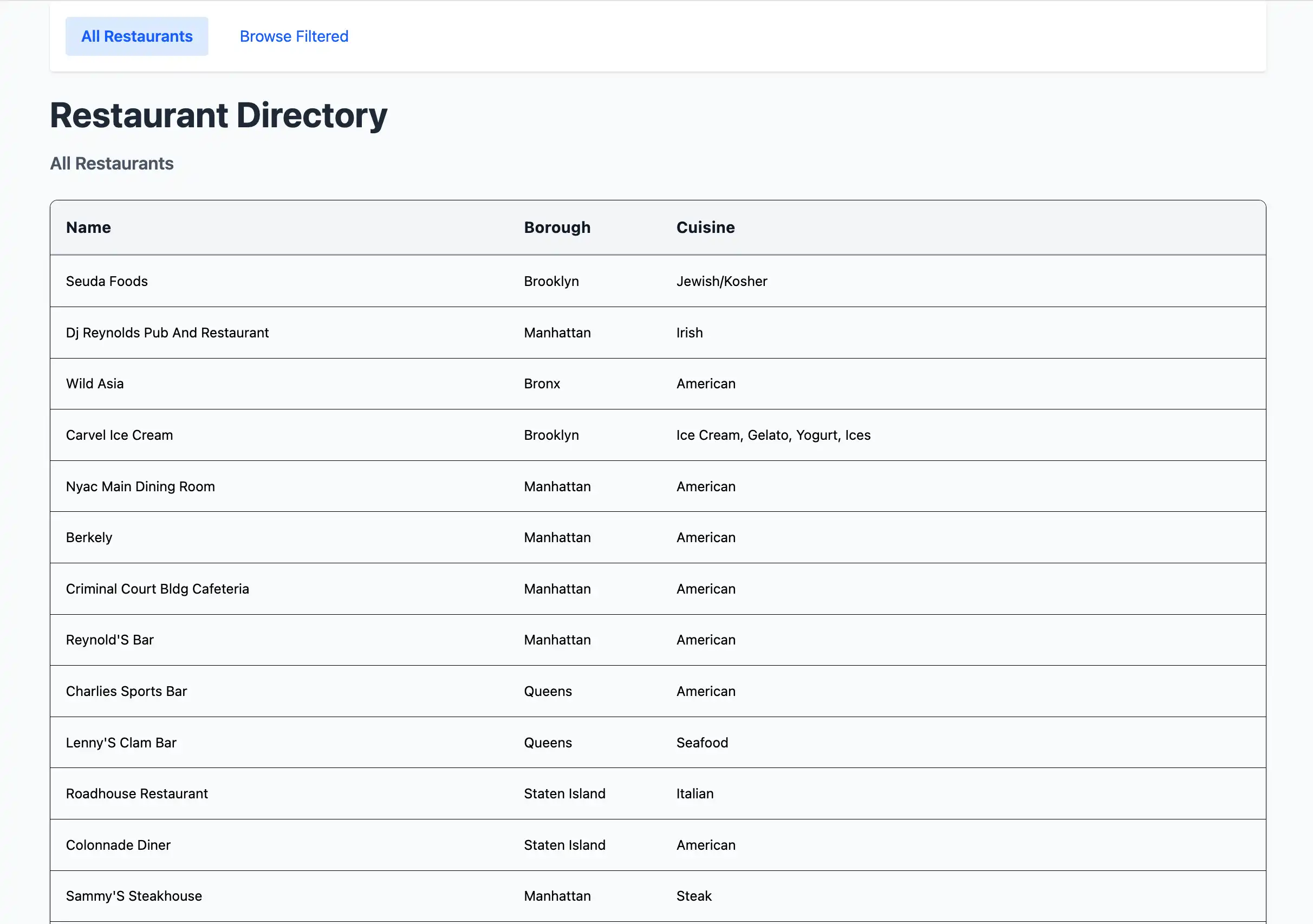
在网络浏览器中打开 http://localhost:3000/。初始登陆页面显示 sample_restaurants.restaurants集合中的 200 个未筛选餐厅的列表:

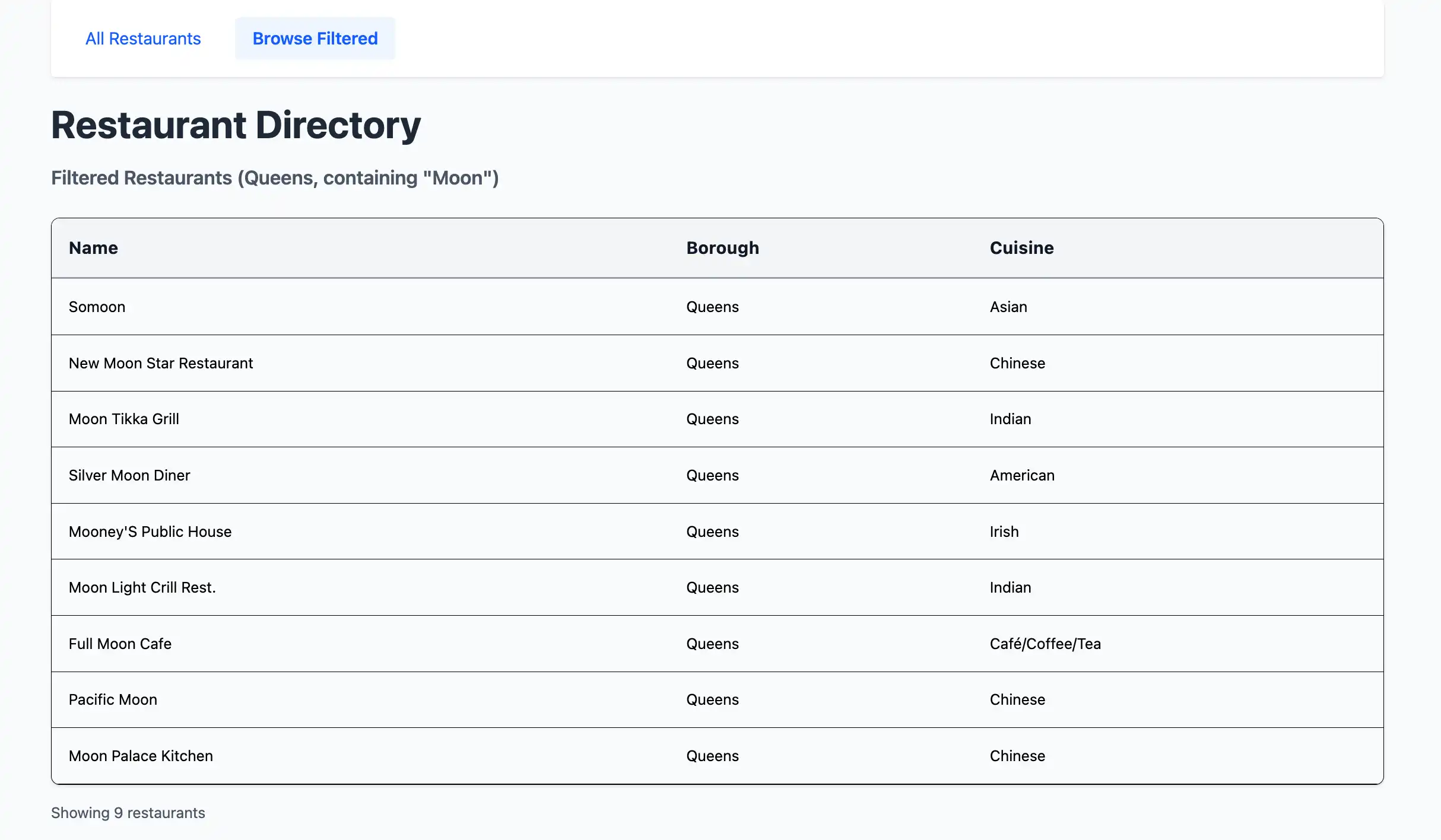
在页面顶部,单击 Browse Filtered 按钮可查看皇后区名称中包含 "Moon" 的餐厅:

查看实时数据变化
您可以通过插入示例文档并在应用程序前端查看更改来探索 Meteor 的实时数据同步功能。
打开第二个终端窗口并导航到项目目录。运行与上一个步骤中所示相同的命令来导出MongoDB连接 URI:
export MONGO_URL="<connection URI>"
然后,运行以下命令插入 name 值为 "Honey Moon Coffee Shop" 的示例文档:
node scripts/insertDemo.js
您可以在Filtered Restaurants http://localhost:3000 /browse URL 的 表中查看新文档。
恭喜您完成快速入门教程!
完成这些步骤后,您就拥有一个 Meteor 和 Vue Web应用程序,它连接到您的MongoDB 部署、对示例餐厅数据运行查询,并通过实时响应性渲染结果。
其他资源
要学习、了解有关 Meteor、Vue 和 MongoDB 的更多信息,请查看以下资源:
Meteor 文档
Vue 3 documentation
vue-meteor-tracker package