개요
이 가이드 에서는 Meteor 를 프런트엔드 프레임워크 로 사용하는 풀스택 Vue 애플리케이션 만드는 방법을 학습 수 있습니다. Meteor는 웹 및 모바일 애플리케이션을 만들기 위한 JavaScript 프레임워크 입니다. 이 프레임워크 Vue를 포함하여 사용자 인터페이스를 구축하기 위한 범위 프론트엔드 라이브러리를 지원합니다.
이 튜토리얼의 애플리케이션 다음과 같은 계층으로 구성되어 있습니다.
데이터베이스 계층: MongoDB 데이터 저장 및 검색을 제공합니다.
애플리케이션 계층: Meteor는 통합 빌드 도구로 클라이언트 및 서버 측 로직을 모두 처리합니다.
프레젠테이션 계층: Vue는 반응형 데이터 바인딩으로 사용자 인터페이스를 구현합니다.
Meteor 및 Vue와 함께 MongoDB 사용하는 이유
Meteor는 MongoDB의 document model 기반으로 하며, Meteor 애플리케이션은 기본값 으로 MongoDB 구성합니다. 최소한의 종속성 설치나 상용구 코드로 MongoDB 에 데이터를 저장하는 전체 스택 애플리케이션 빠르게 만들 수 있습니다.
MongoDB의 유연한 문서 구조는 JavaScript 객체와 자연스럽게 일치합니다. 따라서 Vue 구성 요소에서 MongoDB 데이터로 원활하게 작업할 수 있습니다. Meteor를 사용하여 MongoDB 쿼리 하면 수신한 문서를 복잡한 데이터 변환 없이 Vue 템플릿에서 직접 사용할 수 있습니다.
또한 Meteor는 MongoDB에서 데이터가 변경될 때 Vue 구성 요소를 자동으로 업데이트하는 내장 실시간 데이터 동기화를 제공합니다. 한 사용자가 데이터를 수정하면 연결된 모든 사용자는 수동으로 새로 고침하거나 폴링할 필요 없이 Vue 인터페이스에서 변경 사항을 즉시 볼 수 있습니다. Meteor 및 Vue와 함께 MongoDB 사용하면 Vue의 반응형 구성 요소 시스템과 함께 Meteor의 실시간 데이터 동기화 역량을 활용할 수 있습니다.
빠른 시작 튜토리얼
이 튜토리얼에서는 Meteor와 Vue를 사용하여 웹 애플리케이션 빌드 방법을 보여줍니다. 애플리케이션 샘플 레스토랑 데이터에 액세스하고, 데이터를 쿼리하고, 로컬에서 호스팅되는 사이트 에 결과를 표시합니다. 이 튜토리얼에는 MongoDB Atlas 에서 호스팅되는 MongoDB 클러스터 에 연결하고 데이터베이스 의 데이터에 액세스하고 표시하는 방법에 대한 지침도 포함되어 있습니다.
팁
Meteor 없이 Node.js 드라이버를 사용하여 MongoDB에 연결하려는 경우, Node.js 드라이버 시작하기 가이드를 참조하세요.
프로젝트 설정
이 섹션의 단계에 따라 프로젝트 종속성을 설치하고, Atlas 클러스터를 만들고, 애플리케이션 디렉토리를 설정합니다.
전제 조건 확인
빠른 시작 애플리케이션 만들려면 개발 환경에 다음 소프트웨어를 설치하세요.
전제 조건 | 참고 사항 |
|---|---|
버전 20 이상을 사용하세요. | |
코드 편집기 | 이 튜토리얼에서는 Visual Studio Code를 사용하지만 원하는 편집기를 사용할 수 있습니다. |
터미널 앱 및 shell | MacOS 사용자의 경우 터미널 또는 유사한 앱을 사용하세요. Windows 사용자의 경우 PowerShell을 사용하세요. |
MongoDB Atlas 클러스터 생성
MongoDB Atlas 는 MongoDB 배포서버를 호스팅하는 완전 관리형 클라우드 데이터베이스 서비스입니다. MongoDB 배포서버 없는 경우, MongoDB 시작하기 튜토리얼을 완료하여 무료로 MongoDB 클러스터 생성할 수 있습니다( 크레딧 카드 필요 없음). MongoDB 시작하기 튜토리얼에서는 이 튜토리얼에서 사용되는 sample_restaurants 데이터베이스 포함하여 샘플 데이터 세트를 클러스터 에 로드하는 방법도 보여줍니다.
MongoDB 클러스터에 연결하려면 연결 URI를 사용해야 합니다. 연결 URI를 조회 방법을 학습하려면 MongoDB 시작하기 튜토리얼의 연결 문자열 추가하기 섹션을 참조하세요.
팁
연결 string 을 안전한 위치 에 저장합니다.
Meteor 설치
터미널에서 다음 명령을 실행 하여 Meteor를 설치합니다.
npx meteor
문제가 발생하면 Meteor 설치 가이드참조하세요.
MongoDB Node.js 드라이버 설치
터미널에서 다음 명령을 실행하여 노드.js 드라이버를 설치합니다.
npm install mongodb
드라이버 설치에 대해 자세히 알아보려면 Node.js 드라이버 시작하기 가이드 를 참조하세요.
MongoDB 연결 구성
프로젝트 구조를 설정한 후 이 섹션의 단계에 따라 Meteor 애플리케이션 MongoDB 에 연결합니다.
연결 URI 제공
이전 단계에서 저장한 연결 URI를 조회합니다.
sample_restaurants 데이터베이스 에 액세스 하려면 데이터베이스 이름을 포함하도록 연결 URI를 수정합니다. 다음 형식을 사용하여 URI를 업데이트 .
mongodb+srv://<username>:<password>@<cluster>/sample_restaurants?<options>
그런 다음 meteor-vue-quickstart 디렉토리 에서 다음 명령을 실행 하여 MONGO_URL 환경 변수를 이 수정된 연결 URI로 설정하다 .
export MONGO_URL="<connection URI>"
<connection URI> 자리 표시자를 연결 URI로 바꿉니다.
데이터 게시 설정
imports/api 디렉토리 에 restaurantsPublications.js 이라는 파일 만들고 다음 코드를 붙여넣습니다.
import { Meteor } from 'meteor/meteor'; import { RestaurantsCollection } from './restaurantsCollection'; // Publishes all restaurants Meteor.publish('restaurants', function publishRestaurants() { console.log('Publishing all restaurants...'); const cursor = RestaurantsCollection.find({}, { limit: 200 }); // Limit for performance console.log('Publication cursor created for all restaurants'); return cursor; }); // Publishes restaurants that match the "borough" and "name" filters Meteor.publish('restaurants.filtered', function publishFilteredRestaurants() { console.log('Publishing filtered restaurants...'); const query = { borough: 'Queens', name: { $regex: 'Moon', $options: 'i' } }; const cursor = RestaurantsCollection.find(query); console.log('Publication cursor created for filtered restaurants'); return cursor; });
이 파일 클라이언트 레스토랑 데이터를 구독 수 있도록 하는 Meteor 게시를 정의합니다. 여기에는 다음과 같은 간행물이 포함됩니다.
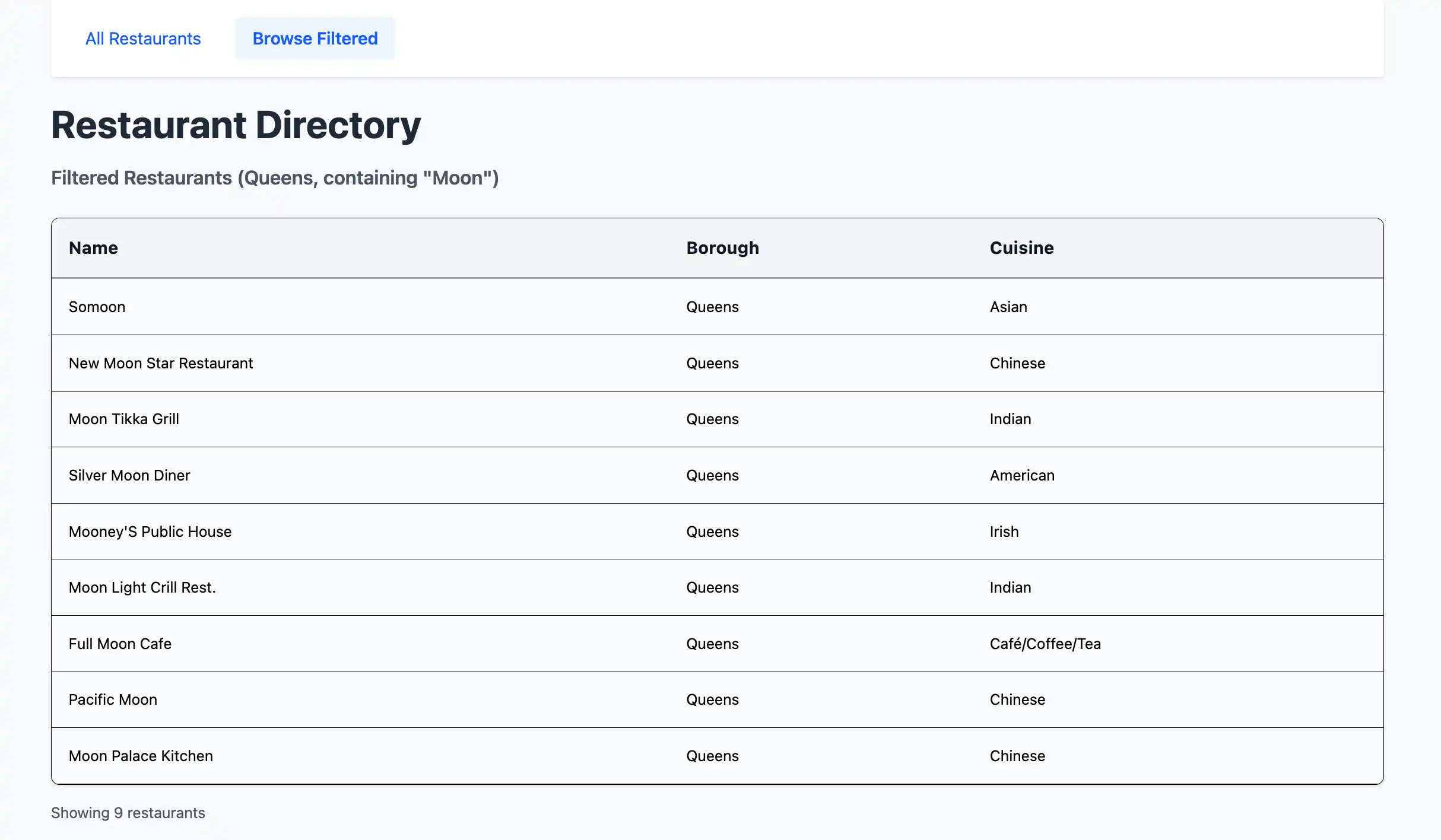
restaurants: 모든 레스토랑을 게시하지만 성능 문제를 방지하기 위해200(으)로 제한합니다.restaurants.filtered: 이름에"Moon"가 포함된 퀸즈의 레스토랑을 게시합니다.$options인수는 이 정규식 문자열 일치가 대소문자를 구분하지 않도록 지정합니다.
삽입 작업 정의
scripts(이)라는 새 디렉토리 만든 다음 이 디렉토리 에 insertDemo.js(이)라는 파일 만듭니다. 다음 코드를 insertDemo.js에 붙여넣습니다.
const { MongoClient } = require('mongodb'); const MONGO_URL = process.env.MONGO_URL; async function insertSampleRestaurant() { const client = new MongoClient(MONGO_URL); try { await client.connect(); const db = client.db(); const collection = db.collection('restaurants'); const doc = { name: "Honey Moon Coffee Shop", borough: "Queens", cuisine: "Café/Coffee/Tea", }; const result = await collection.insertOne(doc); console.log('Inserted restaurant with ID:', result.insertedId); } catch (error) { console.error('Error:', error); } finally { await client.close(); } } insertSampleRestaurant();
이 파일 다음 필드를 저장하는 문서 삽입하는 insertSampleRestaurant()라는 메서드를 정의합니다.
name:"Honey Moon Coffee Shop"borough:"Queens"cuisine:"Café/Coffee/Tea"
이후 단계에서 이 파일 사용하여 Meteor의 실시간 데이터 동기화 기능을 시연하게 됩니다.
서버 구성 업데이트
server/main.js 의 내용을 다음 코드로 바꿉니다.
import { Meteor } from 'meteor/meteor'; import { RestaurantsCollection } from '../imports/api/restaurantsCollection'; import '../imports/api/restaurantsPublications'; Meteor.startup(async () => { // Check connection to restaurants collection try { const restaurantCount = await RestaurantsCollection.find().countAsync(); console.log(`Connected to MongoDB Atlas. Found ${restaurantCount} restaurants in the collection`); } catch (error) { console.error('Error connecting to restaurants collection:', error); } });
이 파일 필요한 컬렉션과 발행물을 가져옵니다. 또한 restaurants 컬렉션 의 문서 수를 출력하여 MongoDB 연결을 확인하는 스타트업 함수를 만듭니다.
Vue 구성 요소 구성
데이터 계층을 설정한 후 이 섹션의 단계에 따라 레스토랑 데이터를 표시하는 Vue 구성 요소를 만듭니다.
라우팅 설정
imports/ui/router.js 파일 로 이동하여 다음 코드를 붙여넣습니다.
import { createRouter, createWebHistory } from 'vue-router'; import RestaurantList from './views/RestaurantList.vue'; export const router = createRouter({ history: createWebHistory(), routes: [ { path: '/', name: 'home', component: RestaurantList, meta: { filter: false } }, { path: '/browse', name: 'browse', component: RestaurantList, meta: { filter: true } } ], });
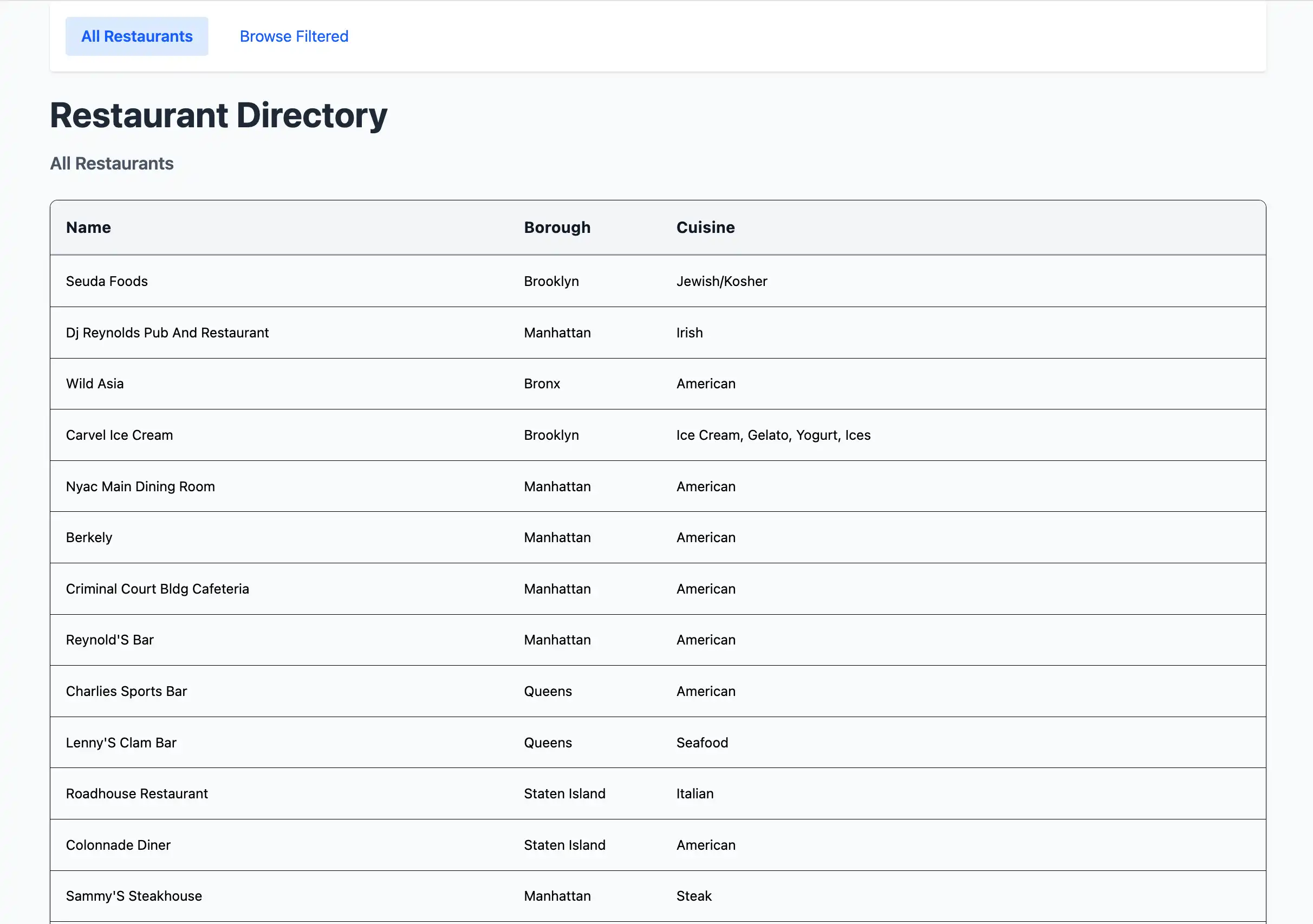
이 파일 Vue 경로를 구성하고 각 경로에 대해 렌더링할 콘텐츠를 결정합니다. / 경로는 모든 레스토랑 데이터를 표시하고 /browse 경로는 필터링된 레스토랑 데이터를 표시합니다.
Restaurant 구성 요소 만들기
imports/ui/components 디렉토리 에서 다음 코드가 포함된 Restaurant.vue 파일 만듭니다.
<script setup> defineProps({ restaurant: { type: Object, required: true, }, }); </script> <template> <tr class="border-b transition-colors hover:bg-gray-50"> <td class="p-4 align-middle">{{ restaurant.name }}</td> <td class="p-4 align-middle">{{ restaurant.borough }}</td> <td class="p-4 align-middle">{{ restaurant.cuisine }}</td> </tr> </template>
이 구성 요소는 개별 레스토랑 정보를 테이블의 행으로 표시합니다.
RestaurantList 뷰 만들기
imports/ui/views 디렉토리 에서 다음 코드가 포함된 RestaurantList.vue 파일 만듭니다.
<script setup> import Restaurant from '../components/Restaurant.vue'; import { subscribe, autorun } from 'vue-meteor-tracker'; import { RestaurantsCollection } from '../../api/restaurantsCollection'; import { useRoute, RouterLink } from 'vue-router'; import { computed } from 'vue'; const route = useRoute(); // Determines whether to show filtered results const isFiltered = computed(() => route.path === '/browse'); // Subscribes to both publications to avoid switching issues subscribe('restaurants'); subscribe('restaurants.filtered'); // Retrieves restaurants based on current route with client-side filtering as backup const restaurants = autorun(() => { let docs; if (isFiltered.value) { docs = RestaurantsCollection.find({ borough: 'Queens', name: { $regex: 'Moon', $options: 'i' } }).fetch(); console.log('Filtered restaurants found:', docs.length); } else { docs = RestaurantsCollection.find({}, { limit: 200 }).fetch(); console.log('All restaurants found:', docs.length); } return docs; }).result; // Determines the title based on the route const getTitle = computed(() => { return isFiltered.value ? 'Filtered Restaurants (Queens, containing "Moon")' : 'All Restaurants'; }); </script> <template> <div class="container mx-auto px-4"> <!-- Navigation --> <nav class="flex justify-between items-center mb-6 p-4 bg-white shadow rounded"> <div class="flex space-x-4"> <RouterLink to="/" class="px-4 py-2 text-blue-600 hover:bg-blue-50 rounded transition-colors" :class="{ 'bg-blue-100 font-semibold': !isFiltered }" > All Restaurants </RouterLink> <RouterLink to="/browse" class="px-4 py-2 text-blue-600 hover:bg-blue-50 rounded transition-colors" :class="{ 'bg-blue-100 font-semibold': isFiltered }" > Browse Filtered </RouterLink> </div> </nav> <!-- Header --> <header class="mb-6"> <h1 class="text-4xl font-bold text-gray-800 my-4">Restaurant Directory</h1> <h3 class="text-lg font-semibold text-gray-600">{{ getTitle }}</h3> </header> <!-- Restaurant Table --> <div class="border rounded-lg overflow-hidden shadow"> <div class="relative w-full overflow-auto"> <table class="w-full text-sm"> <thead class="bg-gray-100 border-b-2 border-gray-300"> <tr class="border-b-2 border-gray-400"> <th class="h-14 px-4 text-left align-middle font-bold text-gray-900 text-base tracking-wide"> Name </th> <th class="h-14 px-4 text-left align-middle font-bold text-gray-900 text-base tracking-wide"> Borough </th> <th class="h-14 px-4 text-left align-middle font-bold text-gray-900 text-base tracking-wide"> Cuisine </th> </tr> </thead> <tbody> <Restaurant v-for="restaurant in restaurants" :key="restaurant._id" :restaurant="restaurant" /> </tbody> </table> <!-- Empty state --> <div v-if="restaurants.length === 0" class="p-8 text-center text-gray-500"> <p>No restaurants found. Ensure that your connection URI is correct and includes the sample_restaurants database name.</p> <p v-if="isFiltered" class="text-sm mt-2"> Try the "All Restaurants" tab to see all available restaurants. </p> </div> </div> </div> <!-- Restaurant count --> <div class="mt-4 text-sm text-gray-600"> Showing {{ restaurants.length }} restaurant{{ restaurants.length !== 1 ? 's' : '' }} </div> </div> </template>
이 구성 요소는 레스토랑 목록 표시를 처리하고 모든 레스토랑을 표시하거나 현재 경로를 기반으로 필터링된 결과를 표시하도록 자동으로 전환합니다.
애플리케이션 실행하기
마지막으로 이 섹션의 단계에 따라 애플리케이션 실행 하고 렌더링된 레스토랑 데이터를 확인합니다.
Meteor 애플리케이션 시작
프로젝트 디렉토리 로 이동하여 터미널에서 다음 명령을 실행 .
meteor npm run start
성공적인 하면 명령 출력은 다음 예시 와 유사합니다.
[[[[[ ~/meteor-vue-quickstart ]]]]] => Started proxy. => Started HMR server. ... Connected to MongoDB Atlas. Found 25368 restaurants in the collection => Started your app. => App running at: http://localhost:3000/
브라우저에서 애플리케이션 열기
웹 브라우저에서 http://localhost:3000/를 엽니다. 초기 방문 페이지에는 sample_restaurants.restaurants 컬렉션 에서 필터링되지 않은 200 레스토랑 목록이 표시됩니다.

페이지 상단에서 Browse Filtered 버튼을 클릭하면 이름에 "Moon" 가 포함된 퀸즈의 레스토랑을 볼 수 있습니다.

실시간 데이터 변경 사항 보기
샘플 문서 삽입하고 애플리케이션의 프런트 엔드에서 변경 사항을 확인하여 Meteor의 실시간 데이터 동기화 기능을 탐색할 수 있습니다.
두 번째 터미널 창 열고 프로젝트 디렉토리 로 이동합니다. 이전 단계에 표시된 것과 동일한 명령을 실행 하여MongoDB 연결 URI를 내보냅니다.
export MONGO_URL="<connection URI>"
그런 다음, 다음 명령을 실행 name 값이 "Honey Moon Coffee Shop"인 샘플 문서 삽입합니다.
node scripts/insertDemo.js
Filtered Restaurants 테이블에서 새 문서를 http://localhost:3000/browse URL에서 볼 수 있습니다.
빠른 시작 튜토리얼을 완료하신 것을 축하드립니다!
이 단계를 완료하면 MongoDB 배포서버에 연결하고, 샘플 레스토랑 데이터에 대해 쿼리를 실행하고, 실시간 반응성으로 결과를 렌더링하는 Meteor 및 Vue 웹 애플리케이션 갖게 됩니다.
추가 리소스
Meteor, Vue 및 MongoDB 에 대해 자세히 학습 다음 리소스를 참조하세요.
Meteor 문서
Vue 3 documentation
vue-meteor-tracker package
Node.js 운전자 문서