MongoDB is a flexible, general-purpose document database that is ideally suited for modern applications. Microsoft’s .NET Frameworks and languages such as C# are equally popular and versatile. Developers can use these two pieces of technology, along with MongoDB Atlas, a fully managed, multi-cloud database service, to rapidly create powerful applications.
Table of contents
- Introduction to MongoDB and .NET/.NET Core
- Installation Prerequisite
- Adding the .NET Driver
- Connecting to MongoDB Atlas
- How to use MongoDB with .NET
- Accessing a Database
- Creating Collections/Documents
- Reading Data
- Updating Data
- Deleting Data
- Testing the Web API
- Running in GitHub Codespaces
- FAQs
Introduction to MongoDB and .NET/.NET Core
With its versatility, easy-to-read syntax, and vast breadth of learning resources, C# has quickly become a favorite tool for web and mobile apps, game development, and business applications. In fact, the Stack Overflow Developer Survey 2025 ranked C# as one of the top 10 most popular languages.
In both cases, their general-purpose nature, combined with the power of the cloud, makes them compatible with lots of different types of projects. MongoDB's native C#/.NET driver allows developers to take advantage of MongoDB's powerful document database in their C# applications.
Prerequisite
Before you begin, you'll need to ensure you've completed a few preparatory steps.
- If you haven't already, install .NET 10 and install your preferred IDE (Visual Studio or VS Code).
- Create a MongoDB database. The easiest way to get started with MongoDB is to create a free cluster in MongoDB Atlas, MongoDB's fully-managed, multi-cloud document database service. However, this will also work with on-prem deployments.
Running in GitHub Codespaces
If you'd rather not install the .NET SDK or run MongoDB locally at all, the sample repo also ships with a Dev Container configuration, which includes MongoDB Atlas Local, so a database is available automatically — no separate Docker command needed.
- Open the repo in GitHub Codespaces.
- Wait for the container to finish setting up. This runs `dotnet restore` for you automatically, starts the local MongoDB instance, runs that .NET app, and opens a preview of the Swagger UI.
- You may close the Welcome tab for MongoDB, which includes a button to set the connection string. This opens as part of having the driver in the repo, but we have the connection string configured via app.
Everything covered in the previous section — the CRUD endpoints, seeded sample data and health check — behaves identically here; only the setup steps differ from running locally.
Adding the MongoDB Driver
In the following sections, you are going to learn how to start using the MongoDB Driver and implement the basic Create, Read, Update, Delete (CRUD) functions in a game.
Let's create a game listing application using the NET Core Web API template. Here's the GitHub repo for "GamesServices", which lists games as well as their price and the category they belong to.
The MongoDB Driver for C#/.NET is very easy to install using Microsoft's Nuget Package manager in your development environment, or using the .NET SDK available in your Command Line Interface (CLI).
CLI
One way of adding the MongoDB driver to your application is via the CLI. When you install .NET on your machine, you get the .NET SDK command line tools out of the box.
Start by initializing a new project and navigating to it:
Note the `--use-controllers` flag. Without it, the webapi template scaffolds a minimal API project — endpoints declared as lambdas directly in Program.cs, with no Controllers folder. This tutorial uses controllers, so the flag tells the template to wire up MVC (model-view-controller) for you. It creates the Controllers folder and adds the two required controller registrations in Program.cs:
The template includes a sample weather endpoint we don't need. Delete these two files before going further, either via CLI or inside your text editor/IDE:
- Controllers/WeatherForecastController.cs
- WeatherForecast.cs
Run the following commands from the root directory of the project:
These commands add the NuGet packages your application needs:
- MongoDB.Driver is the official MongoDB .NET/C# driver. It lets your application connect to MongoDB and work with databases and collections.
- Swashbuckle.AspNetCore adds Swagger and OpenAPI tooling, including an interactive UI for exploring and testing your API.
- Microsoft.AspNetCore.OpenApi --version 10.0.12 adds ASP.NET Core’s OpenAPI support and pins the package to version 10.0.12.
After the commands complete, your .csproj file should look very similar to the one below:
mongodb-dotnet-example/mongodb-dotnet-example.csproj
Swashbuckle.AspNetCore and OpenAPI aren’t required by MongoDB itself, but the sample project uses them to generate a Swagger/OpenAPI UI so you can exercise the endpoints in a browser as you build.
Configuring your database settings
Rather than hardcoding a connection string directly in your service code, the recommended approach is to bind it from configuration. Add a GamesDatabaseSettings section to appsettings.json (and appsettings.Development.json for local development):
mongodb-dotnet-example/appsettings.Development.json
Replace the ConnectionString value with your Atlas connection string (see the next section for how to get it).
Next, create a settings model and matching interface to bind that section to, typically in Models/GamesDatabaseSettings.cs:
mongodb-dotnet-example/Models/GamesDatabaseSettings.cs
Using an interface here (rather than relying on the concrete GamesDatabaseSettings class directly) means your service can depend on IGamesDatabaseSettings, which makes it straightforward to substitute fake settings in unit tests.
In `Program.cs`, bind the configuration section and register it for dependency injection right above the builder.Build() invocation, while ensuring the correct using statements are added:
mongodb-dotnet-example/Program.cs
One advantage of driving configuration this way: in production, you can override any of these values with environment variables instead of committing secrets to appsettings.json. .NET Core's configuration binder maps double-underscore-separated environment variable names onto nested sections automatically, so setting GamesDatabaseSettings__ConnectionString as an environment variable overrides the ConnectionString value above without any code changes.
Getting your connection string
To create the client, you will need to pass the connection string to access your database.
The connection string can be found in the Atlas UI. The MongoDB Docs will show you how to get your connection string.
Once you have your connection string, ensure it has been added to appsettings.Development.json and appsettings.json.
That's enough to get started, but before you can use MongoDB in your API, you'll need a service to handle the database access. In this tutorial, you'll create a GamesService that encapsulates the MongoDB logic for the application. It will create the MongoDB client, connect to the database, and provide access to the games collection. Your controllers will then use this service to interact with the data without needing to manage the MongoDB connection themselves.
The sample project builds the client slightly differently from the basic example above. It uses the IGamesDatabaseSettings you registered earlier and MongoClientSettings rather than a bare connection string. This allows you to configure additional client options, such as an ApplicationName. Naming your client this way makes the connection identifiable in MongoDB Atlas’s monitoring tools, which is useful when you have multiple applications connecting to the same cluster.
Create Services/GamesService.cs and add the following logic:
mongodb-dotnet-example/Services/GamesService.cs
You'll build out the rest of this GamesService class over the next few sections.
Building out the Game model
In MongoDB, information is stored in BSON documents. BSON is a binary, JSON-like structure. It supports the same data types as JSON, plus a few extras such as date, raw binary, and additional numeric types, such as decimal.
Create a Game class in Models/Game.cs — this maps your document's fields to strongly-typed C# properties:
mongodb-dotnet-example/Models/Game.cs
[BsonId] marks Id as the document's _id field, and [BsonRepresentation(BsonType.ObjectId)] lets you work with it as a plain string in C# while MongoDB stores it as an ObjectId under the hood. Id is declared as string? because a new game has no _id until MongoDB assigns one on insert.
Defining the GamesService and Interface
We saw earlier an example of a GamesService class, but now we are going to define the IGamesService interface as well as add the GamesService implementation. If you haven’t already, create the GamesService class in the Services folder. Depending on the interface from your controller (rather than the concrete class) decouples the API layer from the MongoDB-specific implementation, and makes it easy to substitute a fake implementation in unit tests.
Replace the contents of the file with the following:
mongodb-dotnet-example/Services/GamesService.cs
Register the service for dependency injection in Program.cs, alongside the settings you registered earlier:
mongodb-dotnet-example/Program.cs
How to use MongoDB with .NET
Now that you have a client and a collection reference, it's time to add the CRUD method bodies to GamesService.
Accessing a database
Getting a reference to a database is a single call on the client:
This is the line inside the GamesService constructor you already wrote above — it's shown here on its own for clarity.
Creating documents
A collection is what MongoDB calls a group of documents in one "container." As part of the MongoDB.Driver, GetCollection
Use the InsertOne method to create a single document inside a collection. If a collection does not exist, the first write operation will implicitly create it. The same happens when we create a database, the first structure inside it is implicitly created.
In GamesService, wrap this in a Create method that fulfills the Create signature on IGamesService:
mongodb-dotnet-example/Services/GamesService.cs
You can also use InsertMany or BulkWrite to insert multiple documents at once. For more, please read our writing reference.
Reading documents
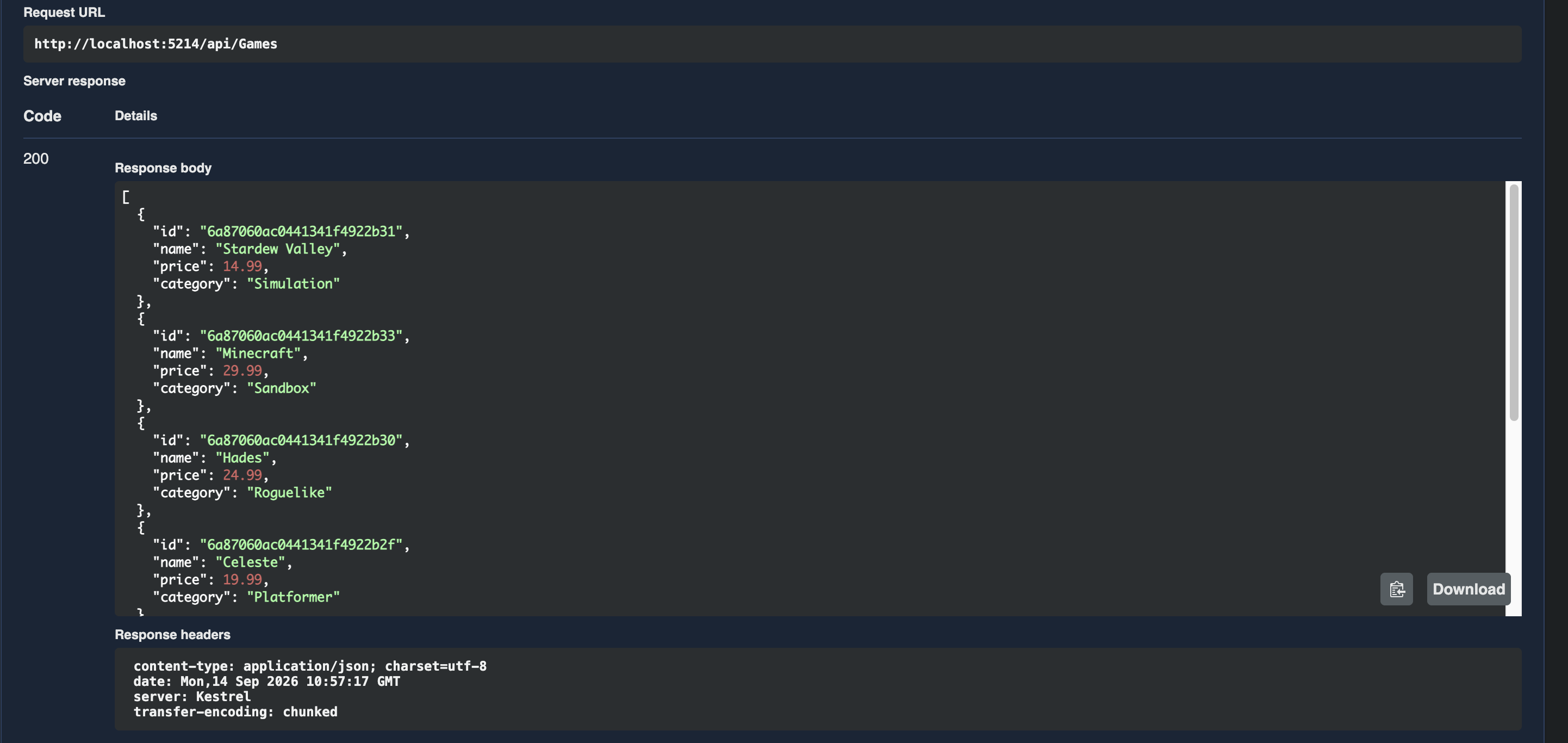
Use the Find or Aggregate (for more complex queries) method to read documents. You may want to find all documents in the collection to return them as a list. Add the following method to your service class to match the corresponding interface method definition:
mongodb-dotnet-example/Services/GamesService.cs
Here, we are passing a filter expression which is the game we want to find. The boolean true is there because we don't need to carry out any filtering and just want all games in our collection.
You can also find a single document based on id:
mongodb-dotnet-example/Services/GamesService.cs
For more information, read our reading reference.
Updating Documents
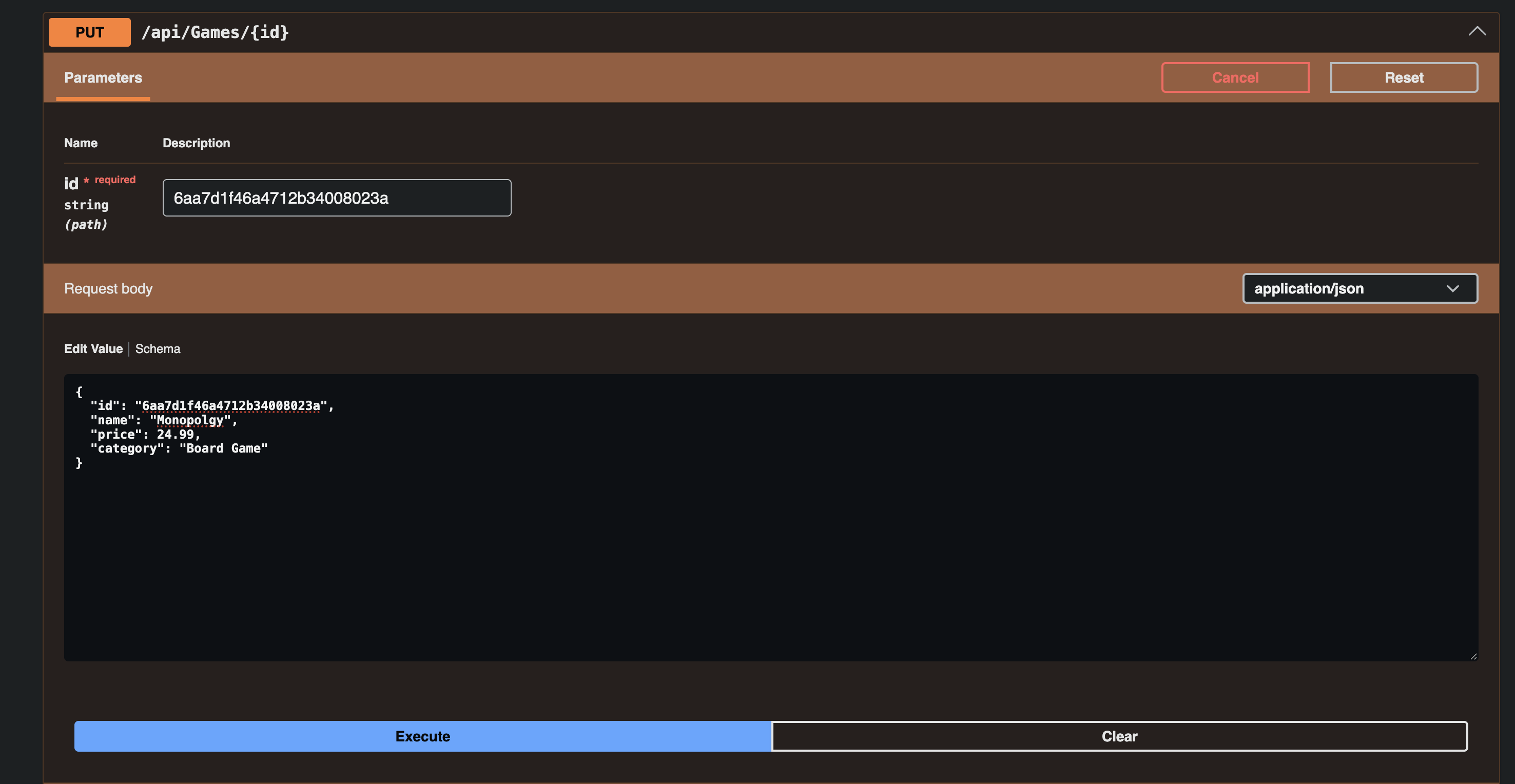
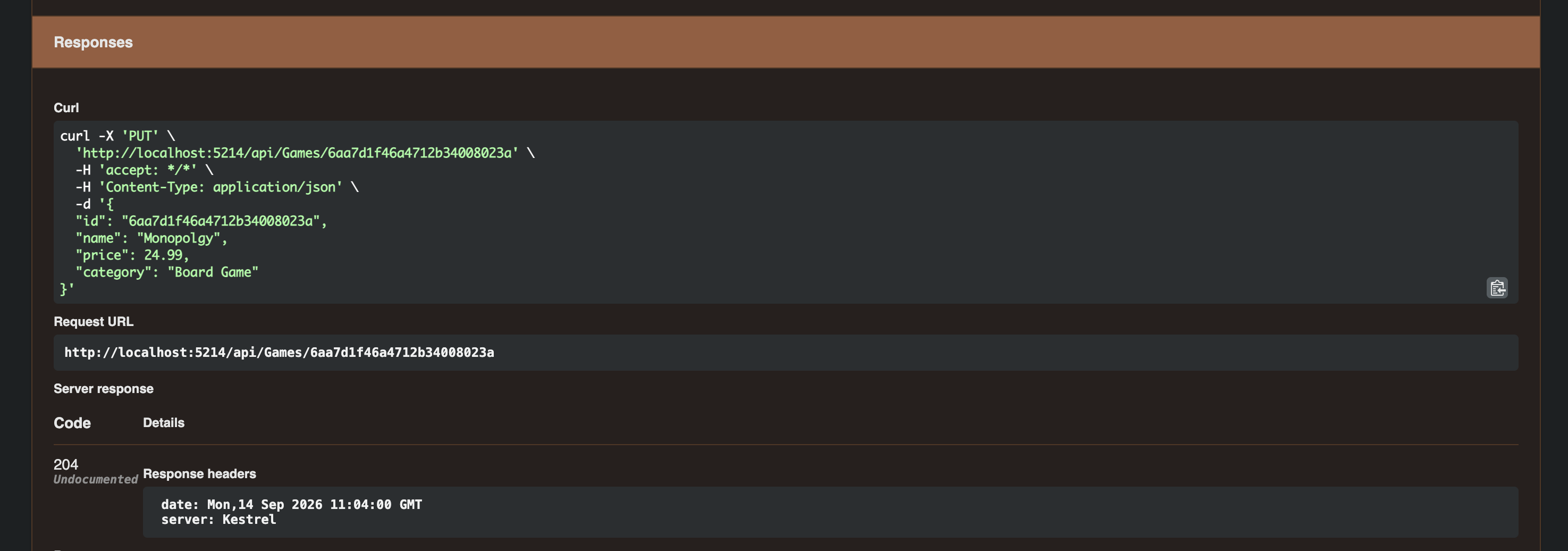
Updating documents is done via the UpdateOne or UpdateMany methods. As well as these, there is the option to run ReplaceOne to replace a full document. With the object-oriented nature of C#, the simplest way to update a document is to pass it the id to update and the updated object model of the document, in our case Game, to the ReplaceOne method:
mongodb-dotnet-example/Services/GamesService.cs
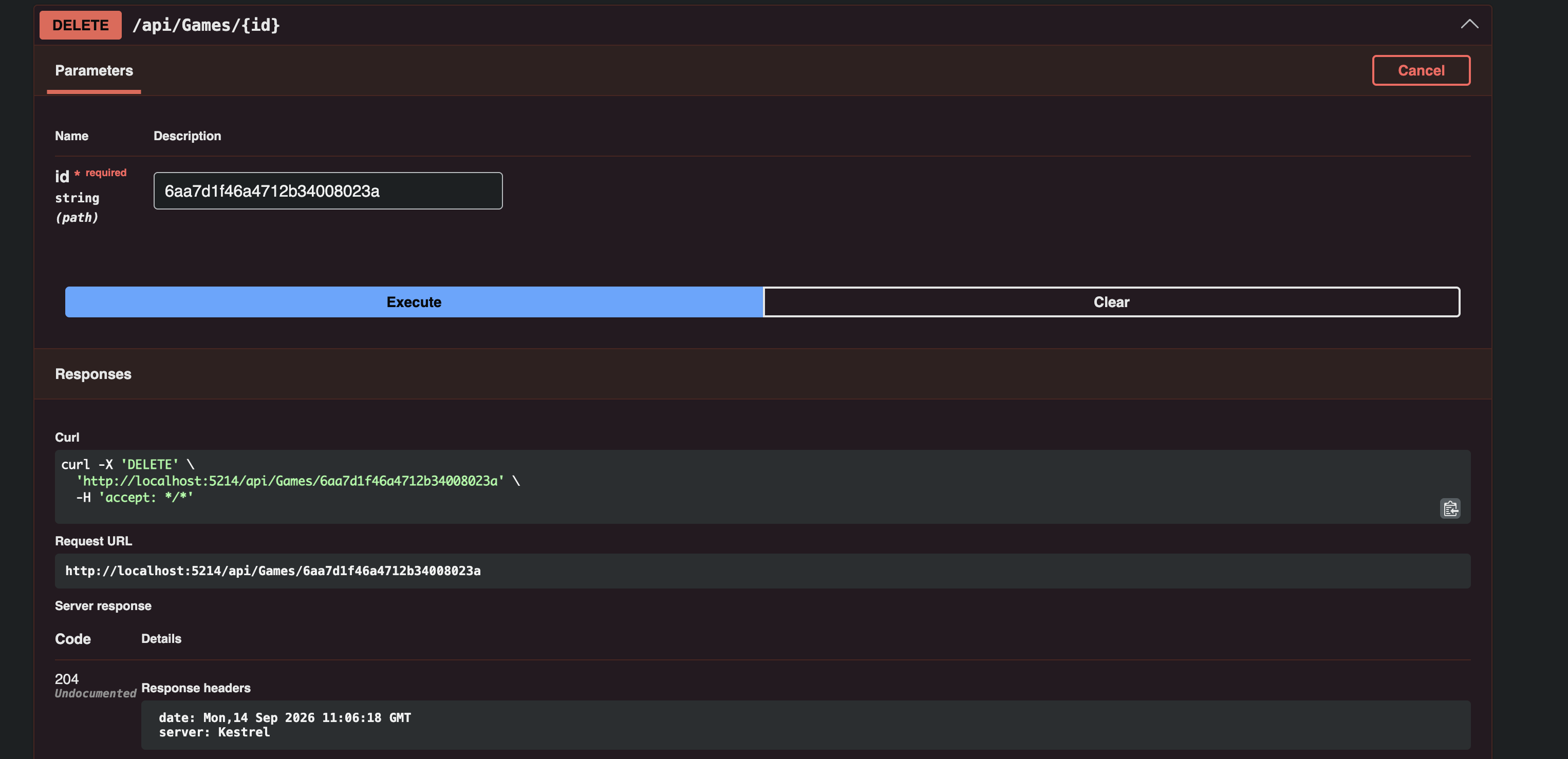
Deleting Documents
The MongoDB.Driver also makes it very simple to delete documents. IGamesService declares two overloads for this — one that takes an id, and one that takes the full Game object to delete:
mongodb-dotnet-example/Services/GamesService.cs
You'll see in the controller section below that only the string id overload actually gets called by the API today — the Game-typed overload is available on the interface but not currently exercised by any endpoint.
Seeding with sample data
It's useful for a freshly started API to have some data to return, rather than an empty list on first run. Add a SeedIfEmpty method to GamesService that checks whether the collection is empty, and if so, inserts a default set of documents:
mongodb-dotnet-example/Services/GamesService.cs
Define the default data set in Models/GameSeedData.cs:
mongodb-dotnet-example/Models/GameSeedData.cs
Finally, call this on startup from Program.cs, guarded by an environment variable so you can opt out of seeding (for example, in CI):
mongodb-dotnet-example/Program.cs
With SeedIfEmpty in place, GamesService now fully implements every member of IGamesService.
Building the Games Controller
With the service layer complete, add a controller in Controllers/GamesController.cs that depends on IGamesService (not the concrete GamesService class) and exposes it as a REST API:
mongodb-dotnet-example/Controllers/GamesController.cs
A few things worth calling out that go beyond a bare-minimum CRUD wiring:
- The {id:length(24)} route constraints filter out obviously wrong ids before they reach GamesService — a valid ObjectId is always 24 characters as a string, so anything shorter or longer returns “404 Not Found” without touching the database. Note this checks length only: a 24-character value that isn't valid hex still reaches the driver and fails there.
- Update and Delete both look the game up first and return “404 Not Found” if it doesn't exist, rather than silently no-op'ing
- Create returns a “201 Created” response via CreatedAtRoute, pointing back at the new game's GetGame route — the conventional REST response shape for a successful creation
Adding a health check
Register NET Core's built-in health checks in `Program.cs`:
mongodb-dotnet-example/Program.cs
This gives you a /health endpoint that returns “200 OK” with the text “Healthy” once the app has started successfully — handy for load balancers, container orchestrators, or just a quick manual check that the API came up correctly.
Adding the Swagger UI
You added Swashbuckle.AspNetCore back in the CLI step, but the package alone doesn't expose anything — it needs to be registered and mapped. Add the service registration alongside your other ones:
Then enable the UI, but only in development, so you're not exposing an interactive API explorer in production:
This gives you a browsable UI at /swagger where every endpoint on GamesController can be called directly from the browser — handy while building, and it doubles as living documentation.
One thing to watch when using it for the PUT endpoint: Swagger pre-fills the request body from the schema, which puts a placeholder in the id field. Replace it with the real id of the game you're updating, matching the id in the path.
Testing the Web API
The sample application is a Web API project, which means that while running, you can actually use your favorite API client, such as Postman, to carry out all the CRUD operations by calling those endpoints found in the GamesController class. These call into the GamesService, where we added in the code that uses the MongoDB.Driver package to work with the database. Let's have a look at how you would call these endpoints with values.
Before we do that, though, here is what Program.cs should look like at this point for reference:
Health
Make a GET request to localhost:/health, and you should see the word “Healthy’ displayed on screen.
The following functionality can be tested either via curl or using the UI available at http://localhost:5000/swagger.
Create
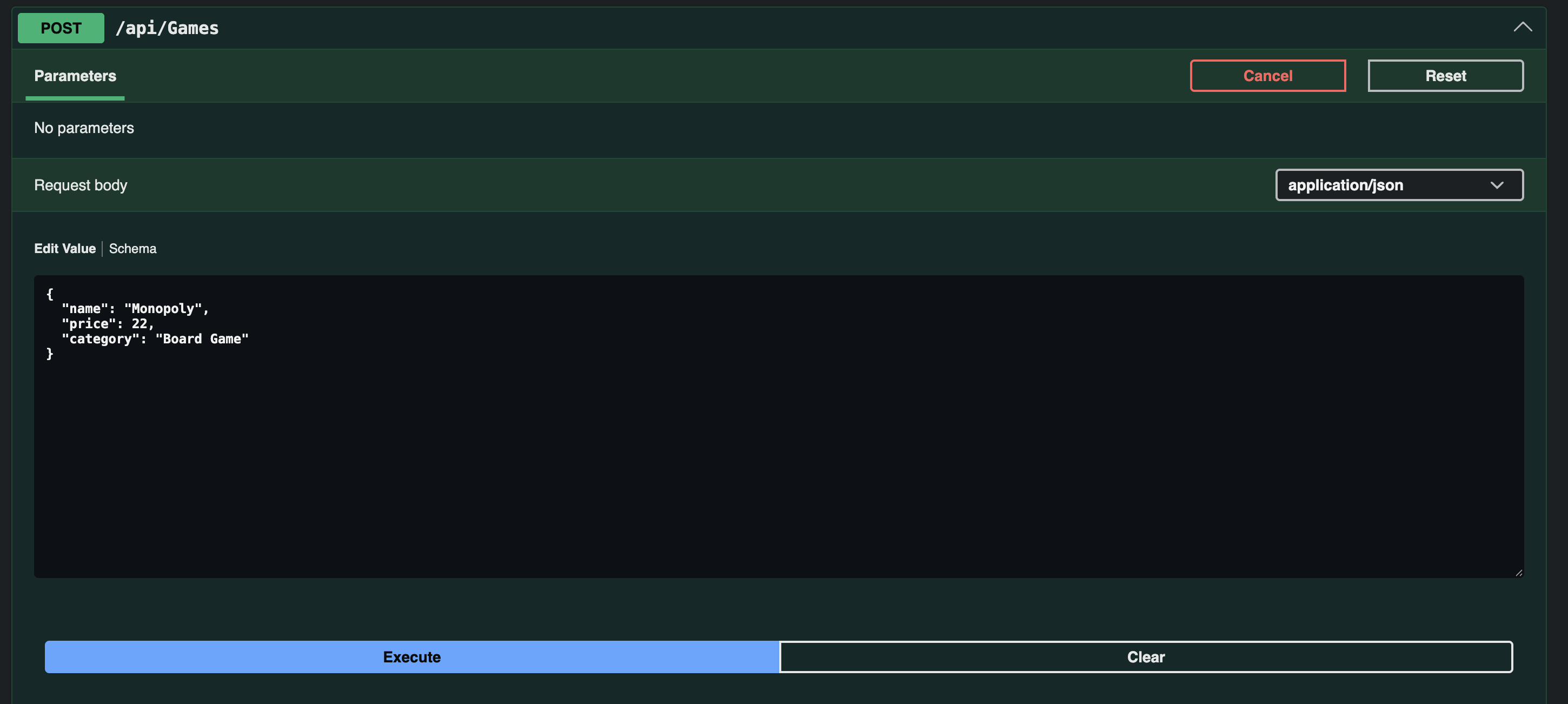
Make a POST request to localhost:/api/games, passing it a JSON object in the body which defines the fields for the new game.