Laravel MongoDB CRUD example
Laravel’s Eloquent library allows us to map and perform database CRUD operations (Create, Read, Update, Delete) directly from the Laravel models.
Assuming that we have a MongoDB collection called “posts,” an example document in the "posts" collection might look something like this:
If you are using MongoDB Atlas, you can use the Atlas Console to insert this document record directly into the database named “myappdb.”
Create a Model, Controller, Route, and a View File
Our first step will be to create a Laravel model to represent the blog posts. From the project directory, run the following command:
This will create an App/Models/Post.php and an App/Http/Controllers/PostController.php file.
By default, artisan creates models that extend Illuminate\Database\Eloquent\Model.
However, for MongoDB, we want to extend the MongoDB Eloquent model, so we want to edit App/Models/Post.php. Our Post model ought to look like this:
Note that when storing new data, Laravel will automatically create the collection in the MongoDB database for you. By default, the collection name is the plural of the model used (“posts” in this case). However, you can override that by setting a collection property on the model like this:
If you were using multiple databases, you would also want to specify the database connection name on the model as indicated above.
Next, we can use our Post model to read and display our blog posts from the MongoDB database. First, let’s create a function in the PostController to get a blog post using a slug:
In the example above, we are just retrieving the post using its slug name. The MongoDB Eloquent models support all the standard Eloquent query methods, but they also support additional queries that are specific to MongoDB itself. For more details, see https://github.com/mongodb/laravel-mongodb.
Next, let’s add the following line to the routes\web.php file to create a route for the blog posts:
Display the Data Using the Laravel View
Finally, let’s add a view to format and style the blog post data for display. The view name needs to match the view that we use in our controller. We can do this by creating the file myapp/resources/views/post.blade.php with the following content:
Now we can see our post at http://localhost:8000/post/first-blog-post.
Save the Data into the MongoDB Database
Now, let’s say you also wanted to create an API that you could use to create blog posts in your application. First, we would want to add a method in our PostController to store a post:
Next, we want to configure a resource route for posts in App\routes\api.php:
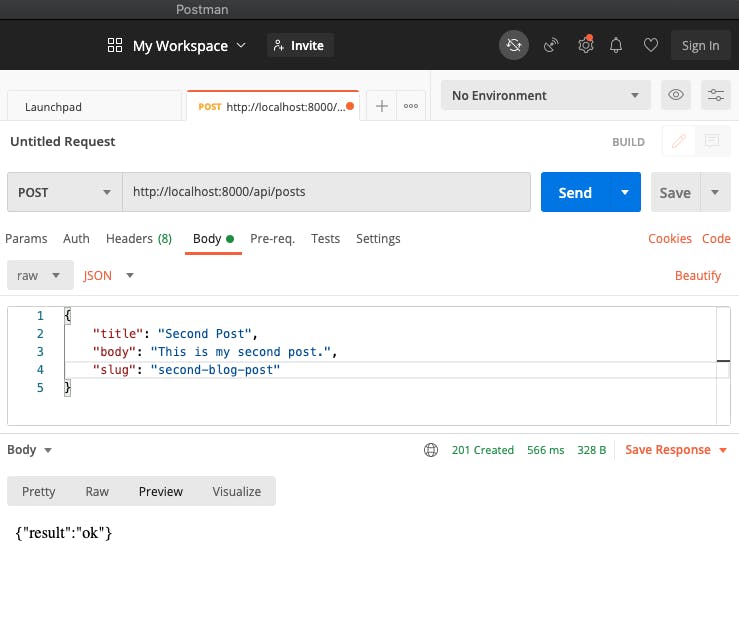
And finally, we can test our API by making a POST request to http://localhost:8000/api/posts. Here’s an example using the Postman app:
Document
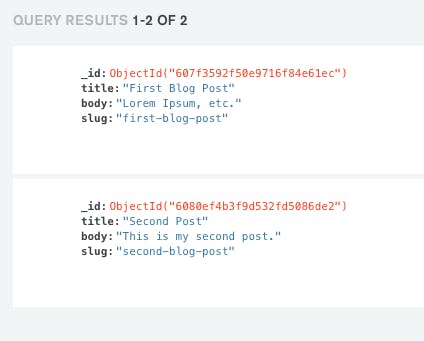
We can check the MongoDB database and see the blog post has been stored:
We should also be able to see the new post by going to http://localhost:8000/post/second-blog-post.
Deleting Data From the Database
As you may have noticed, if a primary key is not specified on the model, the property _id is used as the primary key for each record.
To delete a record, we can use that id to find and delete records. Since we already defined a resource route for posts, we only need to add a destroy() method to the PostController:
Then, we can issue a DELETE request to the API endpoint http://localhost:8000/api/posts/ to delete a post.
Updating Data in the Database
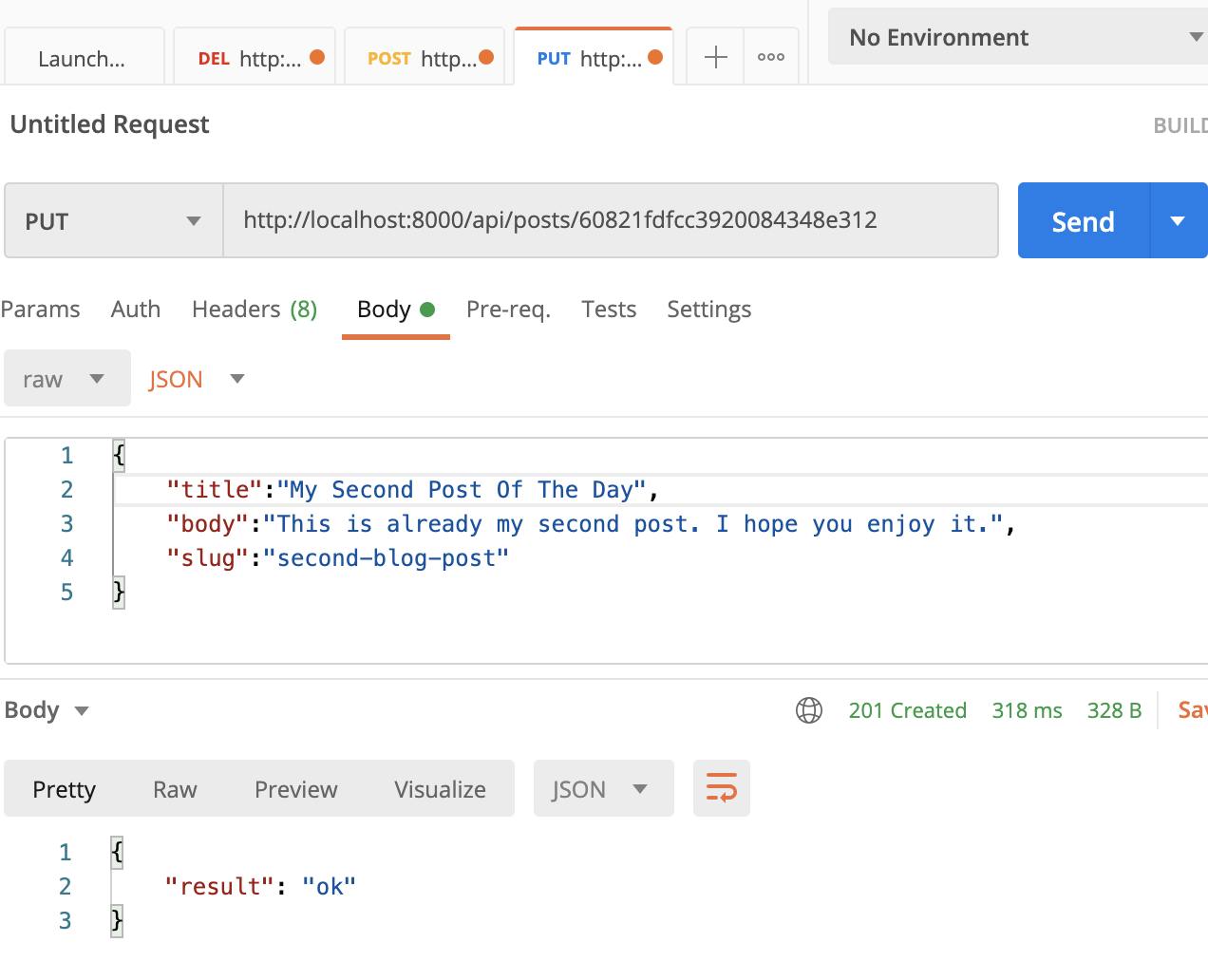
We have created APIs to create and delete blog posts. We may also want to create an API for updating blog posts. This is very similar to the previous examples. We just need to add a method to the PostController:
Now, we can issue a PUT request to the API endpoint http://localhost:8000/api/posts/ with the updated content of the blog post.