Visão geral
Neste guia, você pode aprender como criar um aplicativo da web Angular que usa a pilha MEAN. A pilha MEAN é uma estrutura de desenvolvimento web que usa MongoDB, Express, Angular e Node.js e consiste nas seguintes camadas:
Camada de banco de dados: o MongoDB fornece armazenamento e recuperação de dados.
Camada de aplicativos: Express e Node.js compõem o nível intermediário da lógica do lado do servidor.
Camada de apresentação: o Angular implementa a interface do usuário e as interações de front-end.
Por que usar MongoDB em um aplicativo Angular?
Angular é uma estrutura TypeScript usada para criar aplicativos web dinâmicos. Ele fornece pacotes integrados para uma variedade de recursos de aplicativo, e sua arquitetura baseada em componentes torna os aplicativos altamente reutilizáveis.
Como o TypeScript é baseado em JavaScript, cada elemento da pilha MEAN é baseado em JavaScript e JSON. Como resultado, a integração entre estes elementos é simples. O front-end Angular cria documentos JSON que o MongoDB pode armazenar diretamente no formato BSON, uma extensão JSON binária, e o Express fornece uma framework mínima que usa JavaScript. O MongoDB oferece recursos avançados de indexação e query para documentos BSON e inclui um driver nativo para Node.js , o que o torna o armazenamento de dados ideal para aplicativos JavaScript.
Tutorial de início rápido
Este tutorial mostra como criar um aplicativo da web usando a pilha MEAN. O aplicativo acessa dados de restaurantes de amostra, queries os dados e exibe os resultados em um site hospedado localmente. O tutorial também inclui instruções para se conectar a um cluster MongoDB hospedado no MongoDB Atlas e acessar e exibir dados de seu banco de dados.
Dica
Se você preferir se conectar ao MongoDB usando o driver Node.js sem o Angular, consulte o guia Introdução ao driver Node.js.
Configurar seu projeto
Siga as etapas nesta seção para instalar as dependências do projeto, criar um cluster do Atlas e configurar os diretórios do aplicativo.
Verifique os pré-requisitos.
Para criar o aplicativo Quick Start, instale o seguinte software em seu ambiente de desenvolvimento:
Pré-requisitos | Notas |
|---|---|
Baixe a versão LTS mais recente ou a versão mais recente. | |
Instale globalmente executando | |
Editor de código | Use o editor de sua escolha. |
Aplicativo de terminal e shell | Para usuários do MacOS, use o Terminal ou um aplicativo semelhante. Para usuários do Windows, use o PowerShell. |
Crie um cluster do MongoDB Atlas.
MongoDB Atlas is a fully managed cloud database service that hosts your MongoDB deployments. If you do not have a MongoDB deployment, you can create a MongoDB cluster for free by completing the MongoDB Get Started tutorial. The MongoDB Get Started tutorial also demonstrates how to load sample datasets into your cluster, including the sample_restaurants database that is used in this tutorial.
Para se conectar ao cluster MongoDB, você deve usar um URI de conexão. Para aprender como recuperar seu URI de conexão, veja a seção Adicionar sua string de conexão do tutorial de Introdução ao MongoDB.
Importante
Salve sua string de conexão em um local seguro.
Crie seus diretórios de projeto .
Execute os seguintes comandos no seu terminal para criar um diretório para seu projeto denominado angular-quickstart:
mkdir angular-quickstart cd angular-quickstart
Em seguida, execute os seguintes comandos a partir do diretório angular-quickstart para criar uma pasta para o backend denominada server e inicializar o arquivo package.json:
mkdir server cd server npm init -y
Modifique seu arquivo package.json.
Navegue até o arquivo package.json no diretório angular-quickstart/server. Para usar os módulos ECMAScript, o formato padrão para empacotar código JavaScript para reutilização, substitua a linha existente que especifica o campo "type" pela seguinte linha:
"type": "module",
Instale as dependências.
Execute o seguinte comando para instalar as dependências mongodb, express, cors e dotenv:
npm install mongodb express cors dotenv
Este comando instala o MongoDB, o framework web Express, o pacote cors Node.js para compartilhamento de recursos entre origens e Dotenv para carregar variáveis de ambiente.
Em seguida, execute o seguinte comando para instalar o TypeScript e as definições de tipo necessárias:
npm install -D typescript @types/node @types/cors @types/express tsx
Este comando instala o TypeScript, definições de tipo para Node.js e Express, e tsx, uma ferramenta para executar arquivos TypeScript diretamente.
Configurar o back-end
Após configurar a estrutura e as dependências do projeto, siga as etapas desta seção para configurar seu servidor da web e conectar-se ao MongoDB.
Configure seu servidor da web Express .
Crie um arquivo denominado server.ts no seu diretório angular-quickstart/server e cole o seguinte código:
import express from "express"; import cors from "cors"; import restaurants from "./routes/restaurant.js"; const PORT = process.env.PORT || 5050; const app = express(); app.use(cors()); app.use(express.json()); app.use("/restaurant", restaurants); // start the Express server app.listen(PORT, () => { console.log(`Server listening on port ${PORT}`); });
Defina variáveis de ambiente.
No diretório server, crie um arquivo .env e cole o seguinte código:
MONGODB_URI=<connection string> PORT=5050
Replace the <connection string> placeholder with the connection string that you saved in a previous step.
Conecte seu servidor ao banco de dados.
No diretório server, crie um subdiretório denominado db. Adicione um novo arquivo denominado connection.ts a este subdiretório e cole o seguinte código:
import "dotenv/config"; import { MongoClient, Db } from "mongodb"; const uri = process.env.MONGODB_URI || ""; const client = new MongoClient(uri); try { // Connects the client to the server await client.connect(); // Sends a ping to confirm a successful connection await client.db("admin").command({ ping: 1 }); console.log( "Pinged your deployment. You successfully connected to MongoDB!" ); } catch(err) { console.error(err); } const db: Db = client.db("sample_restaurants"); export default db;
Esse arquivo se conecta à sua implantação do MongoDB, acessa o banco de dados sample_restaurants e testa a conexão com o banco de dados.
Criar pontos de extremidade API do servidor.
No diretório server, crie um subdiretório denominado routes. Crie um arquivo denominado restaurant.ts neste subdiretório e cole o seguinte código:
import express, { Request, Response } from "express"; import db from "../db/connection.js"; // Creates an instance of the Express router, used to define our routes const router = express.Router(); // Gets a list of all the restaurants router.get("/", async (req: Request, res: Response) => { let collection = db.collection("restaurants"); let results = await collection.find({}).toArray(); res.send(results).status(200); }); // Lists restaurants that match the query filter router.get("/browse", async (req: Request, res: Response) => { try { let collection = db.collection("restaurants"); let query = { borough: "Queens", name: { $regex: "Moon", $options: "i" }, }; let results = await collection.find(query).toArray(); res.send(results).status(200); } catch (err) { console.error(err); res.status(500).send("Error browsing restaurants"); } }); export default router;
Este arquivo acessa a coleção restaurants no banco de dados do sample_restaurants e define os seguintes pontos de extremidade do GET:
/: recupera todos os restaurantes da coleção de amostras/browse: recupera restaurantes que correspondem aos critérios de query, que aplica um filtro para restaurantes em Queens que contêm a palavra"Moon"no nome
Configurar o front-end
Depois de configurar o backend do aplicativo, siga as etapas nesta seção para configurar o Angular e adicionar os componentes de frontend.
Crie o aplicativo Angular.
Navegue até o diretório angular-quickstart e execute o seguinte comando para criar um novo aplicativo Angular:
ng new client
Este comando solicita que você responda a uma série de perguntas de configuração. Para cada pergunta, escolha as seguintes respostas:
Qual sistema de folha de estilo você gostaria de usar? Selecionar CSS do Tailwind
Deseja ativar a renderização do lado do servidor (SSR) e a geração de sites estáticos (SSG/Prerendering)? Insira N
Quais ferramentas de IA você deseja configurar com as práticas recomendadas do Angular? Selecione as ferramentas de sua escolha
Após executar o comando, seu projeto tem um diretório client que contém andaime front-end. O comando também configura seu projeto para usar o TailwindCSS, uma framework para formatação da IU.
Crie o serviço de restaurante.
No diretório client, execute o seguinte comando para gerar um serviço que lida com chamadas de API para seu backend:
ng generate service restaurant
Navegue até o arquivo client/src/app/restaurant.ts e substitua o conteúdo pelo seguinte código:
import { Injectable } from '@angular/core'; import { HttpClient } from '@angular/common/http'; import { Observable } from 'rxjs'; export interface Restaurant { _id: string; name: string; borough: string; cuisine: string; } ({ providedIn: 'root' }) export class RestaurantService { private apiUrl = 'http://localhost:5050/restaurant'; constructor(private http: HttpClient) {} getAllRestaurants(): Observable<Restaurant[]> { return this.http.get<Restaurant[]>(this.apiUrl); } getFilteredRestaurants(): Observable<Restaurant[]> { return this.http.get<Restaurant[]>(`${this.apiUrl}/browse`); } }
Este serviço define métodos para buscar dados de restaurantes de sua API Express.
Configurar roteamento.
Navegue até o arquivo client/src/app/app.routes.ts e substitua o conteúdo pelo seguinte código:
import { Routes } from '@angular/router'; import { RestaurantListComponent } from './restaurant-list/restaurant-list'; export const routes: Routes = [ { path: '', component: RestaurantListComponent }, { path: 'browse', component: RestaurantListComponent } ];
Este arquivo configura o roteamento do lado do cliente e define as seguintes rotas:
/: exibe todos os restaurantes do ponto de extremidade da API/restaurant//browse: exibe restaurantes filtrados do ponto de extremidade da API/restaurant/browse
Atualize a configuração do aplicativo.
Navegue até o arquivo client/src/app/app.config.ts e substitua o conteúdo pelo seguinte código:
import { ApplicationConfig, provideZoneChangeDetection } from '@angular/core'; import { provideRouter } from '@angular/router'; import { provideHttpClient } from '@angular/common/http'; import { routes } from './app.routes'; export const appConfig: ApplicationConfig = { providers: [ provideZoneChangeDetection({ eventCoalescing: true }), provideRouter(routes), provideHttpClient() ] };
Esta configuração ativa a funcionalidade do cliente HTTP para fazer solicitações de API.
Crie o componente da lista de restaurantes.
Execute o seguinte comando a partir do diretório client para gerar um componente para exibir restaurantes:
ng generate component restaurant-list
Navegue até o arquivo client/src/app/restaurant-list/restaurant-list.ts e substitua o conteúdo pelo seguinte código:
import { Component, OnInit } from '@angular/core'; import { CommonModule } from '@angular/common'; import { Router } from '@angular/router'; import { RestaurantService, Restaurant } from '../restaurant'; ({ selector: 'app-restaurant-list', standalone: true, imports: [CommonModule], templateUrl: './restaurant-list.html', styleUrl: './restaurant-list.css' }) export class RestaurantListComponent implements OnInit { restaurants: Restaurant[] = []; loading = true; error = ''; constructor( private restaurantService: RestaurantService, public router: Router ) {} ngOnInit(): void { this.loadRestaurants(); } loadRestaurants(): void { const isFiltered = this.router.url === '/browse'; const observable = isFiltered ? this.restaurantService.getFilteredRestaurants() : this.restaurantService.getAllRestaurants(); observable.subscribe({ next: (data) => { this.restaurants = data; this.loading = false; }, error: (err) => { this.error = 'Failed to load restaurants'; this.loading = false; console.error('Error loading restaurants:', err); } }); } }
Em seguida, navegue até o arquivo client/src/app/restaurant-list/restaurant-list.html e substitua o conteúdo pelo seguinte código:
<div *ngIf="loading" class="text-center py-8"> <p class="text-gray-600">Loading restaurants...</p> </div> <div *ngIf="error" class="bg-red-100 border border-red-400 text-red-700 px-4 py-3 rounded"> {{ error }} </div> <div *ngIf="!loading && !error"> <h3 class="text-lg font-semibold p-4"> {{ router.url === '/browse' ? 'Filtered Restaurants (Queens, containing "Moon")' : 'All Restaurants' }} </h3> <div class="border rounded-lg overflow-hidden"> <div class="relative w-full overflow-auto"> <table class="w-full caption-bottom text-sm"> <thead class="[&_tr]:border-b"> <tr class="border-b transition-colors hover:bg-muted/50 data-[state=selected]:bg-muted"> <th class="h-12 px-4 text-left align-middle font-medium text-muted-foreground [&:has([role=checkbox])]:pr-0"> Name </th> <th class="h-12 px-4 text-left align-middle font-medium text-muted-foreground [&:has([role=checkbox])]:pr-0"> Borough </th> <th class="h-12 px-4 text-left align-middle font-medium text-muted-foreground [&:has([role=checkbox])]:pr-0"> Cuisine </th> </tr> </thead> <tbody class="[&_tr:last-child]:border-0"> @for (restaurant of restaurants; track restaurant._id) { <tr class="border-b transition-colors hover:bg-muted/50 data-[state=selected]:bg-muted"> <td class="p-4 align-middle [&:has([role=checkbox])]:pr-0"> {{ restaurant.name }} </td> <td class="p-4 align-middle [&:has([role=checkbox])]:pr-0"> {{ restaurant.borough }} </td> <td class="p-4 align-middle [&:has([role=checkbox])]:pr-0"> {{ restaurant.cuisine }} </td> </tr> } </tbody> </table> </div> </div> </div>
Este componente recupera e exibe as informações do restaurante com base na rota atual.
Atualize o componente principal do aplicativo.
Navegue até o arquivo client/src/app/app.ts e substitua o conteúdo pelo seguinte código:
import { Component } from '@angular/core'; import { RouterOutlet, RouterLink, RouterLinkActive } from '@angular/router'; ({ selector: 'app-root', standalone: true, imports: [RouterOutlet, RouterLink, RouterLinkActive], templateUrl: './app.html', styleUrl: './app.css' }) export class AppComponent { title = 'Restaurant Browser'; }
Em seguida, navegue até o arquivo client/src/app/app.html e substitua o conteúdo pelo seguinte código:
<div class="w-full p-6"> <nav class="flex justify-between items-center mb-6"> <a routerLink="/"> <img alt="MongoDB logo" class="h-10 inline" src="https://d3cy9zhslanhfa.cloudfront.net/media/3800C044-6298-4575-A05D5C6B7623EE37/4B45D0EC-3482-4759-82DA37D8EA07D229/webimage-8A27671A-8A53-45DC-89D7BF8537F15A0D.png" /> </a> <div class="flex gap-4"> <a routerLink="/" routerLinkActive="font-bold" [routerLinkActiveOptions]="{exact: true}" class="text-blue-600 hover:underline"> All Restaurants </a> <a routerLink="/browse" routerLinkActive="font-bold" class="text-blue-600 hover:underline"> Filtered Restaurants </a> </div> </nav> <router-outlet></router-outlet> </div>
Este é o principal componente do aplicativo que inclui navegação e renderiza os componentes secundários apropriados com base na rota atual.
Atualize seu arquivo principal.
Navegue até o arquivo client/src/main.ts e substitua o conteúdo pelo seguinte código:
import 'zone.js'; import { bootstrapApplication } from '@angular/platform-browser'; import { appConfig } from './app/app.config'; import { AppComponent } from './app/app'; bootstrapApplication(AppComponent, appConfig) .catch((err) => console.error(err));
Este arquivo atua como o ponto de entrada para seu aplicativo, aplicando e renderizando sua configuração.
Execute seu aplicativo
Por fim, siga as etapas nesta seção para executar seu aplicativo e visualizar os dados renderizados do restaurante.
Execute o aplicativo cliente.
Em uma janela de terminal separada, navegue até o diretório client. Execute o seguinte comando para iniciar o frontend do Angular:
ng serve
Se bem-sucedido, este comando gera as seguintes informações:
Application bundle generation complete. Watch mode enabled. Watching for file changes... NOTE: Raw file sizes do not reflect development server per-request transformations. ➜ Local: http://localhost:4200/ ➜ press h + enter to show help
Seu aplicativo Angular faz solicitações HTTP da porta 4200 para a porta 5050 para recuperar dados.
Abra o site do aplicativo.
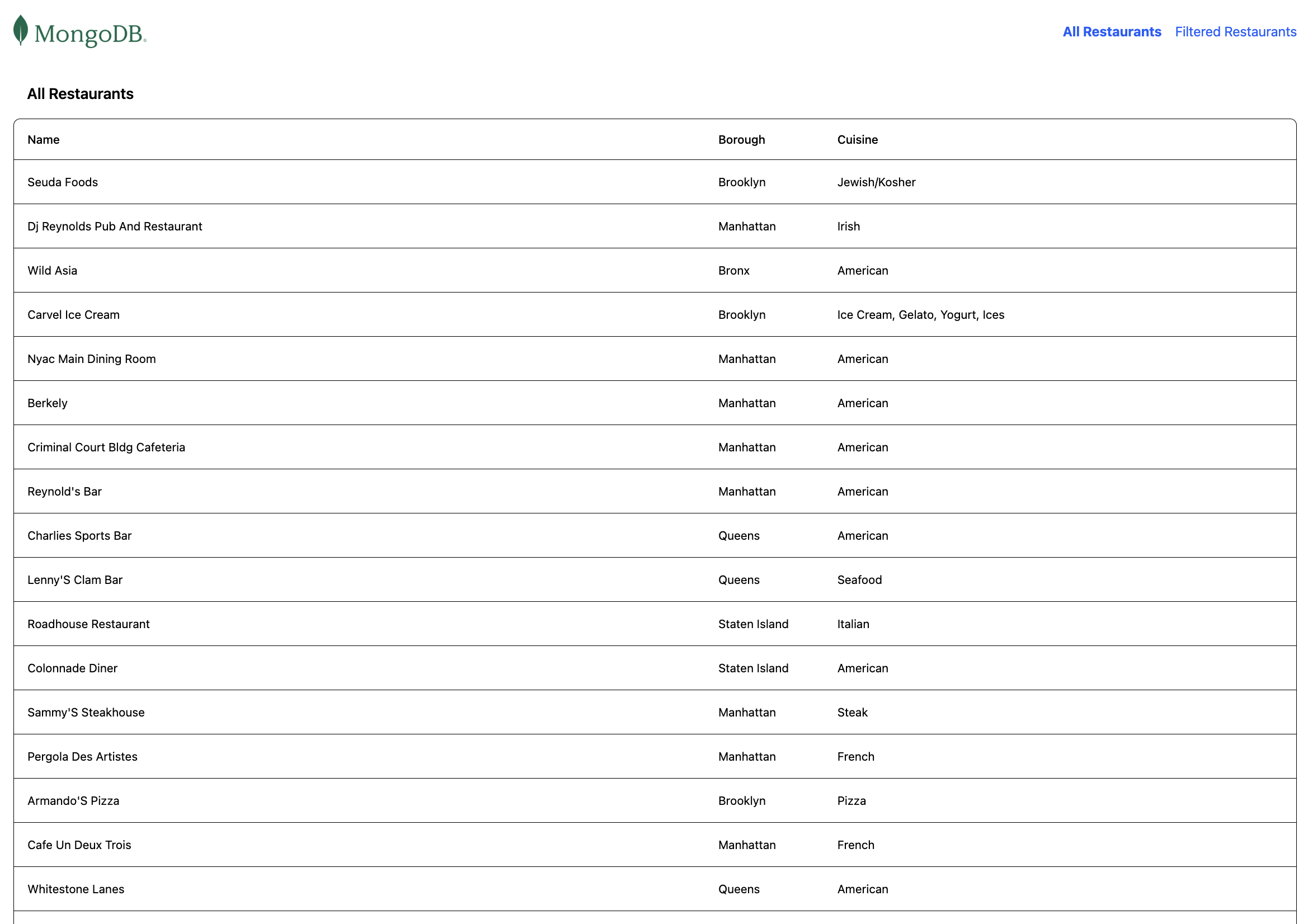
Abra o http://localhost:4200/ URL. A página de destino inicial exibe uma lista de todos os restaurantes na coleção sample_restaurants.restaurants:
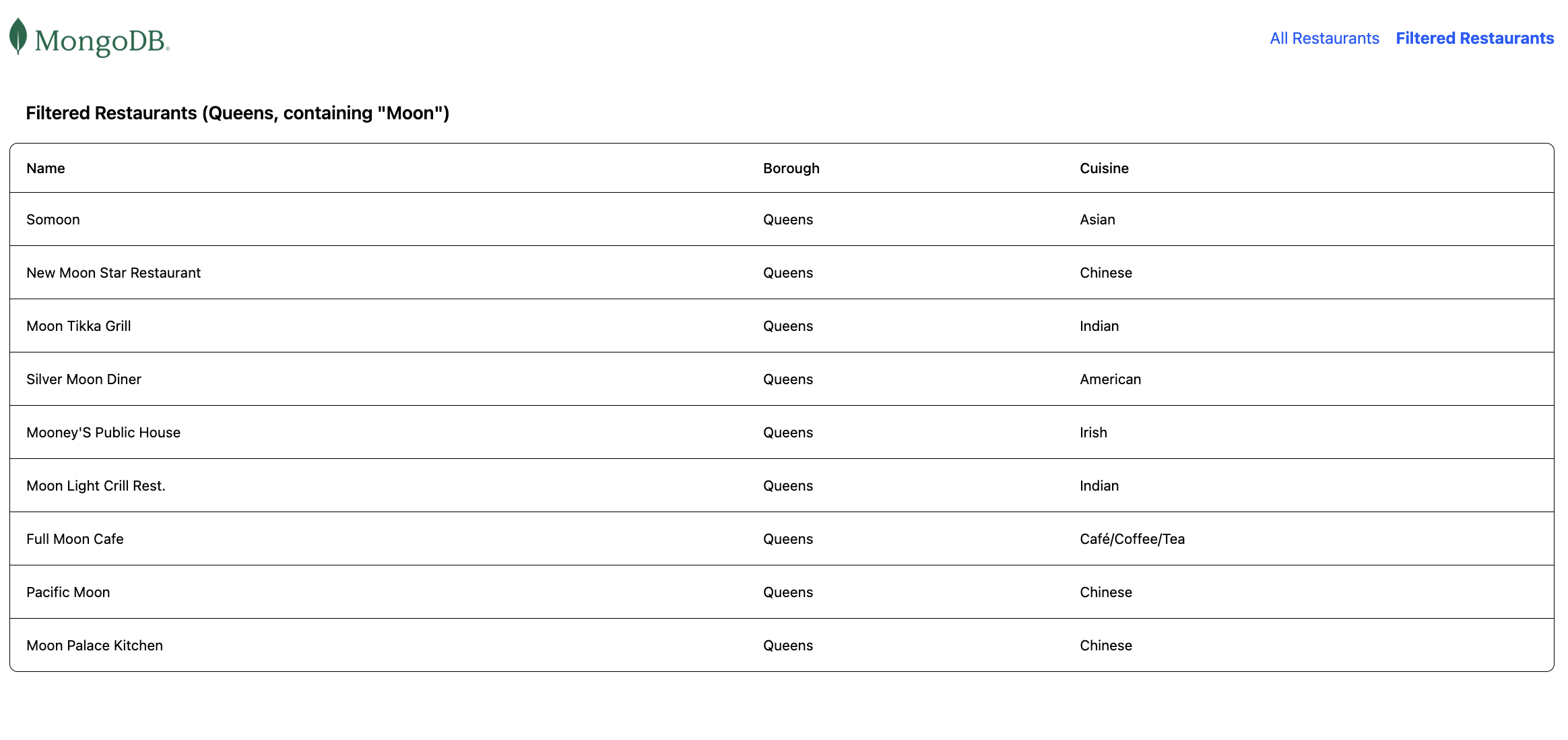
Em seguida, clique no link Filtered Restaurants na barra de navegação para visualizar os restaurantes que correspondem à query de campo name e borough:
Parabéns por concluir o tutorial de início rápido!
Depois de concluir essas etapas, você tem um aplicativo web Angular que se conecta à implantação do MongoDB, executa uma query em dados de restaurante de amostra e renderiza os resultados em um website hospedado localmente.
Recursos adicionais
Para saber mais sobre Angular, MongoDB e a pilha MEAN, consulte os seguintes recursos:
Angular documentation
Node.js driver documentation
What is the MEAN stack? article