このページでは、 LiveData を使用する例の AndroidアプリケーションにRealm をすばやく統合するための手順が記載されています。この例アプリケーションでは、ユーザーは ボタンを使用してカウンターを増加させることができます。
前提条件
このクイック スタート ガイドでは、同期を使用して、クライアント間でデータ変更を同期します。 始める前に、以下のものがあることを確認してください。
注意
同期なしで LiveData を使用
同期なしでこのクイック スタートを使用するには、SDK で同期機能を無効にします。 そのためには、アプリレベルのbuild.gradleファイルから次の行を削除します。
realm { syncEnabled = true }
行を削除した後、 Gradle 構成を再同期して Java SDK をオフライン専用の状態で再ロードします。 同期構成、ユーザー ログイン、パーティション値のインポートと使用に関連する行を CounterModelファイルから削除し、同期なしで Java SDK を使用します。
LiveData クイック スタート リポジトリのクローン
To get started, copy the example repo into your local environment.
必要なコードのほとんどを含む Android アプリケーションはすでにまとめられています。 クライアント アプリケーションのリポジトリはGithubから直接クローンできます。
git clone https://github.com/mongodb-university/realm-android-livedata.git
リポジトリには、 finalとstartの 2 つのブランチが含まれています。 このチュートリアルを完了すると、 finalブランチはアプリの完成バージョンになります。 このチュートリアルを行うには、 startブランチを確認してください。
git checkout start
依存関係のインポート
リポジトリをクローンしたので、Java SDK と Android LiveData を実行するために必要な依存関係を追加する必要があります。 最初に、プロジェクト レベルのbuild.gradleファイルのbuildscript.dependenciesブロックに Java SDK 依存関係を追加します。
buildscript { ext.kotlin_version = "1.4.10" repositories { google() jcenter() } dependencies { classpath "com.android.tools.build:gradle:4.0.2" classpath "org.jetbrains.kotlin:kotlin-gradle-plugin:$kotlin_version" classpath "io.realm:realm-gradle-plugin:10.2.0" } }
また、アプリレベルのbuild.gradleファイルのdependenciesブロックにも Android LiveData 依存関係を追加する必要があります。
dependencies { implementation fileTree(dir: "libs", include: ["*.jar"]) implementation "org.jetbrains.kotlin:kotlin-stdlib:$kotlin_version" implementation 'androidx.core:core-ktx:1.3.2' implementation 'androidx.appcompat:appcompat:1.2.0' implementation 'com.google.android.material:material:1.2.1' implementation 'androidx.constraintlayout:constraintlayout:2.0.4' implementation 'androidx.navigation:navigation-fragment-ktx:2.3.1' implementation 'androidx.navigation:navigation-ui-ktx:2.3.1' implementation "androidx.lifecycle:lifecycle-livedata-ktx:2.2.0" testImplementation 'junit:junit:4.12' androidTestImplementation 'androidx.test.ext:junit:1.1.2' androidTestImplementation 'androidx.test.espresso:espresso-core:3.3.0' }
次に、アプリレベルのbuild.gradleファイルに次の最上位ブロックを作成して、SDK で同期を有効にします。
realm { syncEnabled = true }
次に、アプリレベルのbuild.gradleファイルのandroidブロックに次のブロックを作成して、DataBinding を有効にします。
android { compileSdkVersion 30 buildToolsVersion "30.0.2" defaultConfig { applicationId "com.mongodb.realm.livedataquickstart" minSdkVersion 16 targetSdkVersion 30 versionCode 1 versionName "1.0" testInstrumentationRunner "androidx.test.runner.AndroidJUnitRunner" } buildFeatures { dataBinding true } buildTypes { release { minifyEnabled false proguardFiles getDefaultProguardFile('proguard-android-optimize.txt'), 'proguard-rules.pro' } } compileOptions { sourceCompatibility JavaVersion.VERSION_1_8 targetCompatibility JavaVersion.VERSION_1_8 } kotlinOptions { jvmTarget = '1.8' } }
最後に、[Sync] ボタンをクリックするか、アプリケーション メニューで Build > Rebuild Projectを選択して、これらの変更で Gradle 構成を再構成し、依存関係を取得します。
LiveRealmObject
すべての依存関係が適切になったら、Realm オブジェクト用の LiveData 互換インターフェースを作成します。 そのためには、いくつかのイベントを処理する必要があります。
onActive()メソッドを使用すると、オブジェクトは 変更リスナー を追加して、基礎の Realm オブジェクトへの変更をサブスクライブできます。override fun onActive() { super.onActive() val obj = value if (obj != null && RealmObject.isValid(obj)) { RealmObject.addChangeListener(obj, listener) } } onInactive()メソッドを使用すると、変更リスナーを削除して、基礎の Realm オブジェクトへの変更のサブスクライブを解除できます。override fun onInactive() { super.onInactive() val obj = value if (obj != null && RealmObject.isValid(obj)) { RealmObject.removeChangeListener(obj, listener) } } 変更が発生すると、
listenerノードはLiveData親クラスのsetValue()メソッドを使用して、オブジェクトが削除されていない限り、Realm オブジェクトの 値を UI に渡します。この場合、変更リスナーはnullの値を渡します。無効で削除されたオブジェクトへの参照を渡す代わりに、 を使用し 。private val listener = RealmObjectChangeListener<T> { obj, objectChangeSet -> if (!objectChangeSet!!.isDeleted) { setValue(obj) } else { // Because invalidated objects are unsafe to set in LiveData, pass null instead. setValue(null) } }
Tip
RealmResults での LiveData の使用
This example only uses LiveData to display RealmObjects in the UI. For a sample implementation displaying RealmResults, see LiveRealmResults.
ViewModel での LiveData のインスタンス化
このアプリケーションは、すべてのロジックとコア データをCounterModelと呼ばれる ViewModel 内に保存します。 アプリケーションの実行時に、アプリケーションが終了するまで使用されるCounterModelのインスタンスが作成されます。 そのインスタンスには、アプリケーションの UI に表示される LiveData が含まれています。 LiveData のインスタンスを作成するには、Realm に保存されているCounterオブジェクトにアクセスし、それをLiveRealmObjectコンストラクターに渡す必要があります。 これを実現するには、次の手順に従います。
アプリ ID を使用して アプリに接続します。
ユーザーを認証します。
同期 を使用して特定の邦土に接続します。
Realm で
Counterをクエリし、この Realm でドキュメントがまだ作成されていない場合は、新しいCounterを挿入します。Counterインスタンスを使用してLiveRealmObjectをインスタンス化し、CounterModelのcounterに保存します。
次のコード スニペットは、この動作を実装します。
init { val appID = "YOUR APP ID HERE" // TODO: replace this with your App ID // 1. connect to the MongoDB Realm app backend val app = App( AppConfiguration.Builder(appID) .build() ) // 2. authenticate a user app.loginAsync(Credentials.anonymous()) { if(it.isSuccess) { Log.v("QUICKSTART", "Successfully logged in anonymously.") // 3. connect to a realm with Realm Sync val user: User? = app.currentUser() val partitionValue = "example partition" val config = SyncConfiguration.Builder(user!!, partitionValue) // because this application only reads/writes small amounts of data, it's OK to read/write from the UI thread .allowWritesOnUiThread(true) .allowQueriesOnUiThread(true) .build() // open the realm realm = Realm.getInstance(config) // 4. Query the realm for a Counter, creating a new Counter if one doesn't already exist // access all counters stored in this realm val counterQuery = realm!!.where<Counter>() val counters = counterQuery.findAll() // if we haven't created the one counter for this app before (as on first launch), create it now if (counters.size == 0) { realm?.executeTransaction { transactionRealm -> val counter = Counter() transactionRealm.insert(counter) } } // 5. Instantiate a LiveRealmObject using the Counter and store it in a member variable // the counters query is life, so we can just grab the 0th index to get a guaranteed counter this._counter.postValue(counters[0]!!) } else { Log.e("QUICKSTART", "Failed to log in anonymously. Error: ${it.error.message}") } } }
重要
UI スレッドでの読み取りまたは書き込みを行わない
データベースの読み取りと書込みは計算コストが高いため、SDK は UI スレッドのデフォルトで読み取りと書込みを無効にします。 簡単にするために、この例ではallowWritesOnUiThread()とallowQueriesOnUiThread()コンフィギュレーションビルダ メソッドを使用して UI スレッドの読み取りと書込みを有効にします。 実稼働アプリケーションでは、非同期メソッドを使用して、読み取りと書込みをバックグラウンド スレッドに遅延させることがほとんどです。
UI へのビューモデルの接続
To display the data stored in the CounterModel on the application UI, we'll need to access the CounterModel singleton using the viewModels() method when the application creates CounterFragment. Once we've instantiated the model, we can use the Android Data Binding library to display the model's data in UI elements.
アプリケーションがCounterFragmentを作成するときにCounterModelシングルオンにアクセスするには、次のコードをCounterFragmentのonCreateView()メソッドに配置します。
val model: CounterModel by viewModels()
次に、カウンター フラグメントの UI でデータ バインディング フックを設定します。
<?xml version="1.0" encoding="utf-8"?> <layout> <data> <variable name="counterModel" type="com.mongodb.realm.livedataquickstart.model.CounterModel" /> </data> <androidx.constraintlayout.widget.ConstraintLayout xmlns:android="http://schemas.android.com/apk/res/android" xmlns:app="http://schemas.android.com/apk/res-auto" xmlns:tools="http://schemas.android.com/tools" android:layout_width="match_parent" android:layout_height="match_parent" tools:context=".CounterFragment"> <TextView android:id="@+id/textview" android:layout_width="wrap_content" android:layout_height="wrap_content" android:text="@{counterModel.counter.value.get().toString()}" android:textSize="58pt" app:layout_constraintBottom_toTopOf="@id/button" app:layout_constraintEnd_toEndOf="parent" app:layout_constraintStart_toStartOf="parent" app:layout_constraintTop_toTopOf="parent" /> <Button android:id="@+id/button" android:layout_width="wrap_content" android:layout_height="wrap_content" android:text="@string/add" app:layout_constraintBottom_toBottomOf="parent" app:layout_constraintEnd_toEndOf="parent" app:layout_constraintStart_toStartOf="parent" app:layout_constraintTop_toBottomOf="@id/textview" /> </androidx.constraintlayout.widget.ConstraintLayout> </layout>
最後に、モデルをバインディングに接続して、UI がカウンターを表示し、 CounterFragmentのonCreateView()メソッドで次のコードを使用してボタンを押してからカウンターを反復処理できるようにします。
val binding = CounterFragmentBinding.inflate(inflater, container, false).apply { lifecycleOwner = viewLifecycleOwner counterModel = model } binding.root.button.setOnClickListener { Log.v("QUICKSTART", "Clicked increment button. Current value: ${model.counter.value?.value?.get()}") model.incrementCounter() } return binding.root
アプリケーションの実行
これで、サンプル アプリケーションを実行できるはずです。 次のようなインターフェースが表示されます。

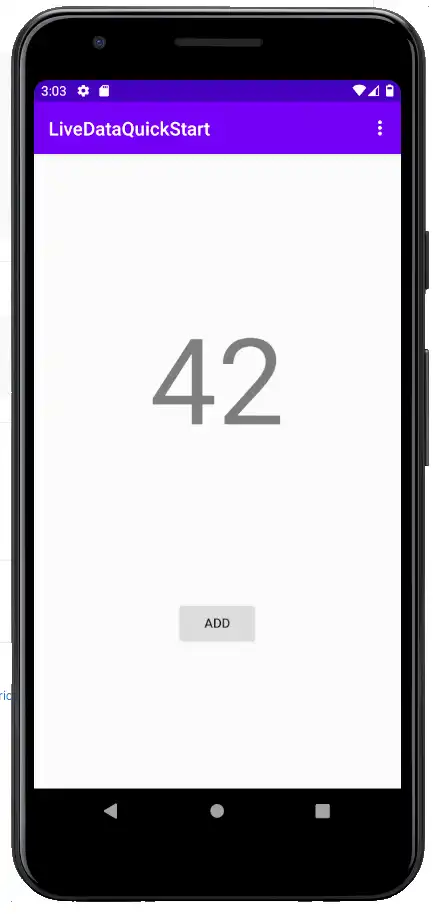
"ADD" ボタンをクリックすると、カウンターの値に 1 が追加されます。 Sync を使用すると、アプリのログを表示して個々の増分イベントを確認できます。 Android LiveData はライフサイクルに対応しているため、画面をローテーションしたり、デバイスの RAM をクリアしてアプリケーションの状態を解放したりしても、アプリケーションの状態には影響しません。アプリケーションはシームレスに再開され、再開時にモデル シングルとに保存されている状態を使用してイベントに自動的に再サブスクライブする必要があります。カプセル化された LiveData インスタンス。
概要
LiveRealmObjectLiveRealmResultsAndroid LiveData でライブ Realm データをカプセル化するためのテンプレートとして、 クラスと クラスを使用します。ViewModel を使用して、基礎となるデータと、そのデータを表示する UI 要素を分離します。
DataBinding を使用すると、アクティビティやフラグメントで値を明示的に設定せずに、モデルデータと UI 要素間の関係を宣言できます。
フィードバック
このクイック スタート ガイドは役立ちましたか? ページの右側にあるフィードバック フォームで通知してください。