New in version 12.0.0.
Geospatial data, or "geodata", specifies points and geometric objects on the Earth's surface. With the geodata types, you can create queries that check whether a given point is contained within a shape. For example, you can find all coffee shops within 15 km of a specified point.
Cambiado en la versión 12.3.0: Datos geoespaciales compatibles con Atlas Device Sync
Realm Node.js SDK v12.3.0 and later adds support for geospatial data in Atlas Device Sync. This allows you to subscribe to geospatial queries in a synced realm. If you try to subscribe to a geospatial query with an older version of the SDK, you will receive a server error with a compensating write. For more information about managing your Sync subscriptions, refer to Manage Sync Subscriptions - Node.js SDK.
Para obtener más información sobre cómo consultar datos geoespaciales con Device Sync, consulte Datos geoespaciales en la documentación de App Services.
Geospatial Data Types
The Node.js SDK supports geospatial queries using the following data types:
GeoPoint
GeoCírculo
GeoBox
GeoPolígono
El SDK proporciona estos tipos de datos geoespaciales para simplificar la consulta de datos geoespaciales. No se pueden guardar estos tipos de datos directamente.
For information on how to persist geospatial data, refer to the Persist Geospatial Data section on this page.
GeoPoint
Un GeoPunto define una ubicación específica en la superficie terrestre. Todos los tipos de datos geoespaciales utilizan GeoPoints
para definir su ubicación.
GeoPoint can be one of three types:
Un objeto con:
latitude: a number valuelongitude: a number valuealtitude: an optional number value
CanonicalGeoPoint: an interface that satisfies the GeoJSON specifications for a pointGeoPosition: an array with longitude, latitude, and an optional altitude
A GeoPoint is used only as a building block of the other shapes: GeoCircle, GeoBox, and GeoPolygon. These shapes, and the GeoPoint type, are used in queries, not for persistance.
To save geospatial data to realm, refer to Persist Geospatial Data.
GeoCírculo
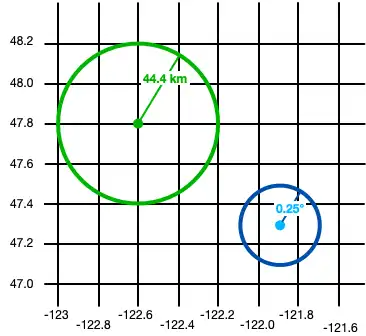
Un GeoCírculo define un círculo en la superficie de la Tierra. Defina un GeoCircle proporcionando lo siguiente:
A
GeoPointfor the center of the circleUn número para la distancia (radio) del círculo
The radius distance uses radians as the unit of measure. The SDK provides the methods kmToRadians and miToRadians to convert kilometers or miles to radians.
El siguiente código muestra dos ejemplos de cómo crear un círculo:
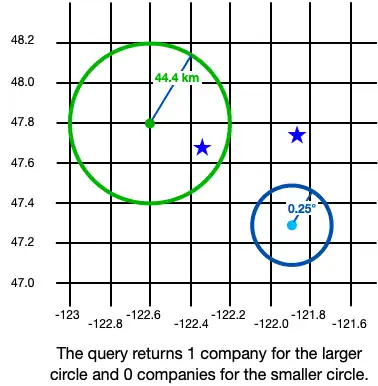
const smallCircle = { center: [-121.9, 47.3], // The GeoCircle radius is measured in radians. // This radian distance corresponds with 0.25 degrees. distance: 0.004363323, }; const largeCircleCenter = { longitude: -122.6, latitude: 47.8, }; // Realm provides `kmToRadians` and `miToRadians` // to convert these measurements. Import the relevant // convenience method for your app's needs. const radiusFromKm = kmToRadians(44.4); const largeCircle = { center: largeCircleCenter, distance: radiusFromKm, };
const smallCircle: GeoCircle = { center: [-121.9, 47.3], // The GeoCircle radius is measured in radians. // This radian distance corresponds with 0.25 degrees. distance: 0.004363323, }; const largeCircleCenter: GeoPoint = { longitude: -122.6, latitude: 47.8, }; // Realm provides `kmToRadians` and `miToRadians` // to convert these measurements. Import the relevant // convenience method for your app's needs. const radiusFromKm = kmToRadians(44.4); const largeCircle: GeoCircle = { center: largeCircleCenter, distance: radiusFromKm, };

GeoBox
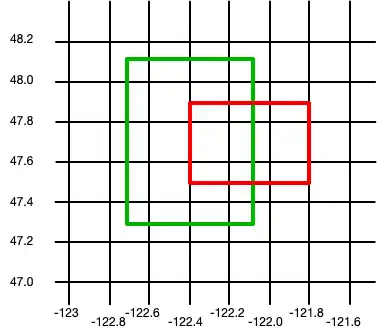
Un GeoBox define un rectángulo en la superficie terrestre. Se define especificando la esquina inferior izquierda (suroeste) y la esquina superior derecha (noreste). Un GeoBox se comporta de la misma manera que su GeoPolígono correspondiente.
El siguiente ejemplo crea 2 cajas:
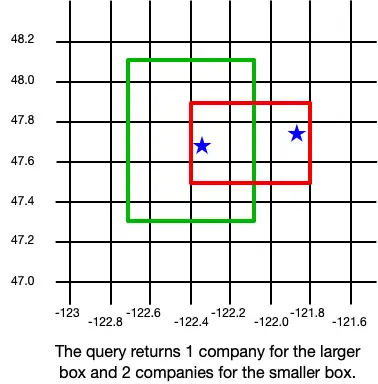
const largeBox = { bottomLeft: [-122.7, 47.3], topRight: [-122.1, 48.1], }; const smallBoxBottomLeft = { longitude: -122.4, latitude: 47.5, }; const smallBoxTopRight = { longitude: -121.8, latitude: 47.9, }; const smallBox = { bottomLeft: smallBoxBottomLeft, topRight: smallBoxTopRight, };
const largeBox: GeoBox = { bottomLeft: [-122.7, 47.3], topRight: [-122.1, 48.1], }; const smallBoxBottomLeft: GeoPoint = { longitude: -122.4, latitude: 47.5, }; const smallBoxTopRight: GeoPoint = { longitude: -121.8, latitude: 47.9, }; const smallBox: GeoBox = { bottomLeft: smallBoxBottomLeft, topRight: smallBoxTopRight, };

GeoPolígono
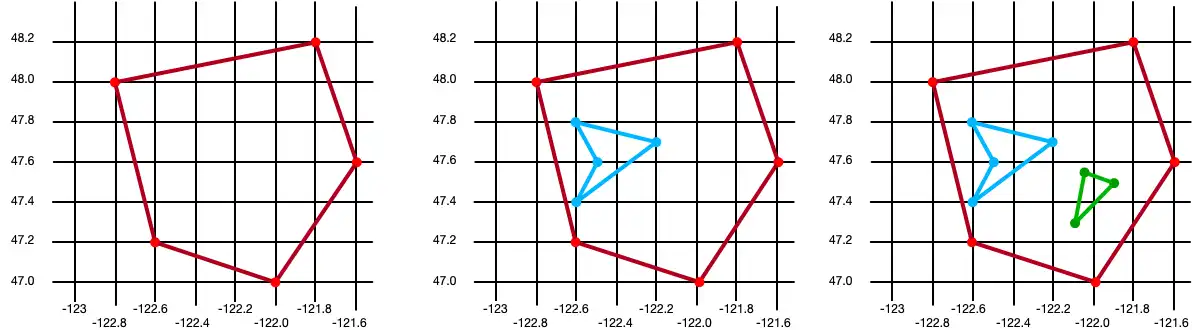
Un GeoPolygon define un polígono en la superficie de la Tierra. Dado que un polígono es una figura cerrada, debes proporcionar al menos 4 puntos: 3 puntos para definir la forma del polígono y un cuarto para cerrarlo.
Importante
The fourth point in a polygon must be the same as the first point.
You can also exclude areas within a polygon by defining one or more "holes". A hole is another polygon whose bounds fit completely within the outer polygon. The following example creates 3 polygons: one is a basic polygon with 5 points, one is the same polygon with a single hole, and the third is the same polygon with two holes:
// Create a basic polygon const basicPolygon = { outerRing: [ [-122.8, 48.0], [-121.8, 48.2], [-121.6, 47.6], [-122.0, 47.0], [-122.6, 47.2], [-122.8, 48.0], ], }; // Create a polygon with one hole const outerRing = [ [-122.8, 48.0], [-121.8, 48.2], [-121.6, 47.6], [-122.0, 47.0], [-122.6, 47.2], [-122.8, 48.0], ]; const hole = [ [-122.6, 47.8], [-122.2, 47.7], [-122.6, 47.4], [-122.5, 47.6], [-122.6, 47.8], ]; const polygonWithOneHole = { outerRing: outerRing, holes: [hole], }; // Add a second hole to the polygon const hole2 = [ { longitude: -122.05, latitude: 47.55, }, { longitude: -121.9, latitude: 47.55, }, { longitude: -122.1, latitude: 47.3, }, { longitude: -122.05, latitude: 47.55, }, ]; const polygonWithTwoHoles = { outerRing: outerRing, holes: [hole, hole2], };
// Create a basic polygon const basicPolygon: GeoPolygon = { outerRing: [ [-122.8, 48.0], [-121.8, 48.2], [-121.6, 47.6], [-122.0, 47.0], [-122.6, 47.2], [-122.8, 48.0], ], }; // Create a polygon with one hole const outerRing: GeoPoint[] = [ [-122.8, 48.0], [-121.8, 48.2], [-121.6, 47.6], [-122.0, 47.0], [-122.6, 47.2], [-122.8, 48.0], ]; const hole: GeoPoint[] = [ [-122.6, 47.8], [-122.2, 47.7], [-122.6, 47.4], [-122.5, 47.6], [-122.6, 47.8], ]; const polygonWithOneHole: GeoPolygon = { outerRing: outerRing, holes: [hole], }; // Add a second hole to the polygon const hole2: GeoPoint[] = [ { longitude: -122.05, latitude: 47.55, }, { longitude: -121.9, latitude: 47.55, }, { longitude: -122.1, latitude: 47.3, }, { longitude: -122.05, latitude: 47.55, }, ]; const polygonWithTwoHoles: GeoPolygon = { outerRing: outerRing, holes: [hole, hole2], };

Persist Geospatial Data
Importante
Cannot Persist Geospatial Data Types
Actualmente, solo se pueden persistir datos geoespaciales. Los tipos de datos geoespaciales no pueden persistirse directamente. Por ejemplo, no se puede declarar una propiedad que sea del tipo GeoBox.
Estos tipos solo pueden utilizarse como argumentos para consultas geoespaciales.
Si desea conservar datos geoespaciales, deben cumplir con la especificación GeoJSON.
Create a GeoJSON-Compatible Class
To create a class that conforms to the GeoJSON spec, you:
Create an embedded realm object. For more information about embedded objects, refer to Embedded Objects - Node.js SDK.
At a minimum, add the two fields required by the GeoJSON spec:
A field of type
double[]that maps to a "coordinates" (case sensitive) property in the realm schema.Un campo de tipo
stringque se asigna a una propiedad "tipo". El valor de este campo debe ser "punto".
To simplify geodata persistance, you can define a model that implements CanonicalGeoPoint, which already has the correct shape. The following example shows an embedded class named MyGeoPoint that is used to persist geospatial data:
class MyGeoPoint { type = "Point"; constructor(long, lat) { this.coordinates = [long, lat]; } static schema = { name: "MyGeoPoint", embedded: true, properties: { type: "string", coordinates: "double[]", }, }; }
// Implement `CanonicalGeoPoint` // for convenience when persisting geodata. class MyGeoPoint implements CanonicalGeoPoint { coordinates!: GeoPosition; type = "Point" as const; constructor(long: number, lat: number) { this.coordinates = [long, lat]; } static schema: ObjectSchema = { name: "MyGeoPoint", embedded: true, properties: { type: "string", coordinates: "double[]", }, }; }
Use the Embedded Class
You then use the custom MyGeoPoint class in your realm model, as shown in the following example:
class Company extends Realm.Object { static schema = { name: "Company", properties: { _id: "int", location: "MyGeoPoint", }, primaryKey: "_id", }; }
class Company extends Realm.Object<Company> { _id!: number; location!: MyGeoPoint; static schema: ObjectSchema = { name: "Company", properties: { _id: "int", location: "MyGeoPoint", }, primaryKey: "_id", }; }
Debes agregar instancias de tu clase al realm, igual que cualquier otro modelo Realm. Sin embargo, en este ejemplo, dado que la clase MyGeoPoint no extiende Realm.Object, debemos especificar MyGeoPoint.schema al abrir el realm:
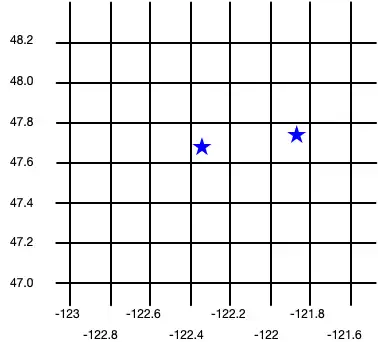
const realm = await Realm.open({ // `MyGeoPoint` does not extend `Realm.Object`, so you pass // only the `.schema` when opening the realm. schema: [Company, MyGeoPoint.schema], }); // Add geospatial object to realm. realm.write(() => { realm.create(Company, { _id: 6, location: new MyGeoPoint(-122.35, 47.68), }); realm.create(Company, { _id: 9, location: new MyGeoPoint(-121.85, 47.9), }); });
const realm = await Realm.open({ // `MyGeoPoint` does not extend `Realm.Object`, so you pass // only the `.schema` when opening the realm. schema: [Company, MyGeoPoint.schema], }); // Add geospatial object to realm. realm.write(() => { realm.create(Company, { _id: 6, location: new MyGeoPoint(-122.35, 47.68), }); realm.create(Company, { _id: 9, location: new MyGeoPoint(-121.85, 47.9), }); });
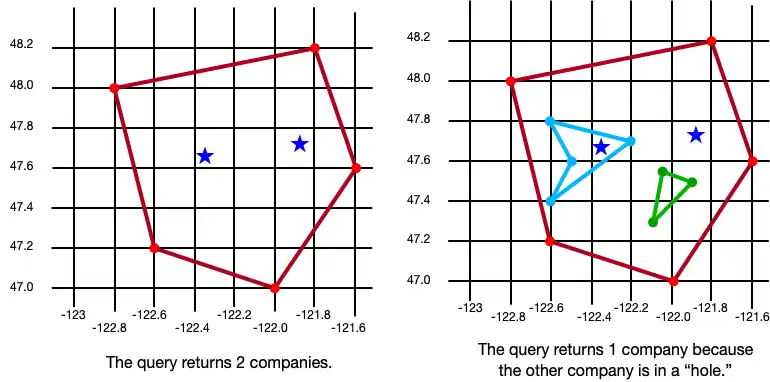
The following image shows the results of creating these two company objects.

Query datos geoespaciales
Para consultar datos geoespaciales, puede usar el geoWithin operador con RQL. El geoWithin operador toma la propiedad "coordenadas" de un objeto incrustado que define el punto consultado y una de las formas geoespaciales para comprobar si dicho punto está contenido en la forma.
Nota
The format for querying geospatial data is the same, regardless of the shape of the geodata region.
The following examples show querying against various shapes to return a list of companies within the shape:
GeoCírculo
const companiesInSmallCircle = realm .objects(Company) .filtered("location geoWithin $0", smallCircle); console.debug(`Companies in smallCircle: ${companiesInSmallCircle.length}`); const companiesInLargeCircle = realm .objects(Company) .filtered("location geoWithin $0", largeCircle); console.debug(`Companies in largeCircle: ${companiesInLargeCircle.length}`);
const companiesInSmallCircle = realm .objects(Company) .filtered("location geoWithin $0", smallCircle); console.debug(`Companies in smallCircle: ${companiesInSmallCircle.length}`); const companiesInLargeCircle = realm .objects(Company) .filtered("location geoWithin $0", largeCircle); console.debug(`Companies in largeCircle: ${companiesInLargeCircle.length}`);

GeoBox
const companiesInLargeBox = realm .objects(Company) .filtered("location geoWithin $0", largeBox); console.debug(`Companies in large box: ${companiesInLargeBox.length}`); const companiesInSmallBox = realm .objects(Company) .filtered("location geoWithin $0", smallBox); console.debug(`Companies in small box: ${companiesInSmallBox.length}`);
const companiesInLargeBox = realm .objects(Company) .filtered("location geoWithin $0", largeBox); console.debug(`Companies in large box: ${companiesInLargeBox.length}`); const companiesInSmallBox = realm .objects(Company) .filtered("location geoWithin $0", smallBox); console.debug(`Companies in small box: ${companiesInSmallBox.length}`);

GeoPolígono
const companiesInBasicPolygon = realm .objects(Company) .filtered("location geoWithin $0", basicPolygon); console.debug( `Companies in basic polygon: ${companiesInBasicPolygon.length}` ); const companiesInPolygonWithTwoHoles = realm .objects(Company) .filtered("location geoWithin $0", polygonWithTwoHoles); console.debug( `Companies in polygon with two holes: ${companiesInPolygonWithTwoHoles.length}` );
const companiesInBasicPolygon = realm .objects(Company) .filtered("location geoWithin $0", basicPolygon); console.debug( `Companies in basic polygon: ${companiesInBasicPolygon.length}` ); const companiesInPolygonWithTwoHoles = realm .objects(Company) .filtered("location geoWithin $0", polygonWithTwoHoles); console.debug( `Companies in polygon with two holes: ${companiesInPolygonWithTwoHoles.length}` );