Overview
Esta página contiene información para integrar Realm rápidamente en su aplicación Electron. Para aprender a configurar una aplicación Electron con Realm sin usar marcos adicionales, consulte Instrucciones de configuración deElectron. Si ya has creado una aplicación con Create React Appo está interesado en integrar una aplicación React con Realm usando Electron, consulte las instrucciones de configuración de Electron con React.
Before you begin, ensure you have:
Nota
Version Requirement
Realm funciona con todas las versiones de Electron oficialmente compatibles. Recomendamos usar la última versión estable. Para ver las versiones de Electron oficialmente compatibles, consulta el documento de versiones de Electron.
Configuración
Set up Your Application Files
To begin developing your application, create an application directory:
mkdir myElectronApplication
Crear un index.html, main.js y renderer.js en el directorio raíz de su aplicación.
touch index.html main.js renderer.js
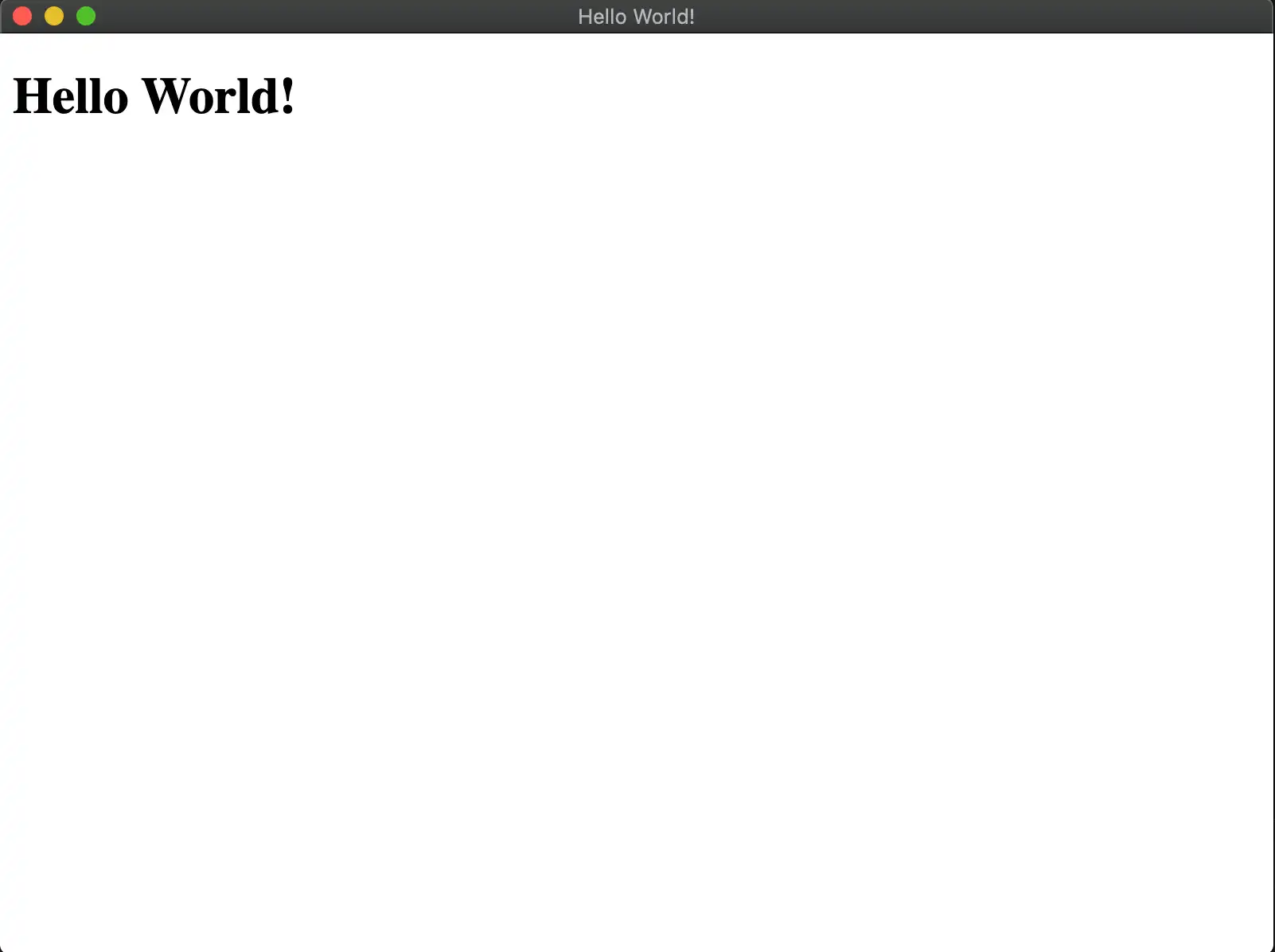
El main.js archivo es el punto de entrada a su aplicación y se ejecuta en el proceso principal. Es responsable de cargar su index.html archivo en la API BrowserWindow de Electron. Cualquier archivo de script que necesite en este archivo HTML se ejecutará en un proceso de renderizado. Añada lo siguiente a su index.html archivo:
<!DOCTYPE html> <html> <head> <meta charset="UTF-8" /> <title>Hello World!</title> </head> <body> <h1>Hello World!</h1> <script src="renderer.js"></script> </body> </html>
Agrega el siguiente código al archivo renderer.js:
const Realm = require("realm");
Nota
Cada aplicación Electron solo puede tener main process un. El proceso principal crea páginas web. Cada página web se ejecuta en su propio proceso, conocido renderer process como. Para obtener más información, consulte el documento oficial del Modelo de Proceso de Electron.
Create the Main Script File
The main.js file is the entry point of your application. Create an Electron BrowserWindow in it and load your index.html file to display your HTML to users:
const { app, BrowserWindow } = require('electron') function createWindow () { const win = new BrowserWindow({ width: 800, height: 600, webPreferences: { nodeIntegration: true, contextIsolation: false } }) // to prevent the Sync Connection from ending prematurely, start reading from stdin so we don't exit process.stdin.resume(); win.loadFile('index.html') } app.whenReady().then(createWindow)
Set up a package.json
Initialize a package.json to begin installing packages and using them in your project. Run the following command in your terminal:
npm init -y
Your application file structure should resemble the following:
. |-- package.json |-- package-lock.lock |-- index.html |-- main.js // runs on the main process |-- renderer.js // runs on a renderer process
El archivo main.js se ejecuta en el proceso main. El archivo renderer.js y los demás archivos necesarios para éste o para index.html se ejecutan en un proceso de tipo renderer.

Open a Realm
Authenticate a user, define a schema, and sync enabled Device Sync, then call Realm.open() in your renderer.js file.
Una vez que hayas abierto el realm, puedes guardar en el realm.
const app = new Realm.App({ id: "<Your App ID>" }); // create a new instance of the Realm.App async function run() { // login with an anonymous credential await app.logIn(Realm.Credentials.anonymous()); const DogSchema = { name: "Dog", properties: { _id: 'int', name: "string", age: "int", }, primaryKey: '_id' }; const realm = await Realm.open({ schema: [DogSchema], sync: { user: app.currentUser, partitionValue: "myPartition", }, }); // The myPartition realm is now synced to the device. You can // access it through the `realm` object returned by `Realm.open()` // write to the realm } run().catch(err => { console.error("Failed to open realm:", err) });
Nota
For an example of writing to a realm from both the renderer and main processes, check out the realm-electron-advanced-quickstart repository.
Nota
Current React Native binaries are included in the realm package. You can remove the binaries and the react-native directory from the build. In your package.json file, add a build.files entry and set its value to !**/node_modules/realm/react-native.