Change Data Capture features have existed for many years in the database world. CDC makes it possible to listen to changes to the database like inserting, updating and deleting data and have these events be sent to other database systems in various scenarios like ETL, replications and database migrations. By leveraging the Apache Kafka, the Confluent Oracle CDC Connector and the MongoDB Connector for Apache Kafka, you can easily stream database changes from Oracle to MongoDB. In this post we will pass data from Oracle to MongoDB providing a step by step configuration for you to easily re-use, tweak and explore the functionality.
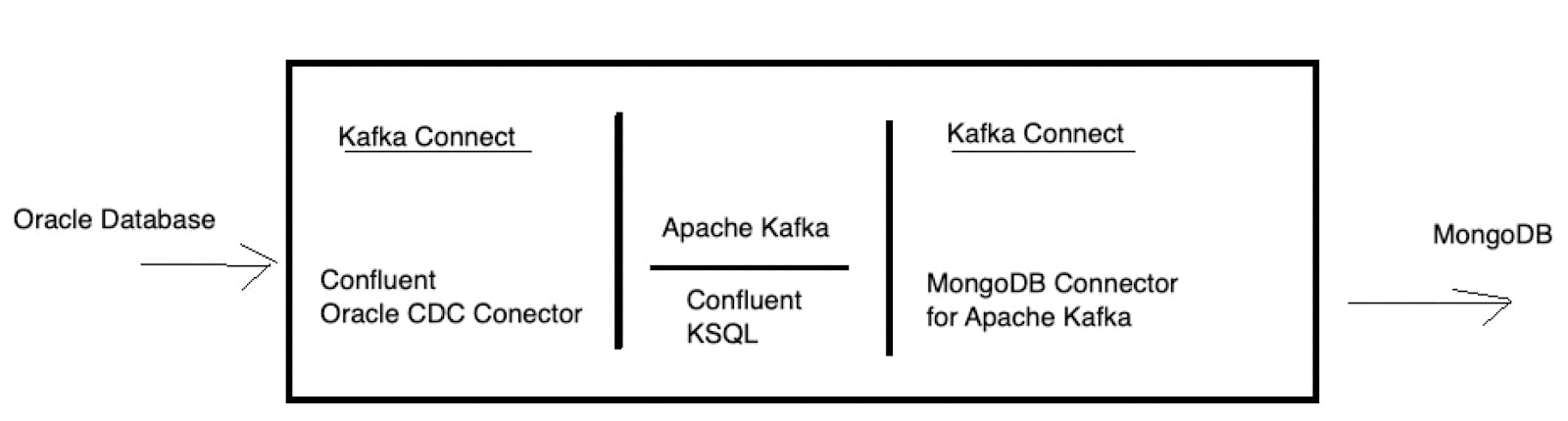
At a high level, we will configure the above references image in a self-contained docker compose environment that consists of the following:
- Oracle Database
- MongoDB
- Apache Kafka
- Confluent KSQL
These containers will be run all within a local network bridged so you can play around with them from your local Mac or PC. Check out the GitHub repository to download the complete example.
Preparing the Oracle Docker image
If you have an existing Oracle database, remove the section “database” from the docker-compose file. You will need to accept the Oracle terms and conditions and then login into your docker account via docker login then docker pull store/oracle/database-enterprise:12.2.0.1-slim to download the image locally.
Launching the docker environment
The docker-compose file will launch the following:
- Apache Kafka including Zookeeper, REST API, Schema Registry, KSQL
- Apache Kafka Connect
- MongoDB Connector for Apache Kafka
- Confluent Oracle CDC Connector
- Oracle Database Enterprise
The complete sample code is available from a GitHub repository.
To launch the environment, make sure you have your Oracle environment ready and then git clone the repo and build the following:
Once the compose file finishes you will need to configure your Oracle environment to be used by the Confluent CDC Connector.
Step 1: Connect to your Oracle instance
If you are running Oracle within the docker environment, you can use docker exec as follows:
Step 2: Configure
First, check if the database is in archive log mode.
If the mode is not “ARCHIVELOG”, perform the following:
Verify the archive mode:
The LOG_MODE should now be, “ARCHIVELOG”.
Next, enable supplemental logging for all columns
The following should be run on the Oracle CDB:
Next, create some objects
Step 3: Create Kafka Topic
Open a new terminal/shell and connect to your kafka server as follows:
When connected create the kafka topic :
Step 4: Configure the Oracle CDC Connector
The oracle-cdc-source.json file in the repository contains the configuration of Confluent Oracle CDC connector. To configure simply execute:
Step 5: Setup kSQL data flows within Kafka
As Oracle CRUD events arrive in the Kafka topic, we will use KSQL to stream these events into a new topic for consumption by the MongoDB Connector for Apache Kafka.
Enter the following commands:
To verify the steams were created:
SHOW STREAMS;
This command will show the following:
Step 6: Configure MongoDB Sink
The following is the configuration for the MongoDB Connector for Apache Kafka:
In this example, this sink process consumes records from the WRITEOP topic and saves the data to MongoDB. The write model, UpdateOneBusinessKeyTimestampStrategy, performs an upsert operation using the filter defined on PartialValueStrategy property which in this example is the "_id" field. For your convenience, this configuration script is written in the mongodb-sink.json file in the repository. To configure execute:
Delete events are written in the DELETEOP topic and are sinked to MongoDB with the following sink configuration:
This sink process uses the DeleteOneBusinessKeyStrategy writemdoel strategy. In this configuration, the sink reads from the DELETEOP topic and deletes documents in MongoDB based upon the filter defined on PartialValueStrategy property. In this example that filter is the “_id” field.
Step 7: Write data to Oracle
Now that your environment is setup and configured, return to the Oracle database and insert the following data:
Next, notice the data as it arrived in MongoDB by accessing the MongoDB shell.
The inserted data will now be available in MongoDB.
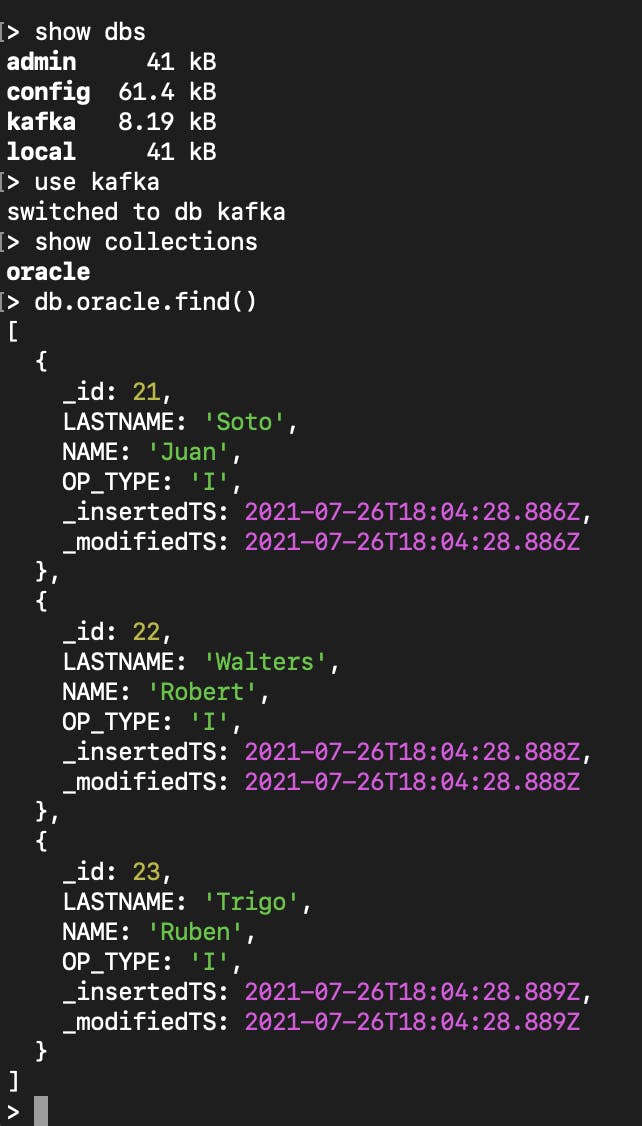
If we update the data in Oracle e.g.
The document will be updated in MongoDB as:
If we delete the data in Oracle e.g.
The documents with name=’Rob’ will no longer be in MongoDB.
Note that it may take a few seconds for the propagation from Oracle to MongoDB.
Many possibilities
In this post we performed a basic setup of moving data from Oracle to MongoDB via Apache Kafka and the Confluent Oracle CDC Connector and MongoDB Connector for Apache Kafka. While this example is fairly simple, you can add more complex transformations using KSQL and integrate other data sources within your Kafka environment making a production ready ETL or streaming environment with best of breed solutions.
The docker scripts and images used on this blog have been tested against Docker running on an Intel-based Macs, the Oracle image might not work with the Apple M1 Chipset.