Overview
This guide shows you how to create an application that uses the MongoDB Rust Driver to connect to a MongoDB cluster hosted on MongoDB Atlas. To learn how to connect to MongoDB by using a different driver or programming language, see our list of official drivers.
The Rust driver is a library of functions that you can use to connect to and communicate with MongoDB.
MongoDB Atlas is a fully managed cloud database service that hosts your MongoDB deployments. You can create your own free (no credit card required) MongoDB Atlas deployment by following the steps in this guide.
Follow the steps in this guide to connect a sample Rust application to a MongoDB Atlas deployment.
Download and Install
Install Rust and Cargo.
Ensure you have Rust 1.74 or later, and Cargo, the Rust package manager, installed in your development environment.
For information about how to install Rust and Cargo, see the official Rust guide on downloading and installing Rust.
Create a project directory.
In your shell, run the following command to create a
directory called rust_quickstart for this project:
cargo new rust_quickstart
When this command successfully completes, you have a Cargo.toml
file and a src directory with a main.rs file in your
rust_quickstart directory.
Run the following command to navigate into the project directory:
cd rust_quickstart
Install the Rust Driver.
Add the following crates to your project by including them in the
dependencies list located in your project's Cargo.toml file:
mongodb, the Rust driver crateserde, the serialization cratefutures, an asynchronous runtime crate that provides core abstractions
Tip
The mongodb crate resolves the bson crate, which is the primary
MongoDB data representation crate. You can omit the bson
crate in your dependencies list.
The driver supports both asynchronous and synchronous runtimes. To see example dependency lists for each runtime, select from the following Asynchronous API and Synchronous API tabs:
[dependencies] serde = "1.0.188" futures = "0.3.28" tokio = {version = "1.32.0", features = ["full"]} [dependencies.mongodb] version = "3.5.2"
[dependencies] serde = "1.0.188" [dependencies.mongodb] version = "3.5.2" features = ["sync"]
To learn more about asynchronous and synchronous runtimes, see the Asynchronous and Synchronous APIs guide.
After you complete these steps, you have Rust and Cargo installed and a new Rust project with the necessary driver dependencies.
Create a MongoDB Deployment
You can create a free tier MongoDB deployment on MongoDB Atlas to store and manage your data. MongoDB Atlas hosts and manages your MongoDB database in the cloud.
Create a free MongoDB deployment on Atlas.
Complete the MongoDB Get Started guide to set up a new Atlas account and load sample data into a new free tier MongoDB deployment.
After you complete these steps, you have a new free tier MongoDB deployment on Atlas, database user credentials, and sample data loaded into your database.
Create a Connection String
You can connect to your MongoDB deployment by providing a connection URI, also called a connection string. The connection string instructs the driver on how to connect to a MongoDB deployment and how to behave while connected.
The connection string includes the hostname or IP address and port of your deployment, the authentication mechanism, user credentials when applicable, and connection options.
To connect to an instance or deployment not hosted on Atlas, see Other Ways to Connect to MongoDB.
Find your MongoDB Atlas connection string.
To retrieve your connection string for the deployment that you created in the previous step, log in to your Atlas account and navigate to the Clusters page under the Database section. Click the Connect button for your new deployment.

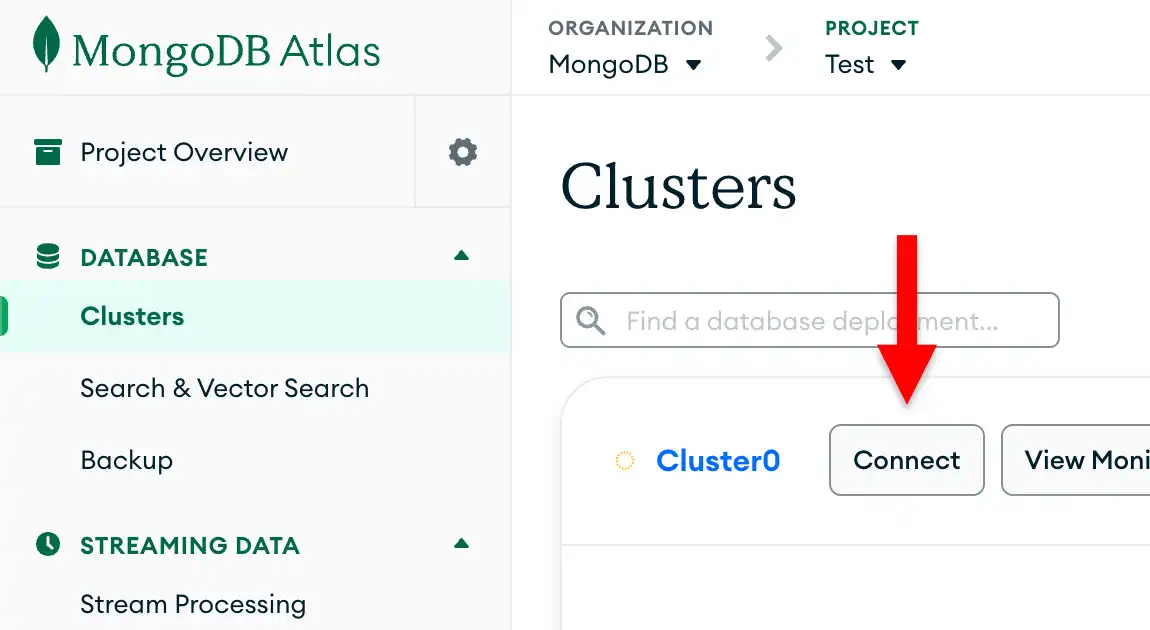
If you do not already have a database user configured, MongoDB prompts you to create and configure a new user.
Click the Drivers button under Connect to your application and select "Rust" from the Driver selection menu and the version that best matches the version you installed from the Version selection menu.
Ensure the View full code sample option is deselected to view only the connection string.

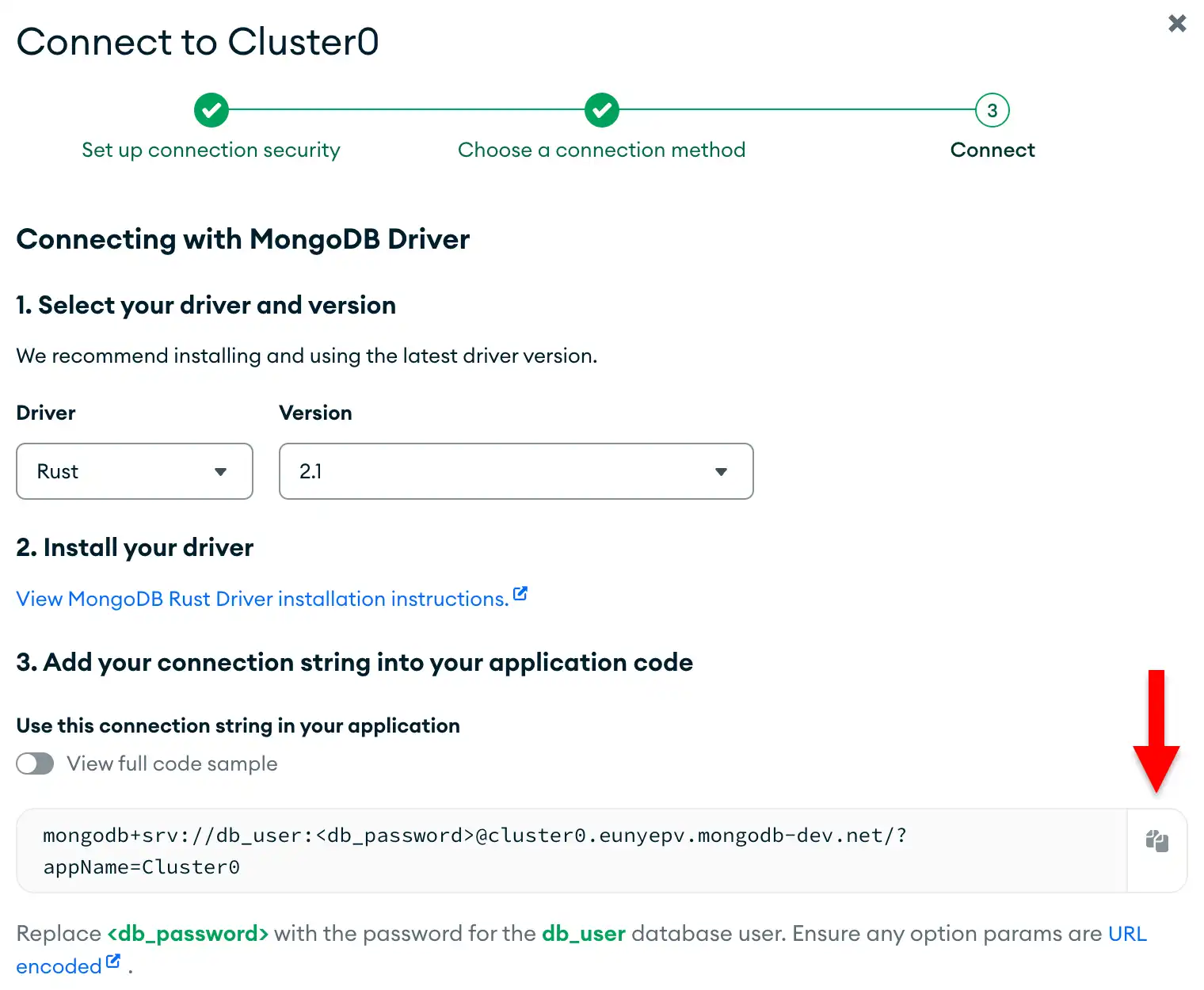
Update the password placeholder.
Paste this connection string into a file in your preferred text editor
and replace the <db_password> placeholder with your database user's
password. The connection string is already populated with your database
user's username.
Save this file to a safe location for use in the next step.
After completing these steps, you have a connection string that contains your database username and password.
Note
If you run into issues on this step, see the MongoDB Stack Overflow tag or the MongoDB Reddit community for general technical support, or see the Connection Troubleshooting guide.
Connect to MongoDB
Create your Rust application.
Open the file called main.rs in your
rust_quickstart/src project directory. In this file, you can
begin writing your application.
Copy and paste the following code into the main.rs file:
use mongodb::{ bson::{Document, doc}, Client, Collection }; async fn main() -> mongodb::error::Result<()> { // Replace the placeholder with your Atlas connection string let uri = "<connection string URI>"; // Create a new client and connect to the server let client = Client::with_uri_str(uri).await?; // Get a handle on the movies collection let database = client.database("sample_mflix"); let my_coll: Collection<Document> = database.collection("movies"); // Find a movie based on the title value let my_movie = my_coll.find_one(doc! { "title": "The Perils of Pauline" }).await?; // Print the document println!("Found a movie:\n{:#?}", my_movie); Ok(()) }
use mongodb::{ bson::{Document, doc}, sync::{Client, Collection} }; fn main() -> mongodb::error::Result<()> { // Replace the placeholder with your Atlas connection string let uri = "<connection string URI>"; // Create a new client and connect to the server let client = Client::with_uri_str(uri)?; // Get a handle on the movies collection let database = client.database("sample_mflix"); let my_coll: Collection<Document> = database.collection("movies"); // Find a movie based on the title value let my_movie = my_coll .find_one(doc! { "title": "The Perils of Pauline" }) .run()?; // Print the document println!("Found a movie:\n{:#?}", my_movie); Ok(()) }
Assign the connection string.
Replace the <connection string URI> placeholder with the
connection string that you copied from the Create a Connection String
step of this guide.
Run your Rust application.
From your rust_quickstart project directory, run the following command
to compile and run this application:
cargo run
The command line output contains details about the retrieved movie document:
Found a movie: Some( Document({ "_id": ObjectId(...), "title": String( "The Perils of Pauline", ), "plot": String( "Young Pauline is left a lot of money ...", ), "runtime": Int32( 199, ), "cast": Array([ String( "Pearl White", ), String( "Crane Wilbur", ), ... ]), }), )
If you encounter an error or see no output, ensure that you specified the
proper connection string in the main.rs file and that you loaded the
sample data.
Note
If you run into issues on this step, see the MongoDB Stack Overflow tag or the MongoDB Reddit community for general technical support, or see the Connection Troubleshooting guide.
After you complete these steps, you have a working application that uses the driver to connect to your MongoDB deployment, runs a query on the sample data, and prints out the result.
Next Steps
Congratulations on completing the quick start tutorial!
In this tutorial, you created a Rust application that connects to a MongoDB deployment hosted on MongoDB Atlas and retrieves a document that matches a query.
Learn more about the MongoDB Rust Driver from the following resources:
Discover how to perform read and write operations in the CRUD Operations section.
Learn how to apply CRUD concepts to build a simple web app with Rocket in the Create a CRUD Web App with Rocket tutorial.