After you create and test your code examples, you must format the code and snip the tested examples for inclusion in documentation.
Most test suites use a language-specific formatting tool to format the code examples. The formatting tool ensures that the code examples are formatted consistently and correctly.
Every test suite includes a provided snip.js script to snip the tested
examples for inclusion in documentation. The snip script copies the examples
and output files from the test suite to the content/code-examples/tested
directory. If you use markup in your example files, the snip script uses the
Bluehawk CLI to extract and transform the relevant code.
Select your interface and language for instructions on how to format and snip tested examples.
Use Tested Examples in Documentation
The snip script copies the tested examples to the content/code-examples/tested
directory. To make these examples available in your documentation project, you
need to create a symlink from the content/code-examples/tested directory
to your project's source/code-examples directory.
Symlinks
A symlink is a pointer to a different location in the
file system. The symlink is a reference that tells the file system where to find the actual source of the file.
This means that when Snooty resolves a .. literalinclude:: path
that goes through a symlink, it reads from the real file in the
content/code-examples/tested directory, not from the pointer inside your project.
In VS Code, you can identify a symlink by the small arrow icon (↪)
that appears on the folder in the Explorer panel. In the following
example, the tested folder has an arrow icon, which indicates that
it is a symlink rather than a real directory:

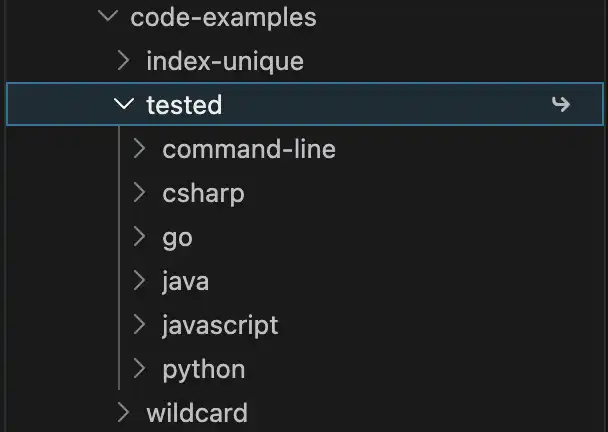
When you hover over the symlinked folder in VS Code, a tooltip displays
the path that the symlink points to, such as
../../../../code-examples/tested.
Warning
Do not delete or modify files from inside a symlinked directory. To remove a symlink from your project, delete the symlink itself, not the files inside it.
Check if a Symlink Exists
In the terminal, make sure you are in the directory you want to make a symlink
in. For example, to use code examples in the atlas project, cd to the
content/atlas/source/code-examples directory.
If you don't have a code-examples directory in your source directory,
you must create one. After you have created a code-examples directory,
refer to the instructions below to create the symlink.
If you do have a code-examples directory, use the following command to see
all the files in the directory:
ls -l
In the output, check for any names with this structure:
tested -> ../../../../code-examples/tested. If it exists, a symlink to the
tested code examples has already been created. If not, you must create one.
Tip
Versioned docs
Versioned docs projects require a symlink in each version directory. For
example, the manual project has a symlink in the manual, upcoming
v8.0 and v8.1 directories. It does not have a symlink in older
version directories.
If you are adding symlinks to your docs project for the first time, you must add a symlink to each version directory where you want to use the tested code examples.
Create a Symlink
To create a symlink, run the following command from your project's
source/code-examples directory:
ln -s ../../../../code-examples/tested
The nesting level may vary depending on whether the docs project
is versioned. Add or omit ../ as necessary to create the symlink to the
correct directory. Example: if creating a symlink in
manual/manual/source/code-examples, you should use four nesting
levels: ../../../../code-examples/tested.
After you create the symlink, check that it has been properly created using the steps outlined in Check if a Symlink Exists.
Refer to Tested Examples from a Docs Page
You can use the .. literalinclude:: or .. io-code-block::
directives to include the tested examples in your documentation.
Use the following file path structure to refer to the tested examples:
/code-examples/tested/<language>/<driver>/<path-to-example>
With a symlink in your source directory, you can work with the tested examples
as if they are in your local project. You do not refer to the content
directory in the file path.
Example
For example, you can refer to a tested example in the manual project like this:
.. literalinclude:: /code-examples/tested/javascript/driver/crud/insert.js :language: javascript :copyable: true :category: usage example